Connect a gateway
The first time you open Pincer, it walks you through connecting to your OpenClaw Gateway. You’ll find the gateway, sign in, approve this device, and finish with a quick setup of your default agent. Every step has Back, and the progress bar at the top shows where you are. If you quit partway through, Pincer picks up where you left off.
You can start the same flow any time with Add Gateway…. It’s in the gateway button’s menu at the top of the sidebar, under File ▸ Add Gateway… and in the menu bar on macOS, and in the command palette (⌘ K). It starts at Find your Gateway.
1. Welcome
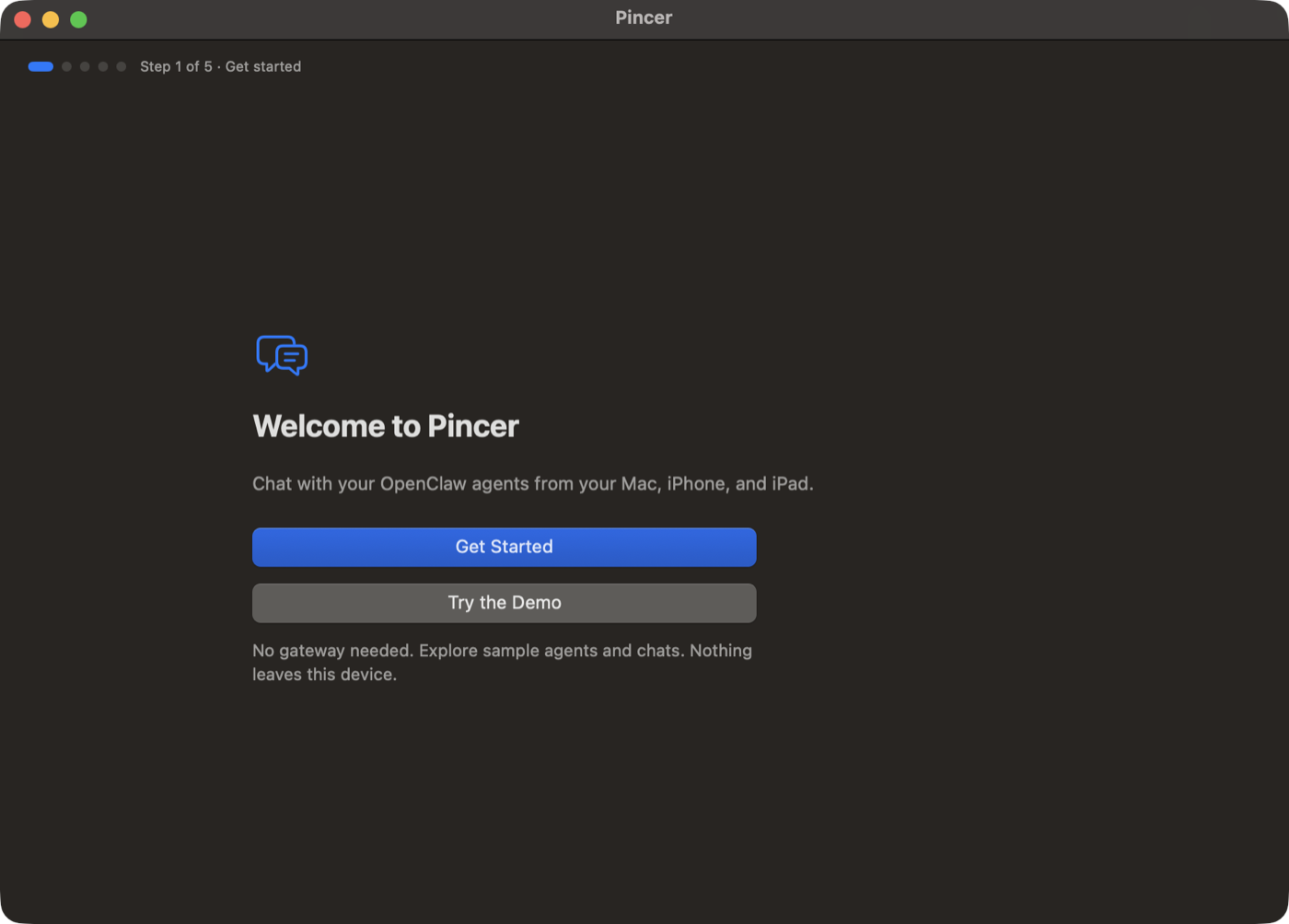
Section titled “1. Welcome”Choose Get Started. To look around first, choose Try the Demo, right below it (or press ⌘ D on a Mac). As the caption under it says: “No gateway needed. Explore sample agents and chats. Nothing leaves this device.” One tap takes you straight to the chat list, with no setup steps (see Try the demo).
macOS
2. Do you have a gateway?
Section titled “2. Do you have a gateway?”Pincer connects to a Gateway you run on your own computer or server. It never runs one itself.
- Yes, it’s running goes to the next step.
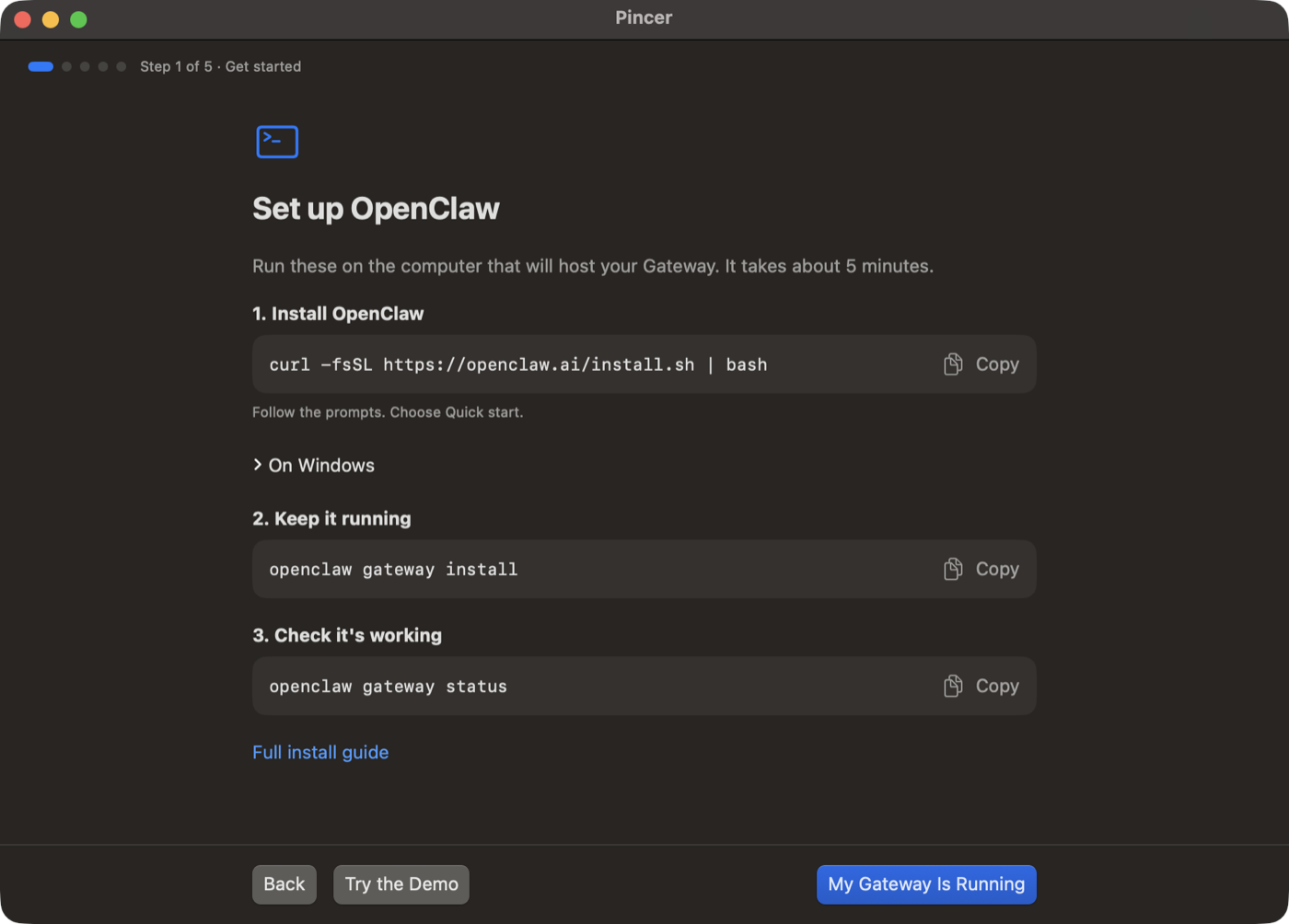
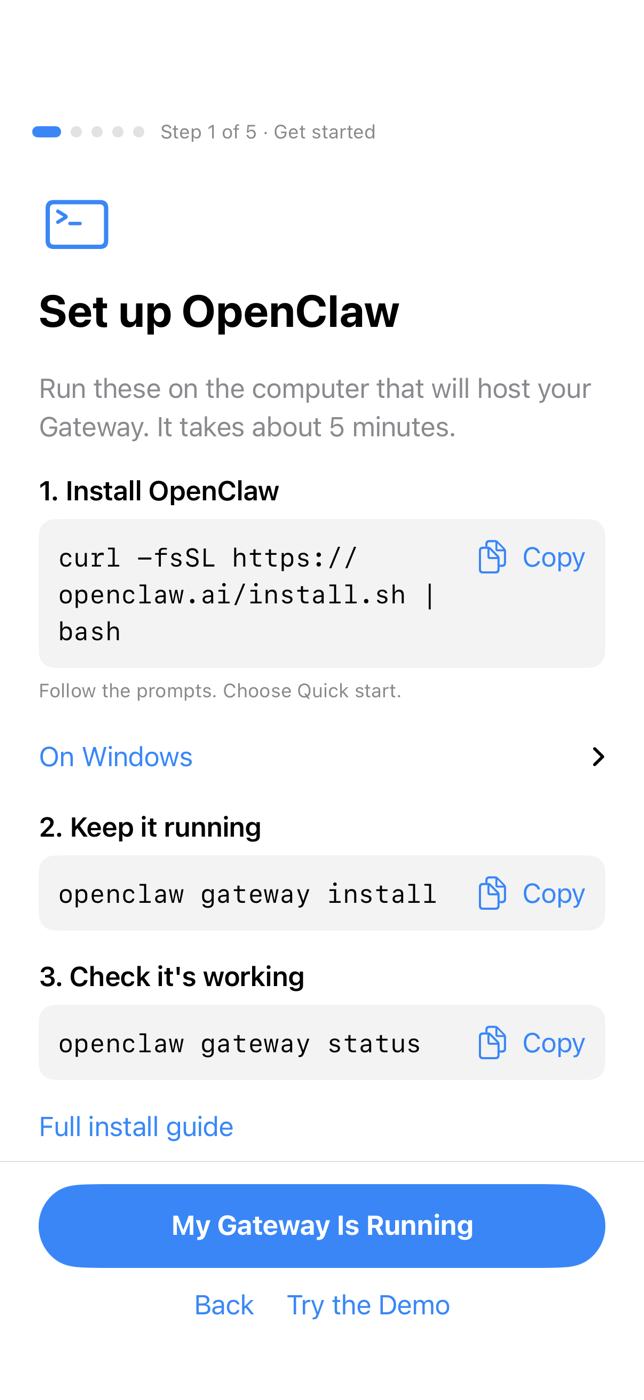
- No, help me set one up opens Set up OpenClaw with the commands below, each with a Copy button. Run them on the computer that will host your gateway, then choose My Gateway Is Running. Try the Demo is on this screen too.
macOS
iOS
-
Install OpenClaw. Follow the prompts and choose Quick start.
Terminal window curl -fsSL https://openclaw.ai/install.sh | bashTerminal window iwr -useb https://openclaw.ai/install.ps1 | iex -
Keep the gateway running in the background:
Terminal window openclaw gateway install -
Check that it’s working. It should say it’s listening on port 18789:
Terminal window openclaw gateway status
The full guide is OpenClaw’s Getting started.
3. Find your gateway
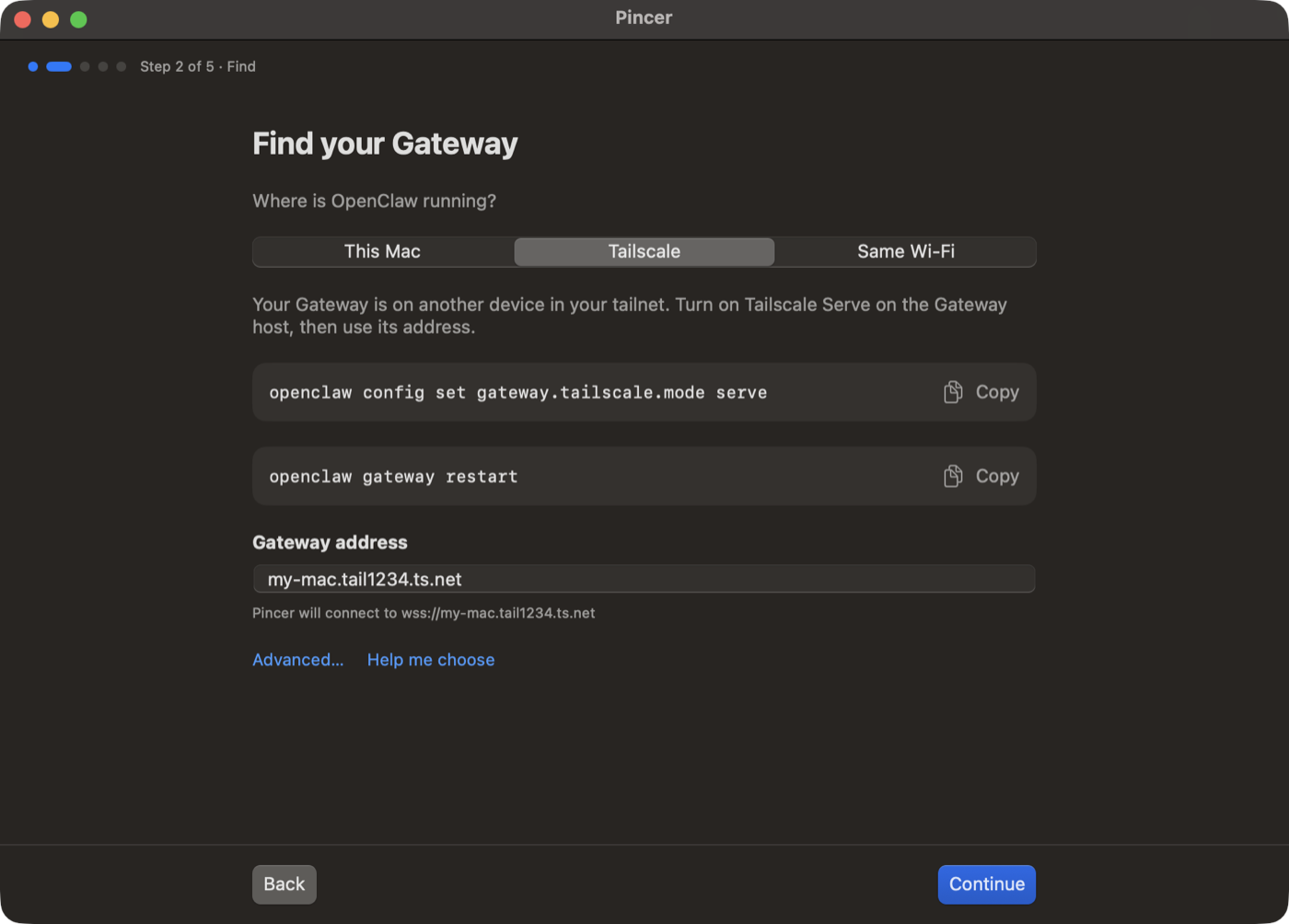
Section titled “3. Find your gateway”Tell Pincer where OpenClaw is running:
| Choice | When to use it | Address |
|---|---|---|
| This Mac (macOS only) | OpenClaw runs on the Mac you’re using. | Filled in for you: ws://127.0.0.1:18789 |
| Tailscale | Your gateway is on another device in your tailnet. The easiest way to reach it from an iPhone. | wss://my-mac.tail1234.ts.net |
| Same Wi-Fi | Your gateway is on this network and set to accept connections from it. | ws://192.168.1.20:18789 |
You can type just the host name or IP. Pincer fills in the rest and shows the full address it will use, such as Pincer will connect to wss://my-mac.tail1234.ts.net.
For Tailscale, turn on Tailscale Serve on the gateway host first. The gateway stays private to your tailnet:
openclaw config set gateway.tailscale.mode serveopenclaw gateway restartMore in Connect over Tailscale.
macOS
If your gateway announces itself on your network (Bonjour, _openclaw-gw._tcp), it also shows up under Nearby. Bonjour is on by default for gateways on macOS; on other hosts run openclaw plugins enable bonjour, and the gateway has to accept connections beyond loopback to be reachable. Choose it to fill in the address. You still sign in in the next step.
Choose Continue. Pincer checks that it can reach the gateway before moving on. If it can’t, it tells you why (see If something goes wrong) and the button becomes Try Again. If you’re sure the address is right, for example because the gateway is still starting, choose Continue Anyway next to Back. It’s only offered when the address itself is valid and secure.
4. Sign in
Section titled “4. Sign in”Paste your gateway’s token. To see it, run this on the gateway host:
openclaw config get gateway.auth.tokenIf your gateway uses a password, choose Use a password instead. To see it:
openclaw config get gateway.auth.passwordChoose Sign In. You only need to do this once per device. Pincer keeps the secret in the Keychain.
5. Approve this device
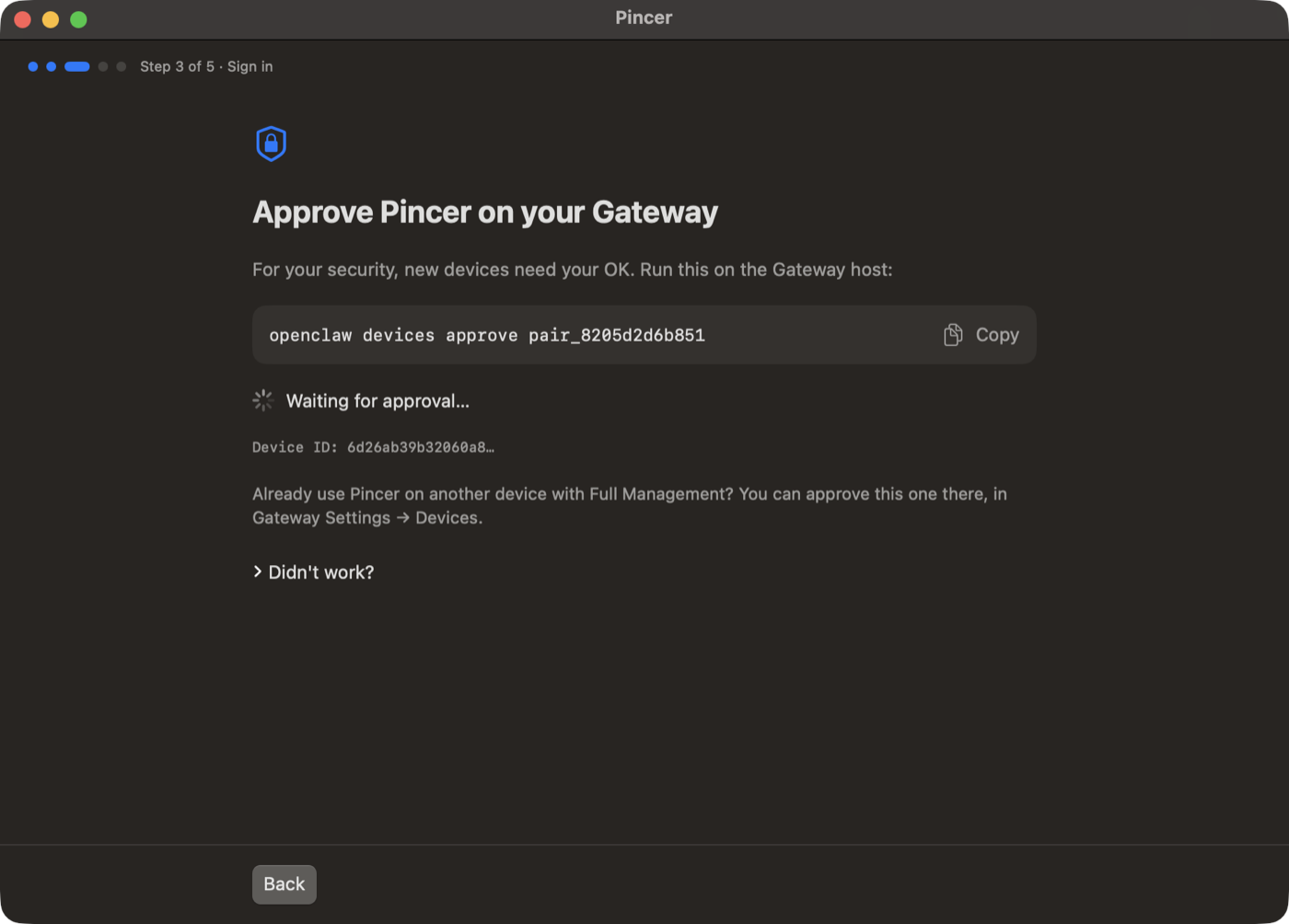
Section titled “5. Approve this device”For your security, the gateway has to approve each new device once. Pincer shows the exact command to run on the gateway host, with a Copy button:
openclaw devices approve <requestId>While it waits, Pincer shows Waiting for approval… and moves on by itself as soon as you approve it. If the request ID changes, for example after you reject a request, Pincer says “The request changed. Use this new command.” and shows it. Didn’t work? explains that the request ID may have changed and how to see every pending request:
openclaw devices listmacOS
6. You’re connected
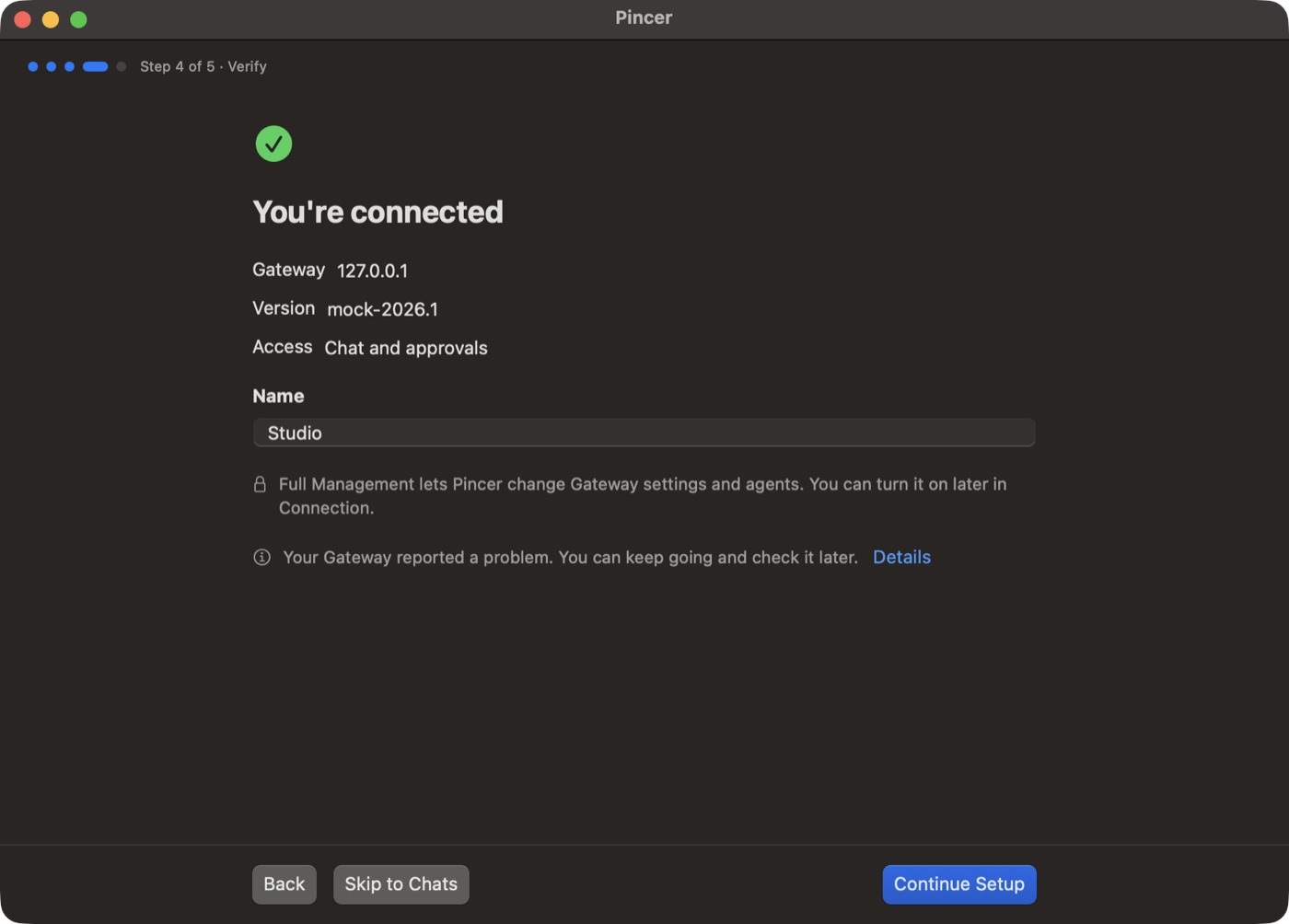
Section titled “6. You’re connected”Pincer shows the gateway’s name, its version, and what this device can do. You can change the Name Pincer uses for it.
If the gateway reports a health problem, you’ll see “Your Gateway reported a problem. You can keep going and check it later.” with Details, which opens the gateway’s Health page. It doesn’t stop you from continuing.
If it says Full Management isn’t on: Full Management lets Pincer change gateway settings and agents. You don’t need it to chat. You can turn it on later in Pincer Settings ▸ Gateways → Access (see Access levels).
Choose Continue Setup to pick your default agent and send a test message (see Set up a gateway), or Skip to Chats to start chatting. Either way, you land in your chat list with the new gateway selected.
macOS
If something goes wrong
Section titled “If something goes wrong”| What Pincer says | What to do |
|---|---|
| “That doesn’t look like a Gateway address.” | Check the address. It should look like wss://my-mac.tailnet.ts.net or ws://192.168.1.20:18789. |
| “For safety, Pincer only uses unencrypted ws:// on this Mac, your local network, or Tailscale.” | Use a wss:// address, such as Tailscale Serve. |
| “Can’t reach a Gateway at that address.” | Make sure OpenClaw is running (openclaw gateway status) and that this device can reach it. For Tailscale, check that Tailscale is connected on this device. |
| “Something answered, but it isn’t an OpenClaw Gateway.” | Check the address and port. The default port is 18789. |
| “Couldn’t make a secure connection to that address.” | If you use Tailscale Serve, check that HTTPS is enabled for your tailnet. |
| “That token didn’t work.” | Run openclaw config get gateway.auth.token again and paste the whole thing. |
| “That password didn’t work.” | Check the password and try again. |
| “This Gateway isn’t set up for that sign-in method.” | Switch between token and password. |
| “Too many tries.” | Wait a minute, then try again. |
| “This Gateway’s version doesn’t work with this Pincer.” | Update OpenClaw or Pincer. |
| “The Gateway turned down this device.” | Go back and try again, or approve the request with the command shown. |
More in Troubleshooting.
Switch gateways
Section titled “Switch gateways”Pincer shows one gateway at a time, including the demo. With more than one saved, switch between them:
- click or tap the gateway button at the top of the sidebar. It shows the selected gateway’s name and status. Its menu lists your saved gateways (choose one to switch), then Add Gateway… (Connect Your Gateway… when the demo is your only gateway), Leave Demo (while the demo is saved), Manage Gateways…, and for the selected gateway Gateway Settings…, Automations…, Setup Assistant… and Reconnect;
- on macOS, use the Gateway menu in the menu bar. It lists your gateways, Leave Demo while the demo is saved, Gateway Settings… (⇧ ⌘ ,) and Automations…, and has Next Gateway and Previous Gateway, which have no shortcut until you set one;
- press ⌘ K and choose Switch to name (type the gateway’s name, or “gateway”, to find it). This works on a Mac, and on an iPad or iPhone with a keyboard;
- on macOS, click the gateway in the menu bar extra, if you’ve turned it on.
Adding a gateway selects it once it’s connected.
Advanced connection settings
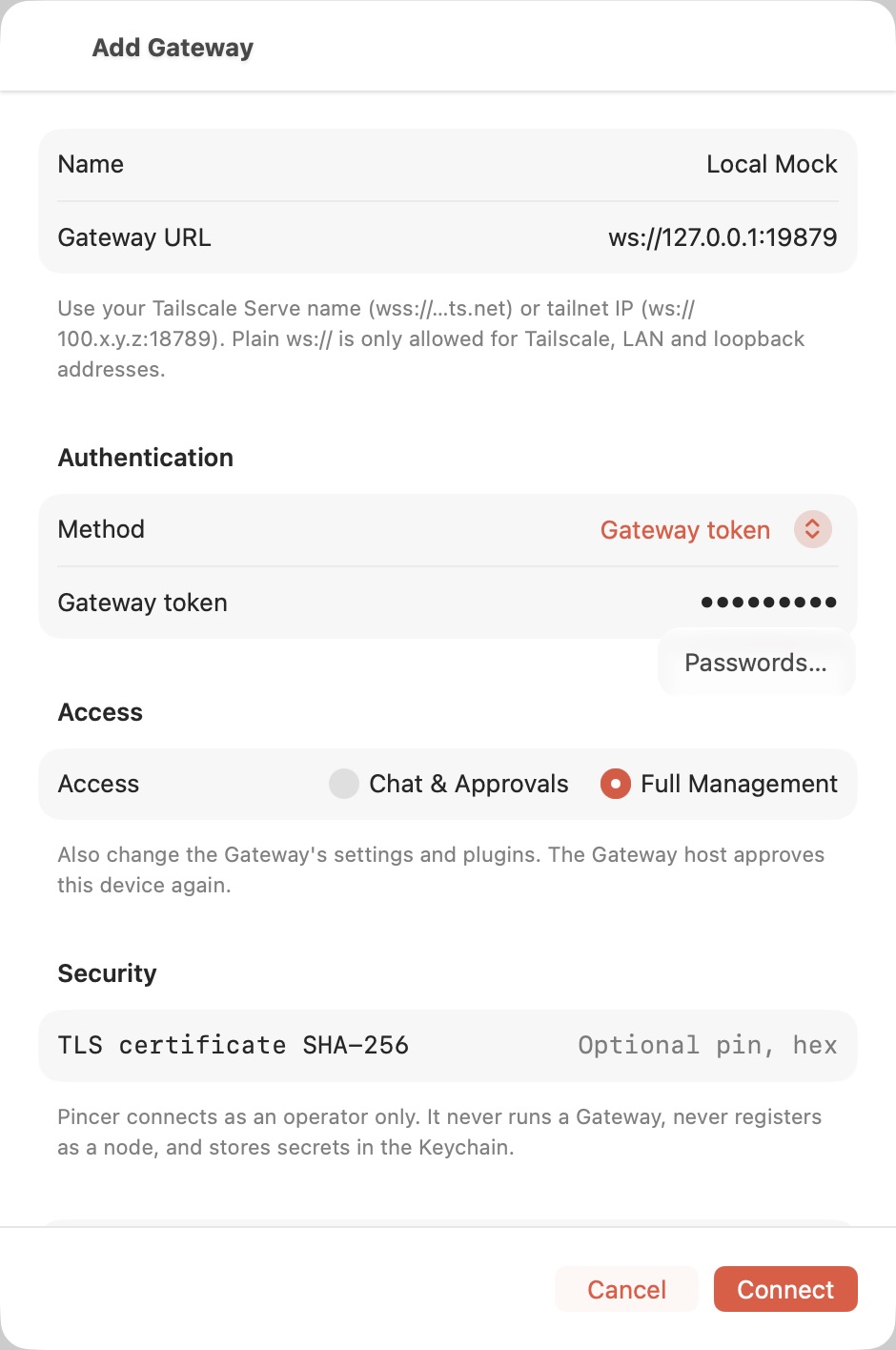
Section titled “Advanced connection settings”Most people never need these. Choose Advanced… on the Find your Gateway step to open the full connection form, or change them later in Pincer Settings ▸ Gateways. From Gateway Settings → Connection, choose Edit Connection…. See Manage gateways.
macOS
| Field | What it’s for |
|---|---|
| Authentication | Also offers Tailscale identity / none for gateways that don’t use a token or password. |
| Access | Chat & Approvals for everyday use, or Full Management to also edit gateway settings. |
| TLS certificate SHA-256 | Pins the gateway’s certificate by its fingerprint. If it doesn’t match, Pincer says “The Gateway’s certificate doesn’t match the fingerprint you entered.” |
Plain ws:// is only allowed for loopback, private LAN and Tailscale addresses. Anything else has to use wss://.
Access levels
Section titled “Access levels”| Level | Scopes | What you can do |
|---|---|---|
| Chat & Approvals (default) | operator.read, operator.write, operator.approvals, operator.questions |
Chat, read history, answer approvals and agent questions, and see Approval History. Gateway settings are read-only. |
| Full Management | Also operator.admin |
Also change the gateway’s settings and plugins. |
Switching to Full Management asks the gateway for more access, so the gateway host needs to approve the device again.
Where your secrets go
Section titled “Where your secrets go”Tokens and passwords are stored in the Keychain, never in preferences. The device identity is an Ed25519 key, also in the Keychain and marked this device only, so it doesn’t sync to other devices. More in Security & privacy.
Turn on thinking
Section titled “Turn on thinking”OpenClaw only stores the agent’s reasoning when the session’s reasoning level is on. To see it in Pincer, use the hint above the composer, choose Gateway Reasoning → Save & Stream from the chat’s ⋯ menu, or send:
/reasoning onSee Transcript, thinking & tools for how much of it to show.
 Pincer · MIT License
Pincer is an independent client and isn’t affiliated with the OpenClaw project.