Gateway health & restart
The Health page shows how your gateway is doing and lets you restart it without a terminal.
macOS
iOS
Opening it
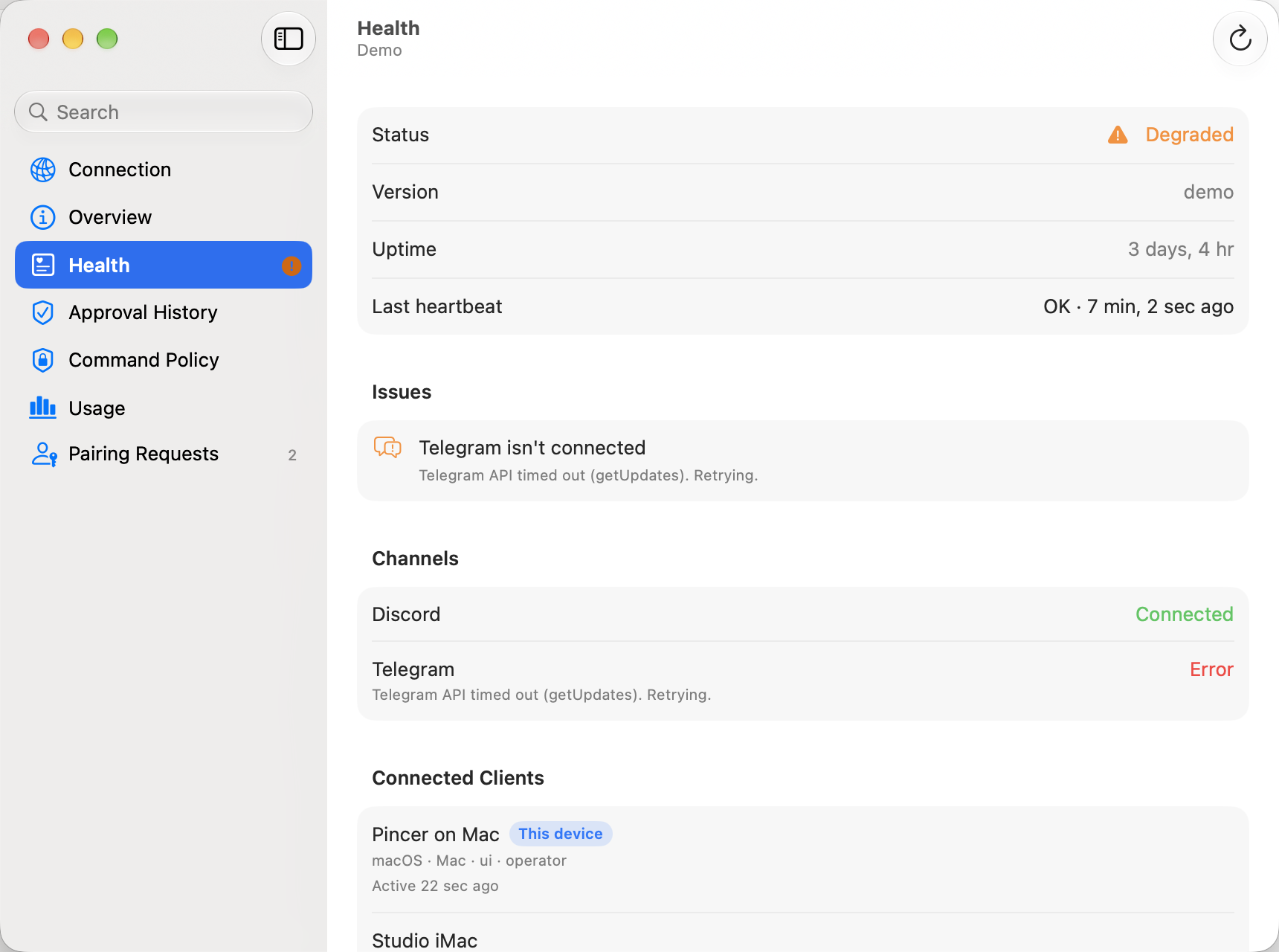
Section titled “Opening it”Open Gateway Settings and choose Health in the sidebar. The row gets an attention mark when the gateway is degraded (not counting dismissed issues) or needs a restart.
When something needs a look, a line at the top of the chat sidebar says so. Click or tap it to open the Health page:
| Line | Meaning |
|---|---|
| Gateway degraded · N issues | The gateway is up, but something on it isn’t working. It only counts issues you haven’t dismissed. |
| Restart needed to apply changes | A saved change only takes effect after a restart. |
| Restarting Gateway…, then Reconnecting… | A restart is under way. |
| Gateway hasn’t come back yet | A minute after a restart the gateway still isn’t answering. Pincer keeps trying; check the gateway host. |
A healthy gateway shows nothing there. In the demo, the line leaves out the sample Telegram issue until you’ve opened the Health page.
What’s on the page
Section titled “What’s on the page”- Summary: the level (Healthy, Degraded, Down or Restarting), the gateway’s version, how long it has been up, and the last heartbeat with its status (“No heartbeat yet” if there hasn’t been one).
- Issues: every reason the gateway counts as degraded, one per row:
- a channel account that’s enabled and set up but isn’t running, isn’t connected, or reported an error;
- plugins that failed to load or are unavailable;
- failed deliveries waiting in a queue;
- a quarantined context engine;
- a failed heartbeat, or one that’s more than twice its interval late while heartbeats are on.
- Synced preferences: when the Gateway rejects a synced setting, Health shows the affected feature, the Gateway’s message, and its preference key. The setting stays pending locally so a later edit can retry it. This includes bookmark shards; the Bookmarks page also shows bookmark-specific write errors.
- Dismissed: issues you dismissed, collapsed until you open it.
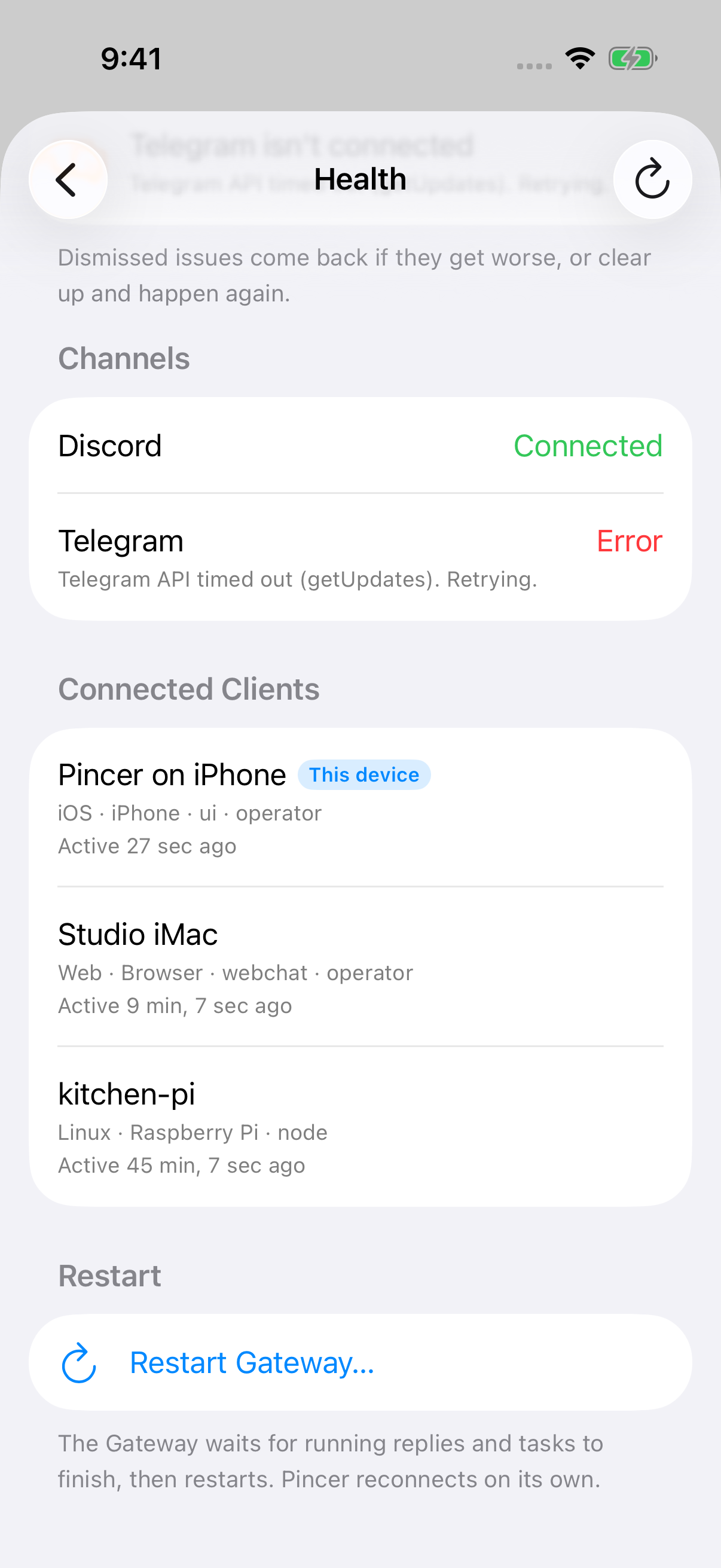
- Channels: each channel with its status (Connected, Degraded, Stopped…) and its last error. Status labels match Channel Status; Control-click or touch and hold a channel and choose Show in Channel Status to manage it.
- Connected Clients: the apps and nodes connected to the gateway right now, with their platform, role and last activity. This device is marked.
The page updates live from the gateway’s health and heartbeat events. Newer health and heartbeat events take precedence over older in-flight refreshes and errors for their respective sections. While it’s open, it asks the gateway again only if no health event has arrived for 30 seconds. Use Refresh in the toolbar, or pull down on iOS, to refresh now.
If your gateway doesn’t offer part of this, that section says Unavailable on this Gateway and the rest still works.
Dismissing issues
Section titled “Dismissing issues”Some issues are expected, like a channel account you keep set up but offline, or one old failed delivery. You can dismiss them so the gateway shows Healthy again.
- Mac: hover over the issue and click Dismiss, or Control-click it and choose Dismiss.
- iPhone and iPad: swipe left on the issue, or touch and hold it and choose Dismiss.
- VoiceOver: the Dismiss, Always Ignore and Restore actions are in the actions rotor.
A dismissed issue moves to the collapsed Dismissed (N) section. It doesn’t count toward Degraded, the sidebar line, the Overview badge or the Settings attention mark. When every issue is dismissed, the summary shows Healthy and “N dismissed issues”.
Until it changes
Section titled “Until it changes”Dismiss hides an issue until it changes:
| Issue | Comes back when |
|---|---|
| Channel account | its state changes (not running, not connected, error), or it stops or loses its connection again, even if no device running Pincer saw it recover. A new error message alone doesn’t bring it back. |
| Plugin failed to load | the error text changes |
| Failed deliveries | the count goes up. The same or a lower count stays hidden. |
| Heartbeat failed | the reason changes |
| Heartbeat late | the interval changes |
| Plugin unavailable, quarantined context engine | it clears and happens again |
Any issue also comes back if it clears up and happens again: when a device running Pincer sees a fresh result without the issue, it forgets the dismissal.
Always Ignore
Section titled “Always Ignore”For a channel account or a plugin you can choose Always Ignore This Account or Always Ignore This Plugin from the context menu. It stays hidden whatever changes, and stays listed under Dismissed even while the gateway isn’t reporting it, so you can restore it. Failed deliveries, context engines and heartbeats can’t be always ignored, since they point to lost messages or a stalled agent.
Restoring
Section titled “Restoring”Open Dismissed, then choose Restore from the context menu (swipe on iOS, or the hover button on the Mac). The issue goes back to Issues and counts again.
Fixing instead
Section titled “Fixing instead”For a channel account issue, the context menu has Reconnect Account (with Full Management; on iOS also a swipe right, and in the VoiceOver actions rotor), which stops and starts just that account; the issue clears once the refresh shows it working. For a logged-out WhatsApp or Zalo account it has Link with QR Code… instead, which opens the QR code in a sheet. Without Full Management these show as locked. Show in Channel Status opens the account on the Channel Status page. For channel, plugin and context engine issues, the context menu also has Restart Gateway… (with Full Management), which often fixes them. There’s no way to retry or clear failed deliveries from Pincer yet: the gateway doesn’t offer a method for it. That needs an upstream OpenClaw change; until then, dismiss the issue.
Syncing
Section titled “Syncing”Dismissals are stored in your gateway’s user preferences (pincer.healthDismissals, see Synced preferences), so your other devices signed in as you hide the same issues. Down, Restarting and “Restart needed” can’t be dismissed.
Restarting the gateway
Section titled “Restarting the gateway”- Choose Restart Gateway… and confirm. Running replies and tasks finish first; connected clients disconnect briefly.
- If work is still running, Pincer shows Waiting for N active tasks…. The gateway restarts on its own once they’re done, or choose Restart Now Anyway to ask it to skip the wait.
- Pincer shows Restarting… and Reconnecting…, then Gateway restarted with the new uptime.
If the gateway hasn’t come back after a minute, Pincer says Gateway hasn’t come back yet and keeps trying to reconnect. Check the gateway host.
When a setting you saved needs a restart, Gateway Settings says “Saved. Restart the Gateway to finish applying it.” and the Health page shows a banner with a Restart Gateway… button.
Current limits
Section titled “Current limits”- Health and restart have been tested against the demo and the mock gateway only, not a real gateway restart.
- Restart Now Anyway asks the gateway to skip waiting for active work. How quickly a real gateway restarts after that is up to the gateway.
- If a dismissed issue clears up and happens again while no device running Pincer is connected, it stays dismissed, unless it also changed (for example, more failed deliveries). Channel accounts that stop or lose their connection again are the exception, since the gateway records when that happened. A channel account dismissed with an older version of Pincer doesn’t get this until it clears up once or you dismiss it again.
- Pincer can’t retry or clear failed deliveries yet, since the gateway has no method for it.
- If the gateway shuts down without saying it will come back (for example
openclaw gateway stop), Pincer treats it as a stop, not a restart, and shows its usual reconnecting status.
Canceled refreshes do not replace a pending Health report or postpone the next staleness refresh.
 Pincer · MIT License
Pincer is an independent client and isn’t affiliated with the OpenClaw project.