Try the demo
Pincer has a built-in demo, so you can look around before you set up a gateway. It runs a simulated Gateway on your device. Nothing leaves your device. It includes:
- four agents: Claw 🦞, Scout 🔭, Forge 🛠️ and Kiko 🌕;
- a message from another agent: in Claw’s Main, Kiko, a finance agent, introduces herself to Claw;
- chats sorted into groups, with three of them pinned;
- two long chats (Japan trip and Home-lab migration) to scroll, page through and search;
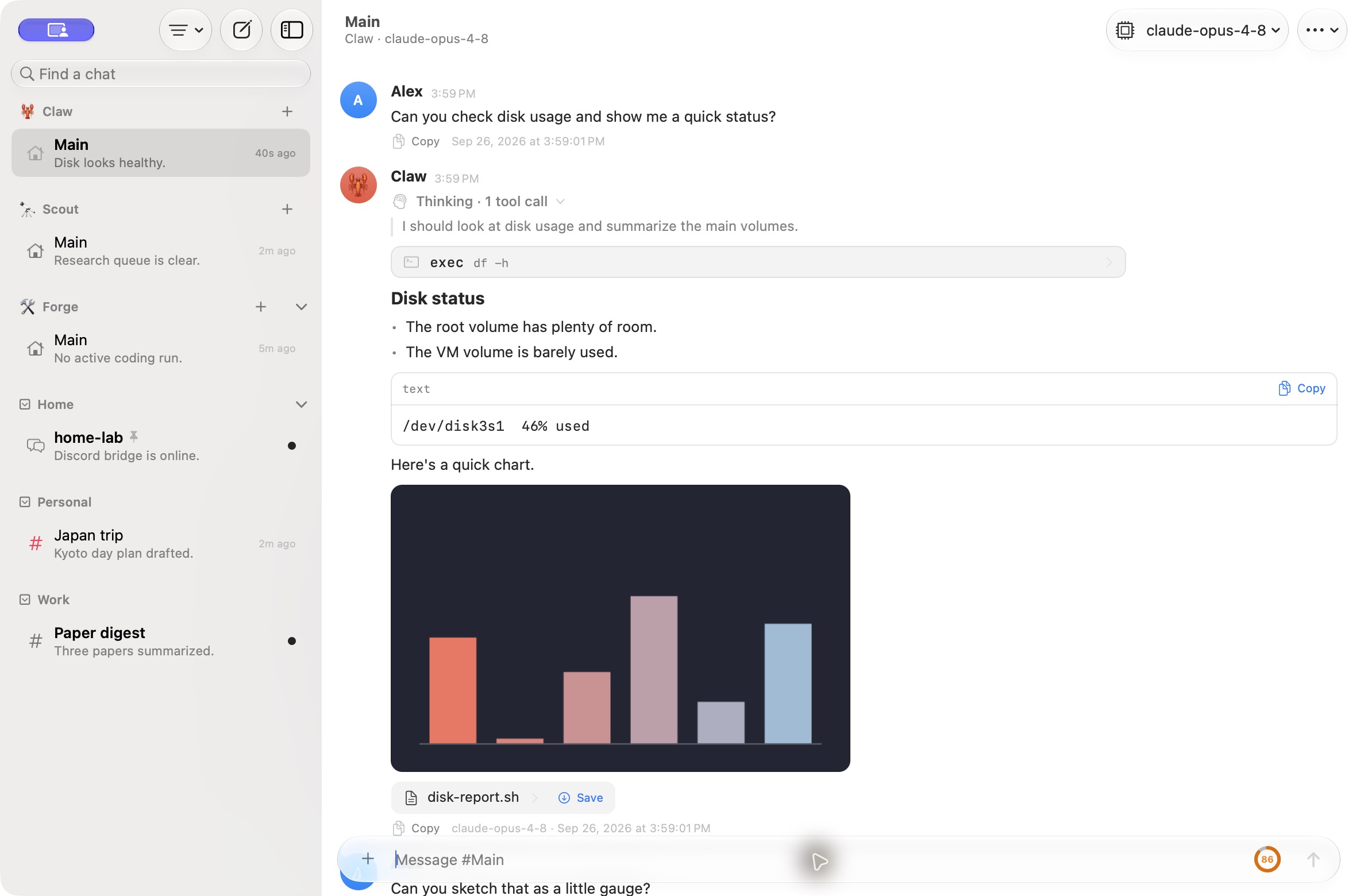
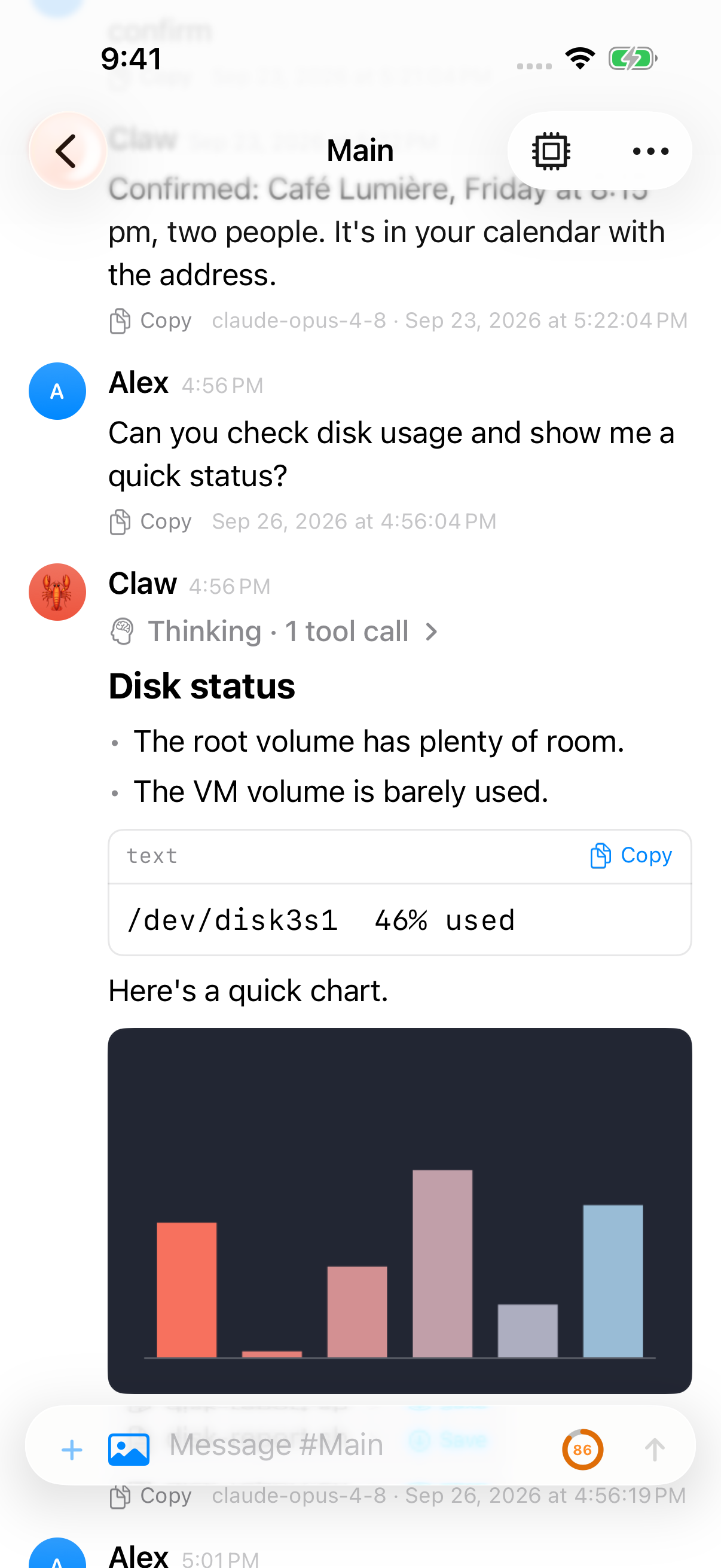
- streamed replies with thinking and tool cards, plus an inline chart;
- exec approvals, and a sample Approval History;
ask_userquestion cards and a task progress card;- a context meter on each chat, and compaction;
- an editable command policy, sample pairing requests, and devices to approve, rename or revoke, and nodes;
- device mode: Gateway Settings → This Device turns it on against the demo instantly;
- sample sessions to archive, delete, branch, rewind and recover;
- 90 days of sample usage and cost data;
- a live gateway log that keeps growing.
Open the demo
Section titled “Open the demo”Try the Demo is on the very first screen you see when you open Pincer, right under Get Started, with the caption “No gateway needed. Explore sample agents and chats. Nothing leaves this device.” One tap (or ⌘ D on a Mac) and you’re in. No gateway, account or network setup needed.
It’s also on the Set up OpenClaw screen, if you chose No, help me set one up.
The demo is saved like any other gateway, named Demo. You can leave it whenever you like.
Choosing Try the Demo takes you straight to the chat list, with no setup steps in the way. To try gateway setup on the demo too, choose Setup Assistant… from the gateway button at the top of the sidebar, the macOS Gateway menu, or ⌘ K.
macOS
iOS
Leaving the demo
Section titled “Leaving the demo”While the demo is open, the gateway button at the top of the sidebar shows Demo with a DEMO badge, without a status word. When the demo is your only gateway, its menu has Connect Your Gateway…. Otherwise it has Add Gateway…. The top of the chat list (sidebar, on macOS and iOS) shows a You’re in the Demo row with a Connect Your Gateway… button. That button always removes the demo and opens the usual Add Gateway flow: Find your Gateway, or, if the demo was your only Gateway, the setup wizard starting at Do you have a Gateway?. The demo’s page in Gateway Settings → Connection and in Pincer Settings ▸ Gateways has Connect Your Gateway… and Leave Demo.
To leave without adding anything, choose Leave Demo in any of these places:
- the gateway button’s menu at the top of the sidebar;
- Gateway Settings → Connection;
- Pincer Settings ▸ Gateways, where Remove Demo also deletes the demo’s sample chats and keeps your other gateways (open it with Manage Gateways… in the gateway menu);
- on macOS, the Gateway menu or File → Leave Demo (after Add Gateway…).
Setup Assistant… doesn’t leave the demo. It runs setup on the gateway that’s selected, which is still the demo.
To keep the demo and switch between it and your own gateway, see Switch gateways.
Leaving never touches your saved Gateways. If you connect a real gateway while the demo is still added, Pincer asks once, Remove the Demo?, with Remove Demo and Keep Demo. See Manage gateways. It deletes the demo’s sample chats, drafts and bookmarks from this device. To get a fresh copy, choose Add Gateway… → Try the Demo, or use the Welcome screen.
Trigger words
Section titled “Trigger words”Send a message and watch the reply stream in. A few words trigger special behavior, wherever they appear in your message:
| Include this | What happens |
|---|---|
tool or disk |
The agent streams a tool call, shown as a card with arguments and a result. |
image |
The reply also includes an inline chart. Click it for a Quick Look-style preview. |
approve |
The agent asks for an exec approval. Try Allow once, Always allow or Deny. |
approve once-only |
The same, but without Always allow, like a command the gateway won’t allow for good. |
approve later |
The reply finishes first, then an approval arrives a few seconds later. On a Mac, switch to another app or lock the screen and answer it from the notification. |
ask |
The agent asks a question with a card of choices. Pick one, type your own answer, or skip it. |
secret |
The agent asks for a Stripe API key with a secret question. Your answer is hidden as you type and goes to the demo’s secret store; the chat only shows that it was stored. |
plan |
A progress card above the composer ticks through three steps. |
long |
The agent streams a long, multi-page reply with a heading, lists, a code block, a table and a quote. |
/compact |
Compacts the chat’s context and shows the divider, with the token count before and after. |
Things to try
Section titled “Things to try”- Setup Assistant: open setup again from the gateway button, the macOS Gateway menu, or ⌘K → Setup Assistant…, and send the test message to the demo’s Setup Test chat.
- Approval History: open it from Gateway Settings or the command palette (⌘ K → Approval History…) to browse past decisions of every kind.
- Tool calls: open Check the MCP servers to expand a command, a failed command, an MCP tool call, a web fetch, a web search with its link list, and a coloured Swift file read. Durations show in the collapsed headers.
- Find in Chat: press ⌘ F (on iOS, use the chat’s ⋯ menu) and search for “onsen” in Japan trip.
- Scroll-to-bottom and Find while scrolled up: open Home-lab migration (about 70 messages, with a code block and a tool call), scroll up to see the scroll-to-bottom button appear, and use Find in Chat while you’re scrolled up. Its usage detail has activity for the same model shown in the transcript.
- Export and bookmarks: press ⇧ ⌘ E in Check the MCP servers to export it with its tool calls. Three messages are already bookmarked: open the Bookmarks section of the command palette to jump to them.
- Command palette: press ⌘ K to jump anywhere. ⌘ 1–⌘ 3 open the pinned chats, and ⌘ [ / ⌘ ] go back and forward.
- Quick Capture (macOS): press ⌃ ⇧ Space from any app and send a message into a demo chat.
- Retry a failed message: the last message in Dinner party failed to send. Behind it, a queued message carries a seating-plan photo. Retry the shopping list and the queued seating plan follows it. Choose Retry under the failed message (or in its context menu).
- Drafts: start typing in one chat, switch to another, and come back. Each chat keeps its own draft.
- Context ring: the ring by the composer shows how full a chat’s context is. Main is orange; Japan trip is red, so open the ring and choose Compact Now.
- Usage & Cost: open it from the command palette (⌘ K) or Gateway Settings to explore sample usage, model costs and rate limits. A chat’s Session Usage… opens its usage history.
- Sessions: open Gateway Settings → Sessions (or ⌘K → Manage Sessions…). Switch the filter to Archived or All, watch Refactor auth module’s run time count up until it finishes, select a few sessions to archive or delete, switch Garden planner to another branch or rewind it, and recover Photo import, which a simulated restart interrupted.
- MCP Servers: open Gateway Settings → MCP Servers to see sample servers in each state, sign in to linear or notion, and reconnect or edit them. See MCP Servers.
- Agents & Models: open Gateway Settings → Agents & Models to browse the demo’s named agents and sample default model. Open an agent’s page to try the Pet character picker; enable Animated avatars in Settings → Appearance if the Pet section is hidden. See Agent avatars.
- Command Policy: open Gateway Settings → Command Policy (or ⌘K → Command Policy…) to inspect and change the demo’s allowed commands and tools.
- The layout menu at the top of the sidebar, to switch between By server, By agent, By group and Recent (see Organizing chats).
- Typing
/in the composer to see slash commands. - Thinking Steps in the chat’s ⋯ menu, to choose how much of the agent’s work you see.
- Settings → Appearance, to try a different theme.
- Gateway Settings → Message Requests: review and approve or dismiss the sample people waiting to message your agents on Telegram and Discord.
- Gateway Settings → Operator Devices: approve or reject the sample devices waiting to pair, and rename or revoke paired ones. Revoking this device shows the warning without disconnecting anything real.
- Gateway Logs: open ⌘K → Gateway Logs… (or Gateway Logs in Gateway Settings) to watch the simulated gateway’s log grow. Send a message or trigger an approval and it shows up there. Try the level buttons, search, Pause and Export….
- Gateway Settings → Health: Telegram is disconnected, so the demo gateway shows Degraded. The chat sidebar doesn’t mention it until you’ve opened Health once; after that it shows Gateway degraded · 1 issue like a real gateway would. Inspect the channels, heartbeat and connected clients, then try Restart Gateway… to simulate a safe restart. Nothing real restarts; chats remain available and Telegram reconnects. Start a reply first to see the restart wait for it, then try Restart Now Anyway.
- Replies: in Main, “Can you sketch that as a little gauge?” is a reply that quotes the disk status. Click the quote to jump to it, or click Reply under any message (or press ⇧ ⌘ R) to reply yourself.
- Reactions: in Main, Claw reacted ✅ to your disk usage question, and you’ve reacted 👍 and 🎉 to its replies. Click React under a message, or click a chip to add or remove yours. In home-lab, Claw reacted 👀 to the sensor message, and your reactions there are also sent to the (simulated) Discord.
- Working on it: send a message and watch for a faint 👀 on it while the agent’s reply streams in.
- Menu bar (macOS): turn it on in Settings → General → Menu Bar. The demo’s pending approval,
git push origin fix/login-timeout, is listed under Needs You, and home-lab and Paper digest under Unread. Say approve in a chat to add another, and send any message to see the chat under Running while the reply streams. For about the first 90 seconds, Refactor auth module is listed under Running too, until its sample run finishes. The demo’s status reads Degraded until you restart it, because of Telegram.
See Keyboard shortcuts for the rest.
What the demo doesn’t do
Section titled “What the demo doesn’t do”- It doesn’t remember. Everything lives in memory and resets each time Pincer launches. If you answer a notification left over from a previous launch, you’ll see “That approval expired. Nothing was run.”
- No push notifications. There’s no push relay, and the demo never registers for push. Notifications come from Pincer itself while it’s running.
- The Share extension has its own demo. It runs in a separate process with its own demo instance, so it lists the demo chats and sends successfully, but the shared message won’t appear in the app’s demo.
- Limited administration. The demo simulates command policy, pairing requests, devices and nodes, sessions and gateway logs, not general Gateway Settings, automations or plugins. For broader administration workflows, use the mock gateway.
Search the demo’s messages
Section titled “Search the demo’s messages”Press ⇧⌘F (on a Mac, or an iPad with a keyboard), or type in the sidebar’s Find a chat field and choose Search messages for …, then try:
| Search for | What you’ll find |
|---|---|
backup |
Matches in five chats: a Time Machine backup in Claw’s Main, a backup script in Forge’s Main, a failed NAS backup in home-lab, a rainy-day backup plan in the Japan trip and Proxmox Backup Server in Home-lab migration. |
ghibli |
Ghibli Museum ideas in the Japan trip’s older history, well above what’s loaded when you open the chat. |
cafe |
Café Lumière in Claw’s Main and a sentō turned café in the Japan trip. Accents and case don’t matter. |
todai |
Tōdai-ji in the Japan trip. The macron over the ō doesn’t matter. |
ramen |
Lots of matches in the Japan trip. Choose More matches in Japan trip… to open Find in Chat on all of them. |
Picking a result opens the chat with that message highlighted. See Search messages for the matching rules.
Try Shortcuts and Siri
Section titled “Try Shortcuts and Siri”Pincer’s Shortcuts & Siri actions work with the demo too, with no gateway or pairing needed. Open the demo once, then try:
- “What’s unread in Pincer”. The demo starts with three unread chats: home-lab, Forge (Forge’s main chat) and Paper digest.
- “Pending approvals in Pincer”. The demo starts with one, from Forge:
git push origin fix/login-timeout. Answer it in Pincer, and Forge follows up in its main chat with “Pushed fix/login-timeout to origin.” or “OK, I won’t push.” - “Ask Pincer”, and ask anything. Siri reads the demo agent’s reply back to you.
- the same actions in the Shortcuts app, where the demo’s agents and chats show up in the pickers.
If you’ve also added your own gateway, pick Demo as the action’s gateway, or select the demo in Pincer first.
Actions always use the app’s own demo, and start it if it isn’t running yet, even in the background on iOS. So messages you send and chats you start from Shortcuts or Siri show up in Pincer. The sample data resets when Pincer relaunches.
Sample usage and cost
Section titled “Sample usage and cost”The demo comes with 90 days of made-up usage, busiest in the last month, so the Usage page has something to show. Open it with Usage & Cost… in the command palette or from Gateway Settings.
- Dashboard: daily spend that varies from day to day and drops on weekends, across four agents (Claw, Scout, Forge and Kiko) and five models from Anthropic, OpenAI, Google and a local Ollama model. Each chat’s usage is billed to the model shown in its toolbar.
gpt-5.6-solhas some unpriced requests every few days, so its cost is marked partial (*). The Ollama model has no pricing at all, so its session’s cost shows as —. - Rate limits: Claude’s 5-hour window is at 92% (red) and resets within the hour, next to weekly windows. OpenAI has a daily request window, a credit balance and a monthly budget that matches the demo’s OpenAI spend. Gemini shows a sign-in error, and Ollama says local models aren’t metered.
- Session drill-down: choose Session Usage… from a demo chat’s ⋯ menu, or double-click (macOS) or tap (iOS) a session on the dashboard, for its totals, a usage-over-time chart and a log of user, assistant, tool call and tool result entries that follows that chat’s conversation.
When you’re ready, choose Connect Your Gateway… in the demo, or connect your own gateway directly.
 Pincer · MIT License
Pincer is an independent client and isn’t affiliated with the OpenClaw project.