Set up a gateway
Once Pincer is connected to your gateway, choose Continue Setup to finish getting ready to chat. There are three short steps, and you can skip any of them:
- Agent & Model: pick the agent and model new chats start with.
- Skills (optional): see what extra abilities your agent has.
- Test Message: send a message to your agent and make sure it answers.
Setup doesn’t replace any settings. Each step shows a summary and links to the page where you’d change it. When you’re done, you land in your chat list with the gateway selected.
Start or resume setup
Section titled “Start or resume setup”On a new gateway, setup follows straight on from connecting. You can also open it any time the gateway is connected:
- choose Setup Assistant… from the gateway button at the top of the sidebar, the Gateway menu on macOS, or from the menu bar on macOS;
- press ⌘ K and choose Setup Assistant… (dimmed while the gateway is disconnected). Until setup is complete, it shows how many steps are settled. Searching for “set up gateway” finds it too;
- open Gateway Settings → Overview and choose Setup Assistant…. It shows Done once setup is complete.
The Setup Assistant works on the gateway that’s selected. To add a different gateway, use Add Gateway… instead (see Connect a gateway).
Pincer remembers each gateway’s progress separately, including after you relaunch. Setup opens on the first step that isn’t done or skipped yet.
Use the buttons at the bottom:
- Continue goes to the next step. On the last step it’s Finish.
- Skip moves on without changing anything.
- Back goes to the previous step.
- Close keeps your progress for later. When setup follows on from connecting, Skip to Chats takes its place at the top and goes straight to your chats.
Agent & Model
Section titled “Agent & Model”Pick a Default agent and Default model, then choose Save Defaults. Pincer saves them to the gateway: the agent’s agents.entries.<id>.default and agents.defaults.model.primary. If Gateway Settings has unsaved changes, save or discard those first. For anything more, such as adding agents or per-agent models, choose Open Agents & Models.
Saving needs Full Management. Without it, the step shows Needs Full Management: “This device can view but not change this. Open Connection to request Full Management.” When the defaults are already set, their status reads Current default rather than Done. You can still see the current defaults, or skip the step. Choose Open Connection…, then Edit Connection…, to change the access level in Pincer Settings ▸ Gateways (see Access levels). The demo uses standard access, so its configured defaults also show Current default.
Skills (optional)
Section titled “Skills (optional)”Skills add abilities to your agent, and you can add them any time. Skills that aren’t set up stay collapsed under Show N skills that aren’t set up; expand the list to see their names, plain-language requirement categories, and any installer options. That’s for information only: a skill that isn’t set up never counts as a problem, and you can continue straight past it. Open Skills takes you to the Skills page if you want to set one up now.
Test message
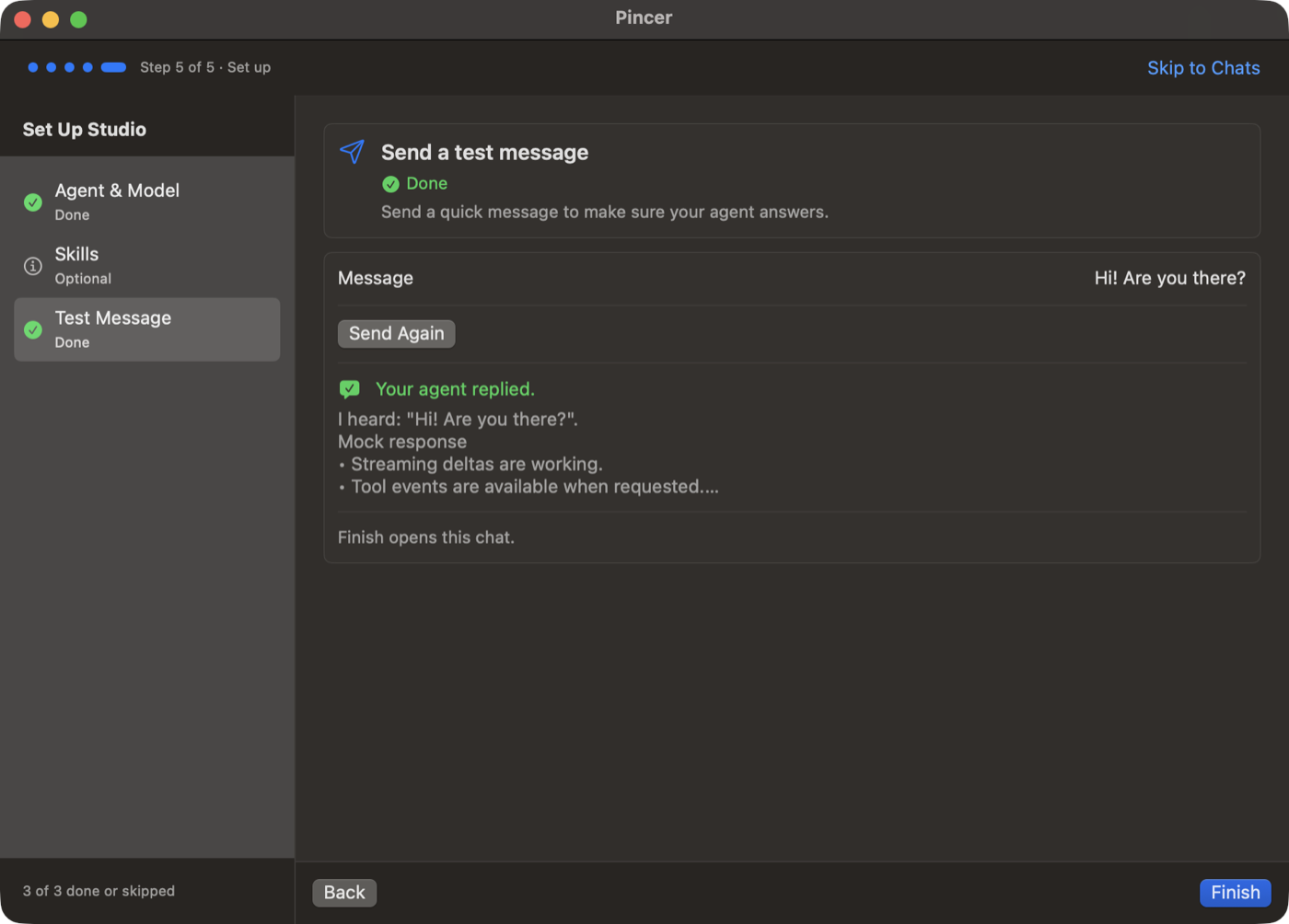
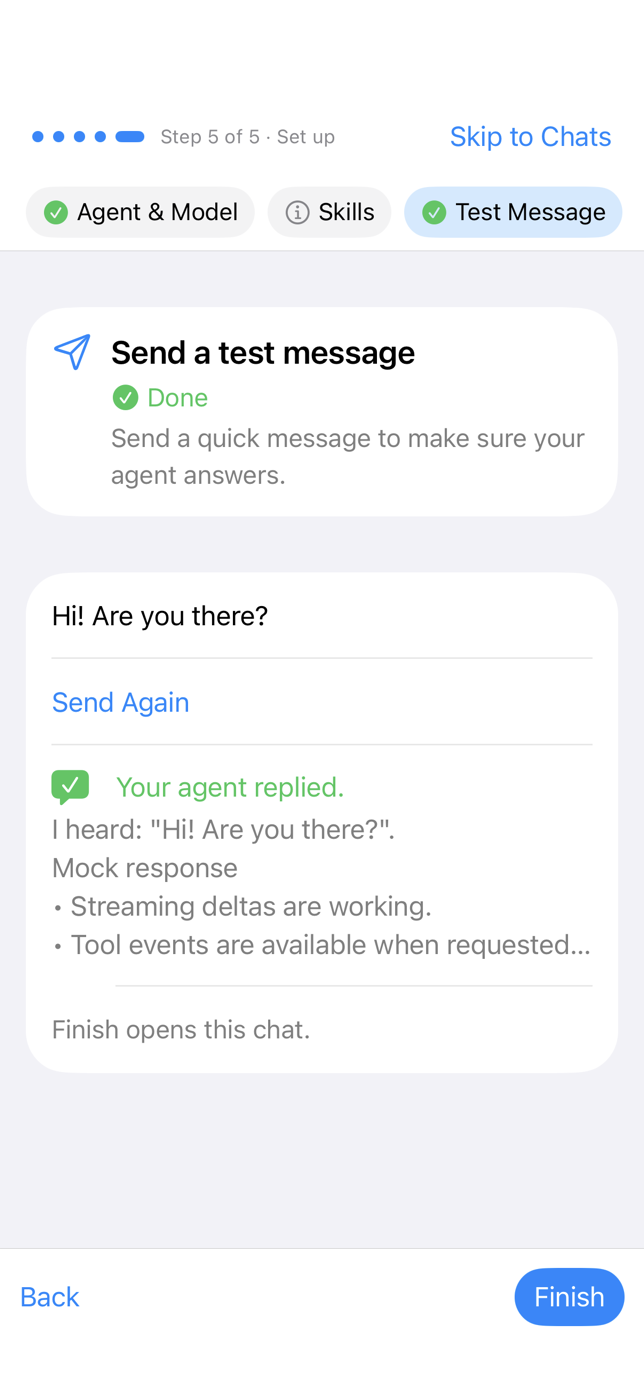
Section titled “Test message”The message starts out as “Hi! Are you there?” Choose Send, or type your own and press Return. As the step says, “Pincer starts a chat called Setup Test with Claw” (or whichever agent is your default). It starts that chat the first time and reuses it after that. While it waits, setup shows “Sent. Waiting for your agent…”. Choose Send Again to send another.
When the agent answers, setup shows Your agent replied. with the first few lines of the reply, and “Finish opens this chat.” Choose Finish to land in your chat list with the Setup Test chat selected, ready to keep talking. If the agent doesn’t answer, setup says “Your agent didn’t answer. You can try again, or skip and chat later.” Choose Try Again or Skip.
macOS
iOS
After setup closes, Pincer shows Tips once, after a short delay so you can read the chat first. On Mac and full-width iPad, Tips opens in a sheet and takes keyboard and VoiceOver focus; choose Got It or press Esc to close it. On iPhone, it appears as a short strip at the bottom of the chat list. It covers slash commands, /think, approvals, the command palette (⌘ K), Find in Chat (⌘ F) and searching all your messages. On iPad, the keyboard tips are marked (iPad keyboard); on iPhone they’re left out.
On iPhone the card is a short strip at the bottom of the chat list, above Find a chat, so your chats stay visible. It steps aside while a chat is open, so it never covers the composer. It shows one tip at a time: tap Next Tip to see the next one, or Got It to close it at any point.
If iOS or macOS is asking whether Pincer may send notifications, the card waits until you’ve answered.
To see it again, choose Show Tips Again under Settings → General → Tips. The card comes back the next time the main window is open.
Try it in the demo
Section titled “Try it in the demo”Try the Demo goes straight to the chat list, but you can open setup in the demo from the gateway button at the top of the sidebar, the Gateway menu on macOS, or ⌘ K → Setup Assistant…. It never saves your progress, so you can try it as often as you like. The demo connects with standard access, so Agent & Model shows Needs Full Management, and Test Message sends to a demo Setup Test chat and gets a demo reply. The demo shows the tips card again each time Pincer launches.
 Pincer · MIT License
Pincer is an independent client and isn’t affiliated with the OpenClaw project.