Composer & slash commands
Sending messages
Section titled “Sending messages”The message box keeps the selected chat’s name if its session row is briefly missing during a refresh. Switching to a different chat never borrows the previous chat’s name.
| Action | Keys |
|---|---|
| Send | Return |
| New line | ⇧ Return or ⌥ Return |
| Stop the current run | ⌘ . |
Return sends when you type on a hardware keyboard: on a Mac, and on iPad or iPhone with a keyboard attached. On the on-screen keyboard, Return starts a new line, and you send with the Send button.
Return does nothing when the message can’t be sent, such as when it’s empty, or it’s a slash command while you’re offline (⇧ Return still starts a new line). While you’re typing with an input method that composes text, such as Japanese or Chinese, Return confirms the candidate first; press it again to send.
If you’re offline, or a message can’t be sent, it stays in the chat marked Queued or Failed — Retry. See Offline sending & retry.
Location context
Section titled “Location context”In Settings → Privacy → Location, turn on Share location context with the agent. It starts off. With permission, Pincer requests a one-time location while the app is active and sends a recent fix as agent context. The context is separate from your message text. Pincer keeps the coordinates supplied by the device and reports the provider’s horizontal accuracy; system privacy settings may reduce precision.
Location acquisition happens separately from sending. If permission is denied, the device cannot obtain a fix, or the last observation is more than five minutes old, the message sends without location. Settings shows the current permission or acquisition status and offers recovery. Pincer uses one-shot requests while the app is active and clears its location cache when it goes into the background. This requires OpenClaw 2026.9.6 or newer; if an older Gateway explicitly rejects the work-context field, Pincer sends the authored message without location and shows a compatibility notice.
Slash and bang commands, edits, and regenerated messages do not add a new location. Share extensions do not acquire location. Queued messages retain the context captured when you sent them, and retrying does not replace it with your new position. Turning sharing off clears the device-location cache and stops future captures; to remove context already in a queued message, delete that message and send it again with sharing off. The Gateway can retain context metadata in chat history, but Pincer displays the original authored message text.
You can try the setting in the built-in demo; its canned reply can use the shared context while the user message remains unchanged.
Replying to a message
Section titled “Replying to a message”After you choose Reply on a message (see Replies), a Replying to chip sits above the composer with who wrote the message and how it starts. The composer takes focus, so you can start typing. Send as usual and your message is sent as a reply to that one, and the chip goes away.
The composer takes focus immediately even for a very long message; the short opening preview fills in separately. Sending before that preview appears still quotes the message you chose. Changing or canceling the chip afterward does not change a reply you have already sent. While its quote is being prepared, later messages in the same chat wait their turn; other chats can continue sending. The chip shows only a short opening of the original message. If Pincer cannot prepare that opening, it keeps your draft and asks you to choose Reply again; it does not send an empty or outdated quote.
- To cancel, click the ✕ in the chip, or press Esc. When slash command suggestions are showing, Esc hides them first.
- Choosing Reply on another message replaces the one you’re replying to.
- Each chat keeps its own reply while you switch between chats. Replies aren’t saved in drafts, so they’re gone after you quit Pincer.
- Slash commands aren’t sent as replies. The chip stays for your next message.
- Replies you send while offline are queued with the rest of your messages and still go out as replies. See Offline sending & retry.
The gateway gives the agent the message you replied to, so your text is sent as you wrote it. Older gateways don’t accept replies. With those, Pincer quotes the original at the start of your message instead, as > **Claw:** …, and keeps doing so on that connection.
Reply Last chooses the newest committed message that can receive a reply. A committed user message is available immediately. While Pincer checks a newly received assistant message, Reply Last can be unavailable briefly; it becomes available when the check finishes. It waits for the correct target instead of choosing an older message.
Attachments
Section titled “Attachments”Paste or drag in images and files, or pick them with the + button next to the text box. It opens a menu:
- On iPhone and iPad: Take Photo (only on devices with a camera), Photo Library (up to 6 photos at a time), Choose File… and Paste Image. The first time you take a photo, iOS asks for camera access. If you’ve turned it off, Pincer tells you to allow it in Settings → Privacy & Security → Camera.
- On the Mac: Choose File… and Photos…, which picks from your Photos library.
Images are downscaled to fit the gateway’s limits before they’re sent. The + button is unavailable while attachments need a connection.
While you’re offline, attachments queue with their message and go out when you reconnect, even after quitting Pincer, up to the outbox’s size limit. Over the limit, the composer says Too large to queue offline — sends when you’re connected and keeps the message in your draft. See Offline sending & retry.
To send something from another app, use the share sheet. See Share to Pincer.
Dictation
Section titled “Dictation”Click or tap the microphone button next to the text box and start talking. Your words appear in the text box as you speak. They go where your cursor is. If you’ve selected text, your words replace it once Pincer hears them; if you say nothing, the selection stays. If the text box isn’t focused when you start, they go at the end. Pincer never sends a dictated message on its own: read it over, fix anything, then send it as usual.
You can also press ⇧ ⌘ D (Dictate Message), or choose Dictate Message (Stop Dictation while listening) in the command palette. The palette command targets the window where you opened it, even if the same chat is open in another window. On an iPad, the shortcut works with a hardware keyboard. In split view, it toggles the pane you’re using. To change it, see Keyboard shortcuts.
Dictation stops when you:
- click or tap the microphone again,
- press Esc, which keeps the text,
- start typing, or
- send the message or switch to another chat. The text is kept as it is.
When you send while still listening, Pincer waits a moment for the last words to be recognized, so they’re included in the message.
Starting dictation stops Read Aloud if a reply is being read.
The first time, Pincer asks for permission to use the microphone and speech recognition. If you said no, the microphone button shows why and offers Open Settings, where you can allow it. On a Mac, that’s System Settings → Privacy & Security.
To keep your voice on the device, turn on Settings → Chats → Dictation → On-device only. When on, your speech is recognized on this device and isn’t sent to Apple. When off, Apple’s servers may be used for languages that don’t have an on-device model. If your language has no on-device model while it’s on, Settings says so (“On-device dictation isn’t available for language, so dictation won’t work while this is on.”), and the microphone button explains it and doesn’t dictate. Turn the setting off to use Apple’s servers.
The microphone button doesn’t appear if speech recognition isn’t available for your language.
Drafts
Section titled “Drafts”Each chat keeps what you haven’t sent yet, both the text and any attachments, when you switch to another chat or quit Pincer. Come back and it’s still there.
- Drafts are saved a moment after you stop typing.
- A draft is deleted when you send it, when its chat is deleted, or when you remove its gateway.
- Drafts stay on this device. They don’t sync.
Where drafts are stored, and how to turn them off, is in Security & privacy.
Context meter
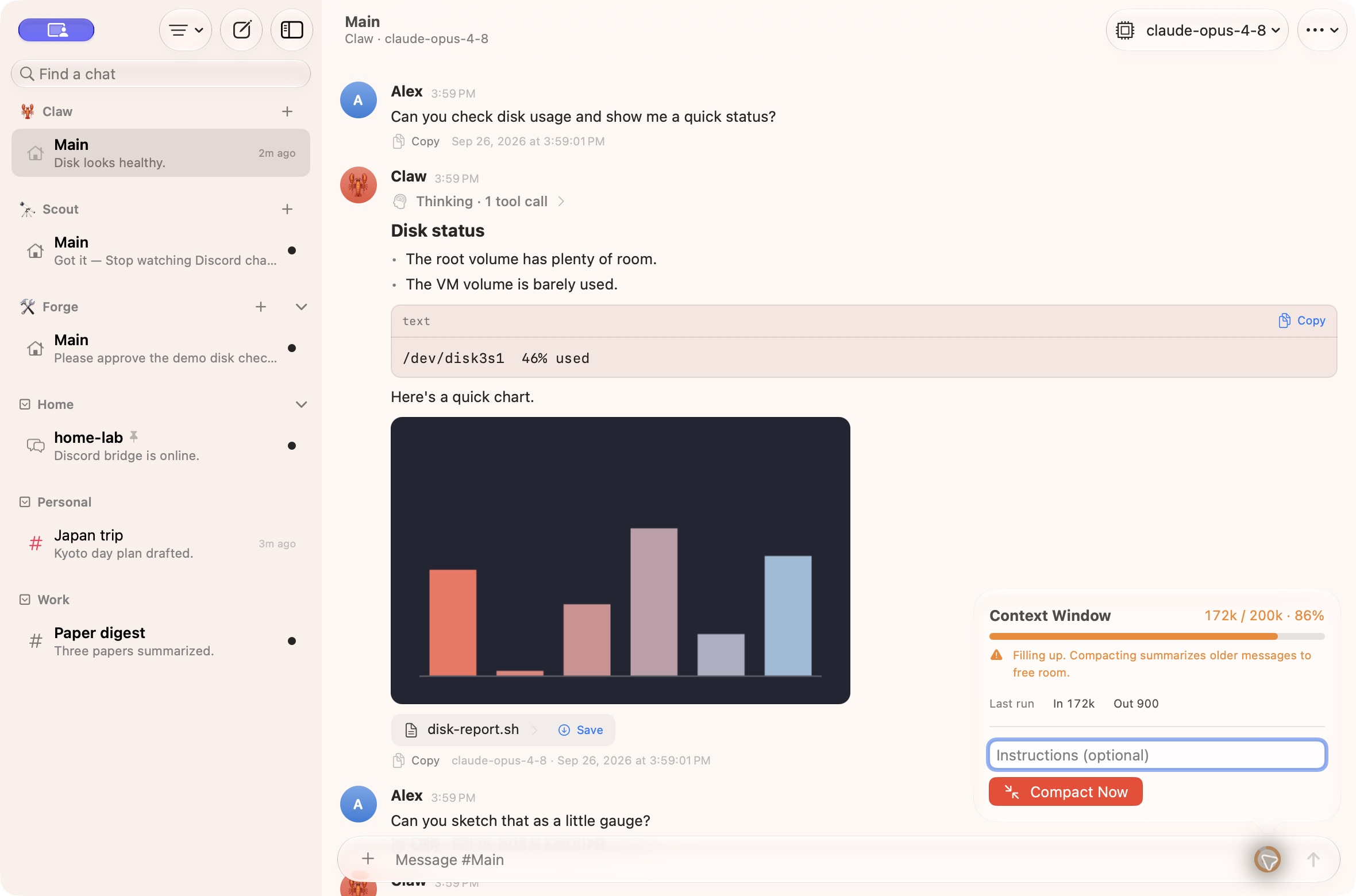
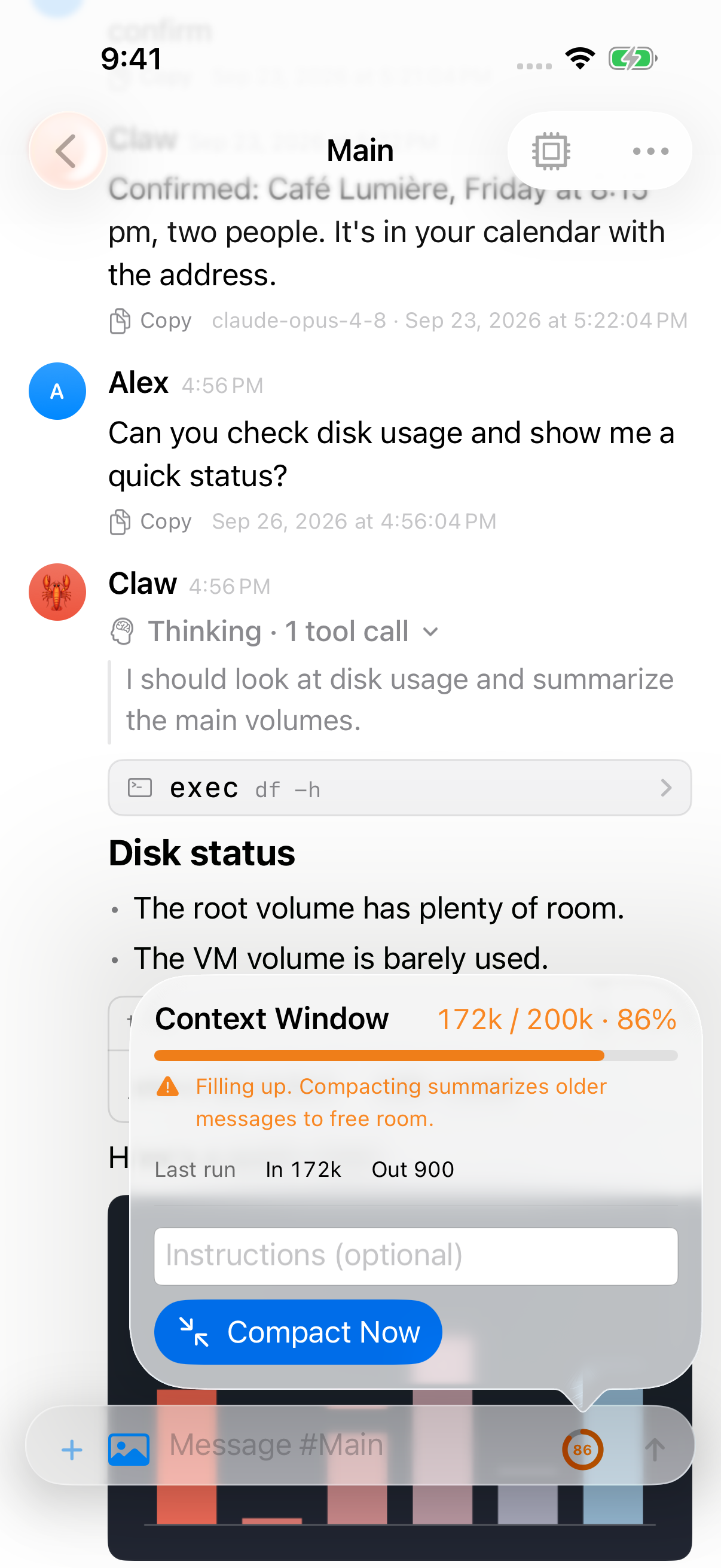
Section titled “Context meter”A small ring next to Send shows how full the chat’s context window is. It appears once the gateway has reported how many tokens the chat uses, and a limit is known.
- The ring turns orange at 85% and red at 95%, and shows the percentage inside from 85%.
- Hover over it for the numbers, such as “Context: 172k / 200k tokens (86%)”.
- A “~” means the number is an estimate from before the last run. It doesn’t change color.
Click the ring for details:
- Context Window (or Prompt Budget, when the session has one): tokens used, the limit and the percentage;
- a hint when it’s filling up. At 95% the agent will compact on its own soon;
- Last run: tokens in and out;
- Instructions (optional) and Compact Now.
macOS
iOS
Compact Now
Section titled “Compact Now”Compact Now summarizes older messages to free up room, like OpenClaw does on its own when the context is full. Add instructions to tell it what to keep. When it’s done, Pincer shows the result, such as “Compacted 172k → 31k tokens.”
Compact Now is greyed out while the agent is working. Wait for the current run to finish.
With Full Management and no instructions, Pincer asks the gateway to compact the session directly. Otherwise it sends /compact, or /compact followed by your instructions, as a message. Either way it stays the same chat. See Compaction.
Slash commands
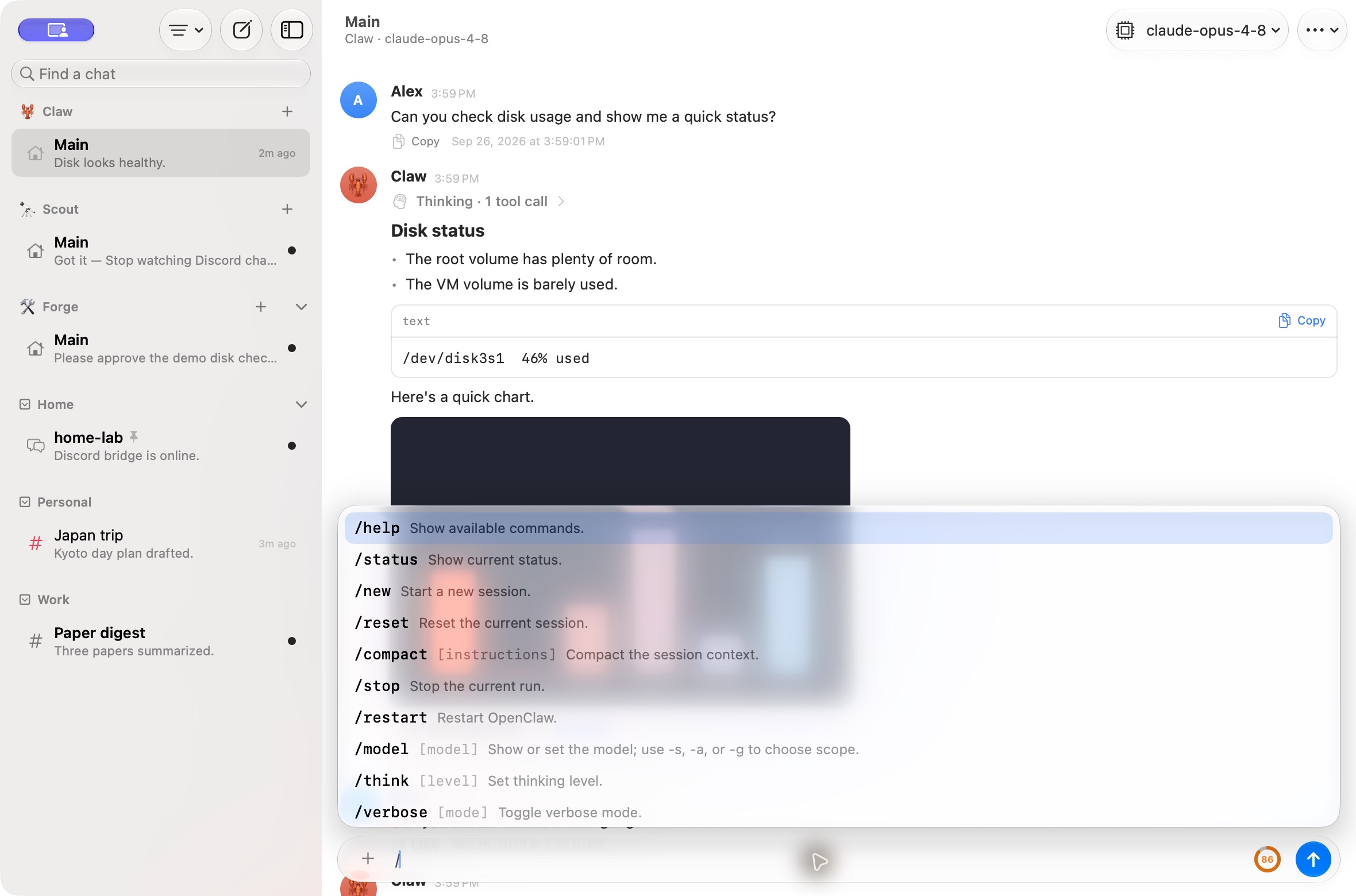
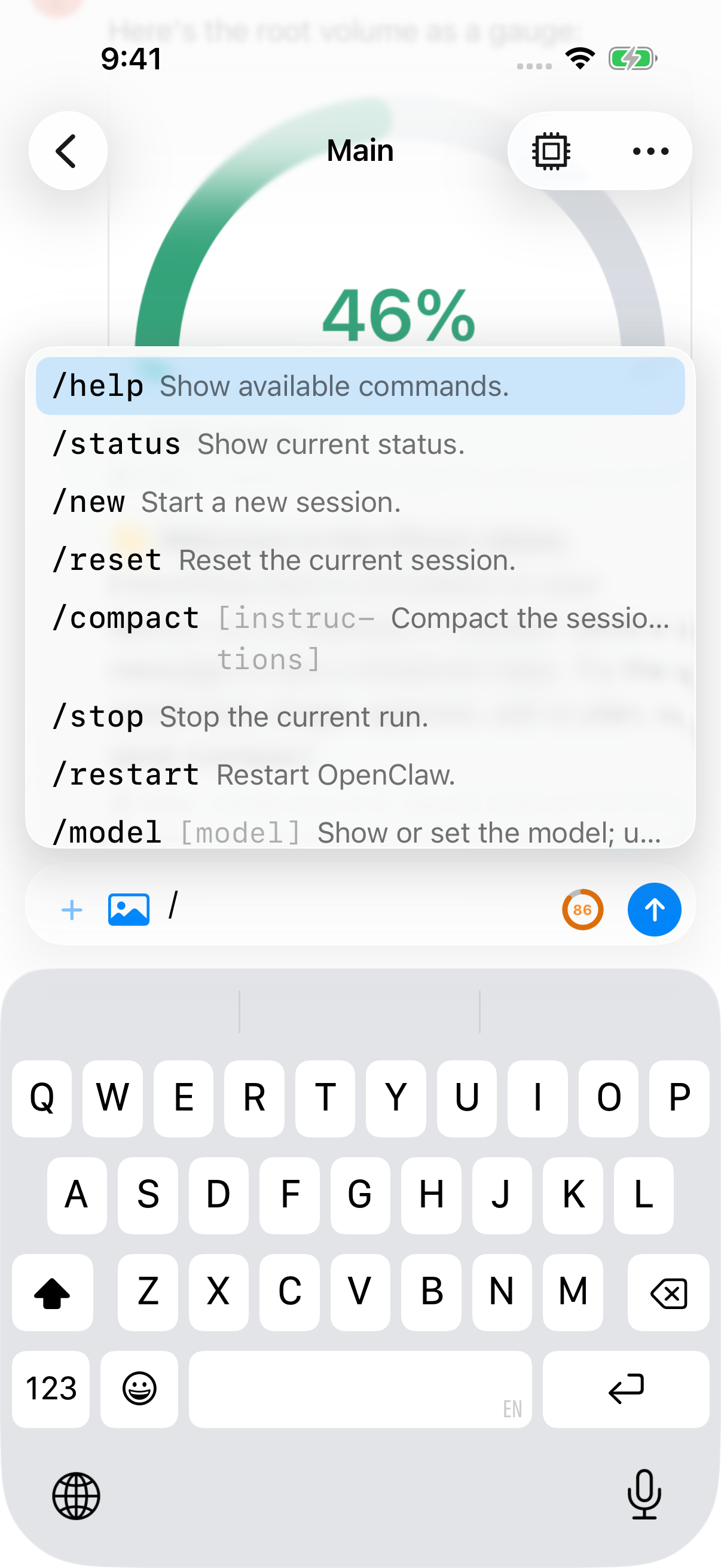
Section titled “Slash commands”Type / to see the commands the gateway offers for this chat: built-ins, skills and plugins. After you pick one, Pincer suggests its arguments too:
- listed choices, such as
/verbose on; - the agent’s models, for
/model; - the session’s thinking levels, for
/think.
| Action | Keys |
|---|---|
| Move through suggestions | ↑ ↓ |
| Complete | Tab or Return |
| Hide suggestions | Esc |
| Send a complete command | Return |
A few notes:
/clearis sent as/reset, like the Control UI.- Gateways that don’t support
commands.listget a built-in list of common commands.
On Mac, when suggestions are closed, Tab and ⇧ Tab move to the next or previous keyboard control. Use ⌥ Tab to insert a tab in the draft. While suggestions are open, plain Tab completes the selected command.
With VoiceOver, moving through suggestions speaks the selected command or argument choice. Changing the query announces the number of suggestions, including when none match. Announcements pause while an input method is composing text or the caret is away from the end of the draft.
macOS
iOS
Handy commands
Section titled “Handy commands”| Command | What it does |
|---|---|
/reasoning on |
Save and stream the agent’s reasoning for this session. |
/model |
Switch the session’s model. |
/think |
Set the session’s thinking level. |
/compact |
Summarize older messages to free up context. Add instructions after it to say what to keep. |
/reset or /clear |
Start the session fresh. |
The exact list depends on your gateway, its skills and its plugins.
Quick Capture
Section titled “Quick Capture”On macOS, you can send to any chat from any app with ⌃ ⇧ Space, without switching to Pincer. See Quick Capture.
On compact iPhone layouts, a centered animated companion sits above the chat-name capsule in a compact header. An ultra-thin native material backdrop protects the upper controls, then fades gradually below them into the conversation, with glass styling on the title and controls. The header expands for larger accessibility text, and Reduce Transparency uses an opaque system background. The sidebar or back control stays on the left and chat options stay on the right. Open chat options for Model, the branch menu when the chat has multiple branches, and Show Runs. The companion follows the same animation preference, Reduce Motion, and inactive-scene pauses as other agent avatars. Regular-width iPad, split view, and Mac keep their existing header controls.
Selected photos and files stay with the draft where you picked them, even if you switch chats while they are being prepared. The composer shows Preparing attachments… and waits to enable Send until that draft’s preparation finishes. Typing remains available. If you edit an earlier message, media selected for your normal draft stays with that saved draft and returns when you cancel the edit. Replacing a draft cancels its pending preparation, so other attachments don’t wait behind it; its results never appear in the replacement draft. If one photo or file takes more than a minute to read or prepare (an iCloud file that hasn’t downloaded, say, or a slow network drive), Pincer stops waiting, says … took too long to prepare. Try attaching it again., and moves on to the next attachment.
Send waits briefly for dictation’s final words. Cancelling an edit, replacing its draft, or leaving that composer cancels the pending send; the restored normal draft stays unsent.
When dictation is canceled and restarted, a delayed callback from the previous recognition cannot replace the new recognition’s words. This also protects the current final result when recognition ends without additional text.
 Pincer · MIT License
Pincer is an independent client and isn’t affiliated with the OpenClaw project.