Command Policy
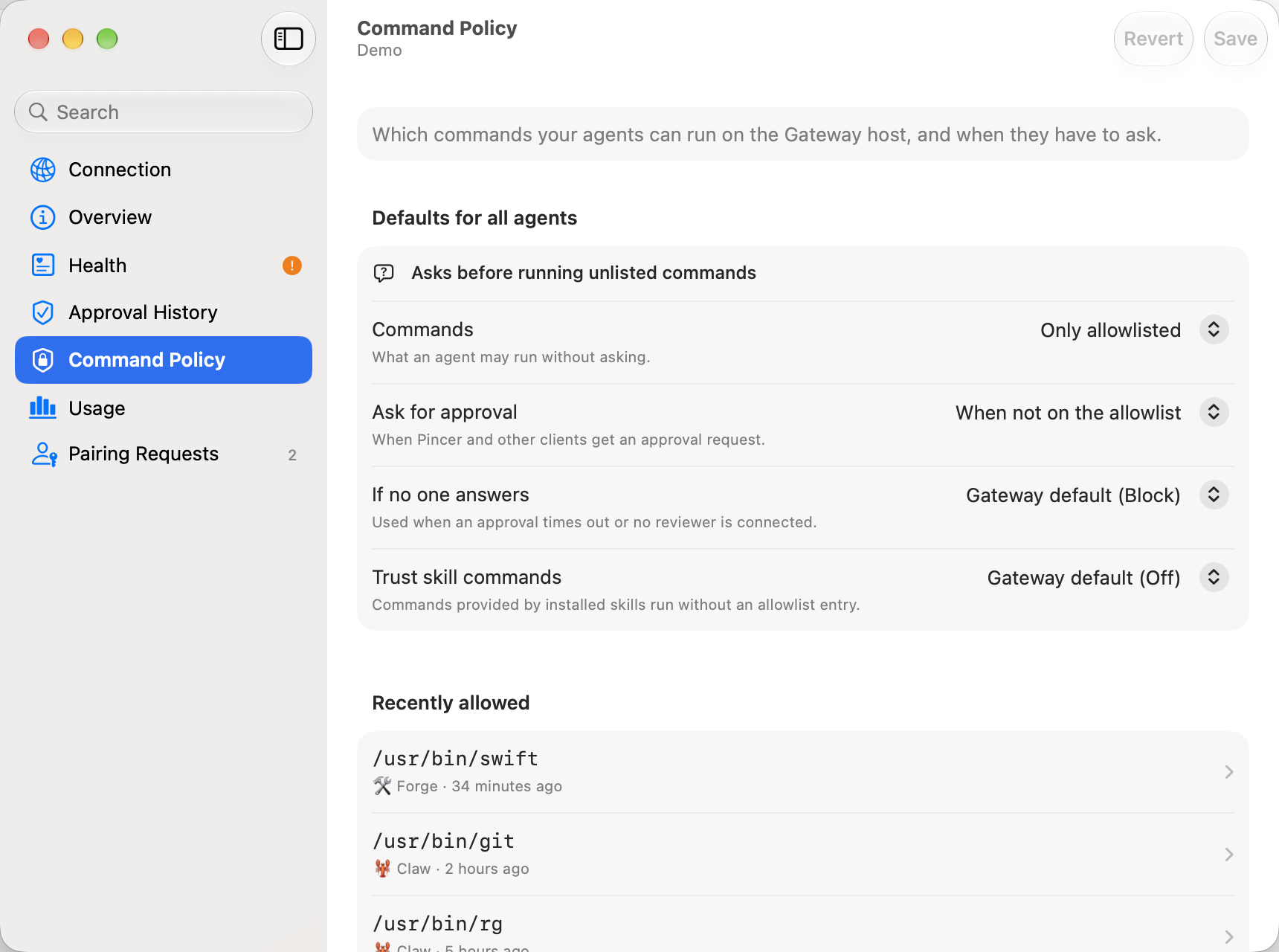
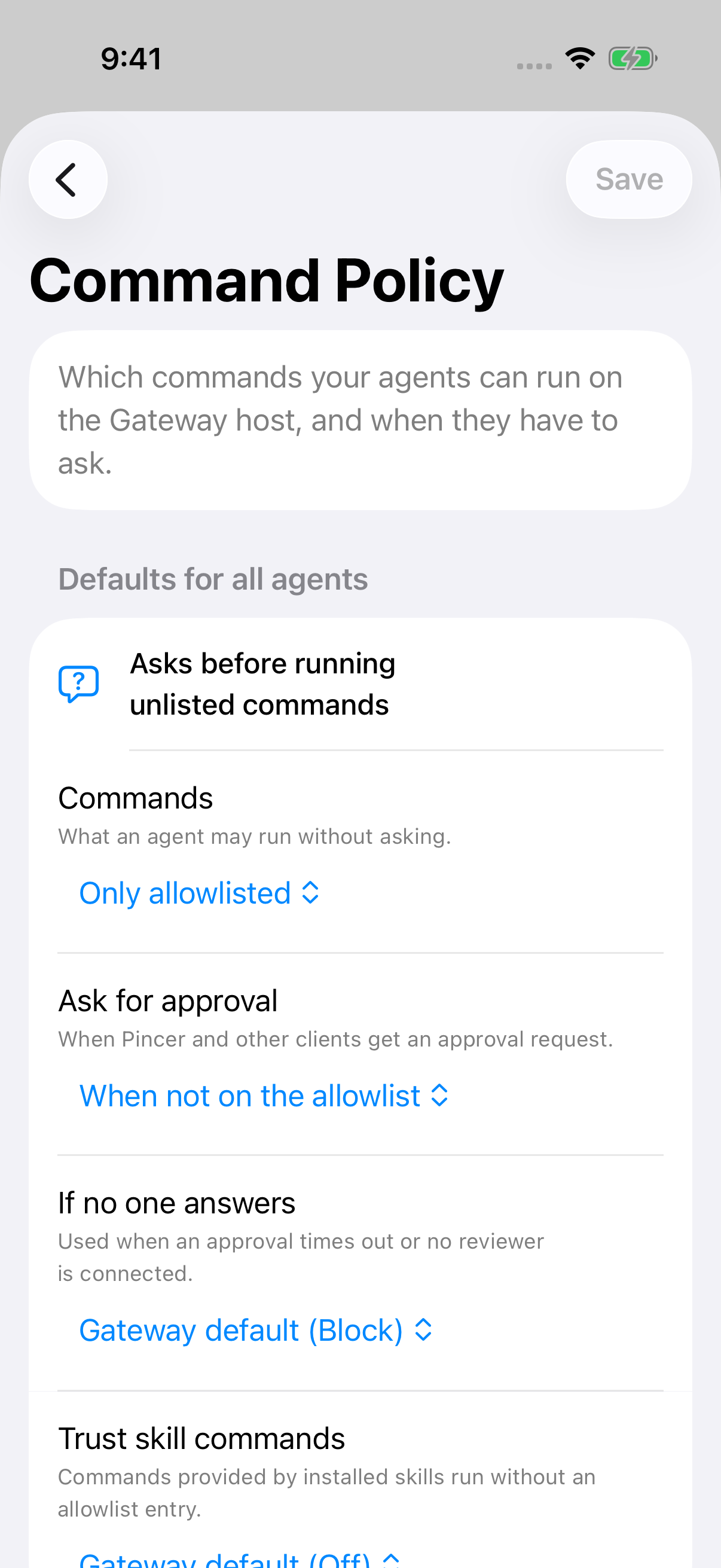
Command Policy controls which commands your agents can run on the Gateway host, and when they have to ask. It’s also where you review and remove the commands and tools you allowed with Always allow.
macOS
iOS
Opening Command Policy
Section titled “Opening Command Policy”- In Gateway Settings, choose Command Policy in the sidebar, below Approval History.
- Press ⌘ K and choose Command Policy….
Searching the Gateway Settings sidebar for words like exec, allowlist, always allow or security also finds it.
Defaults for all agents
Section titled “Defaults for all agents”A summary line at the top gives the effective mode, such as “Allowlist only, never asks” or “Asks before running unlisted commands”. Below it are four settings:
| Setting | Options | What it does |
|---|---|---|
| Commands | Block all · Only allowlisted · Allow any command | What an agent may run without asking. |
| Ask for approval | Every time · When not on the allowlist · Never | When Pincer and other clients get an approval request. |
| If no one answers | Block · Allow only allowlisted · Run anyway | Used when an approval times out or no reviewer is connected. |
| Trust skill commands | On · Off | Commands provided by installed skills run without an allowlist entry. |
When a setting isn’t set in the file, the first option shows the gateway’s own value, for example Gateway default (Block). Choosing it removes the setting rather than writing that value. Values Pincer doesn’t recognize are shown as they are and kept when you save.
Agents
Section titled “Agents”The Agents section lists every agent the gateway knows about, plus any agent that has an entry in the policy file. All agents (the * entry), if it’s there, comes first. Each row says Uses defaults or lists the agent’s overrides, for example “Asks every time · 3 allowed commands”. A badge shows how many commands and tools the agent is allowed.
An agent that’s in the file but no longer on the gateway is marked Not a current agent. You can still open it and remove its entries.
Open an agent to change its settings. Each one starts with Same as defaults (…), which clears the agent’s own value. The gateway looks at the agent’s own value first, then All agents, then the defaults, so when All agents sets something, the other agents’ first choice reads Same as All agents (…) instead. Use Defaults for Everything clears all four at once and keeps the agent’s allowed commands and tools.
Allowed commands and tools
Section titled “Allowed commands and tools”On an agent’s page:
- Allowed Commands lists the agent’s allowlist. Each entry shows its pattern and, when the gateway recorded them, the command that was approved, the arguments it allows, and when it was last used. Entries added with Always allow have an Always allow tag. Entries without the tag were added by hand.
- Allowed Tools lists MCP tools the agent may use, as “server › tool”, with when each was added and last used.
To remove an entry, swipe it on iOS, right-click it on macOS, or choose Edit and use the remove button. Removing doesn’t ask for confirmation. Nothing changes on the gateway until you save, and Revert brings the entry back.
The main page also has a Recently allowed section with the five most recently used commands across all agents. Choose one to open its agent.
Pincer doesn’t add allowlist entries by hand. Choose Always allow on an approval to add one.
Saving
Section titled “Saving”Command Policy has its own draft, separate from the other Gateway Settings pages, and it isn’t counted in their unsaved changes. Your edits stay while you move between pages, and the sidebar row shows a dot while they’re unsaved.
- Save (⌘ S on macOS) sends the whole policy file to the gateway. On success you see Command policy saved.
- Revert throws away your changes.
- On iOS, choosing Done with unsaved changes asks Save changes to Command Policy?, with Save, Discard and Keep Editing.
Loosening changes
Section titled “Loosening changes”If a save would make any agent’s effective policy less safe, Pincer asks Loosen command policy? first and lists each change, for example “Scout: Commands → Allow any command” or “Defaults: Trust skill commands → On”. Choose Save Anyway to go ahead, or Cancel to keep editing. A change to All agents is listed once, as “All agents: …”. A new value Pincer doesn’t recognise counts as loosening, and so does moving to the loosest choice (such as Allow any command) when the value before it wasn’t known. Changes that make the policy stricter, and removed entries, don’t ask.
If the policy changed on the gateway
Section titled “If the policy changed on the gateway”If the file changed on the gateway while you were editing (for example because someone chose Always allow in another chat), the gateway refuses the save. Pincer then loads the latest version, drops your changes and says so. Make your changes again and save.
When the page is open with no unsaved changes, it picks up new Always allow entries by itself.
Current limits
Section titled “Current limits”- Node-level policies and cron standing grants aren’t shown.
- You can’t add or edit allowlist patterns in Pincer, only remove them.
Canceling a Command Policy load does not replace another active read or publish a late result or error. A current reload still keeps edits made while its request is pending.
Edits made while Reload is waiting are kept, including changing a value and changing it back. Revert during that read keeps the original saved policy; an explicit reload that discards the draft still adopts the returned policy.
 Pincer · MIT License
Pincer is an independent client and isn’t affiliated with the OpenClaw project.