Organizing chats
The sidebar keeps your chats organized by server, channel and agent. This page covers how it’s laid out and how to arrange it.
Layouts
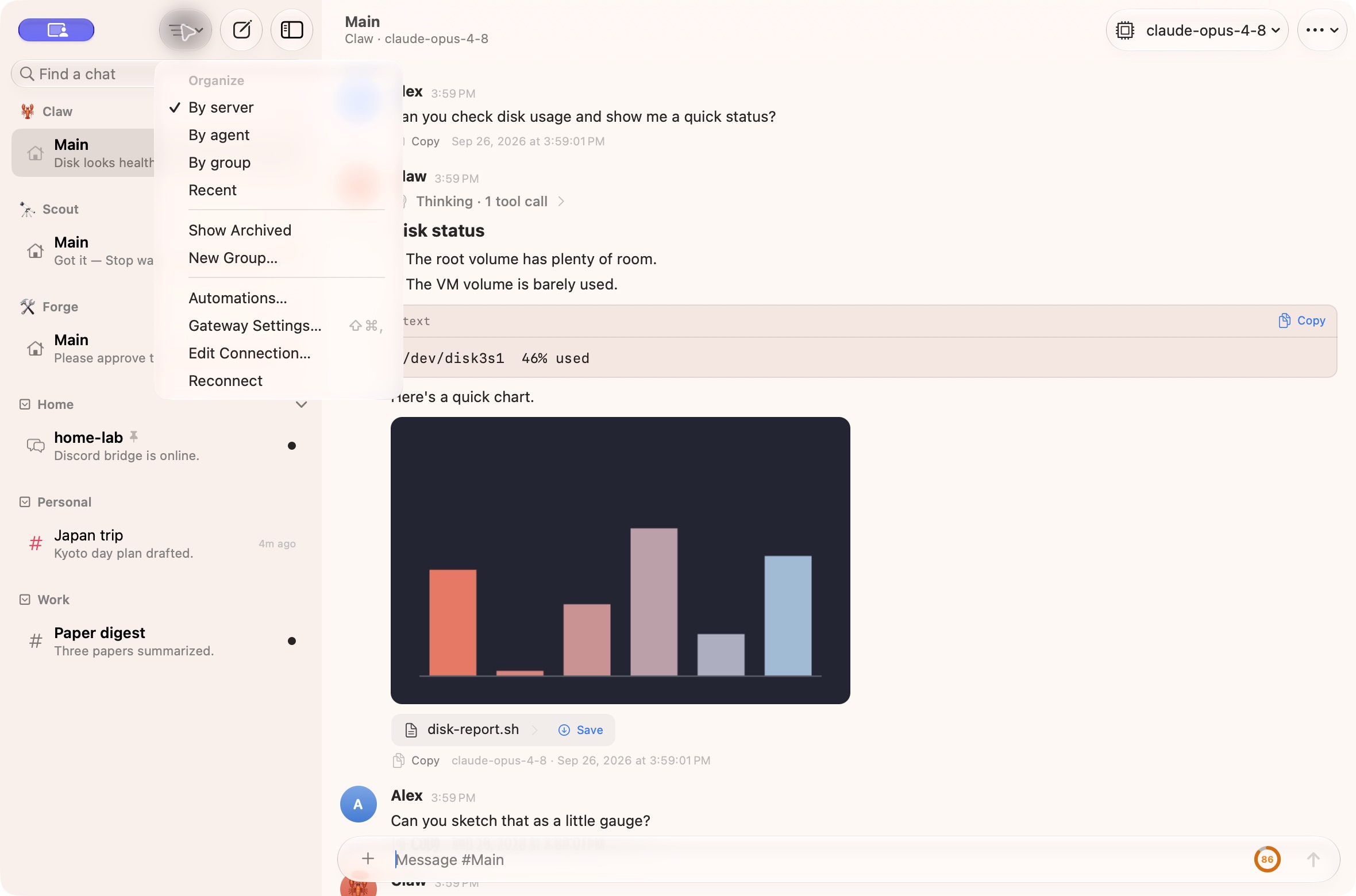
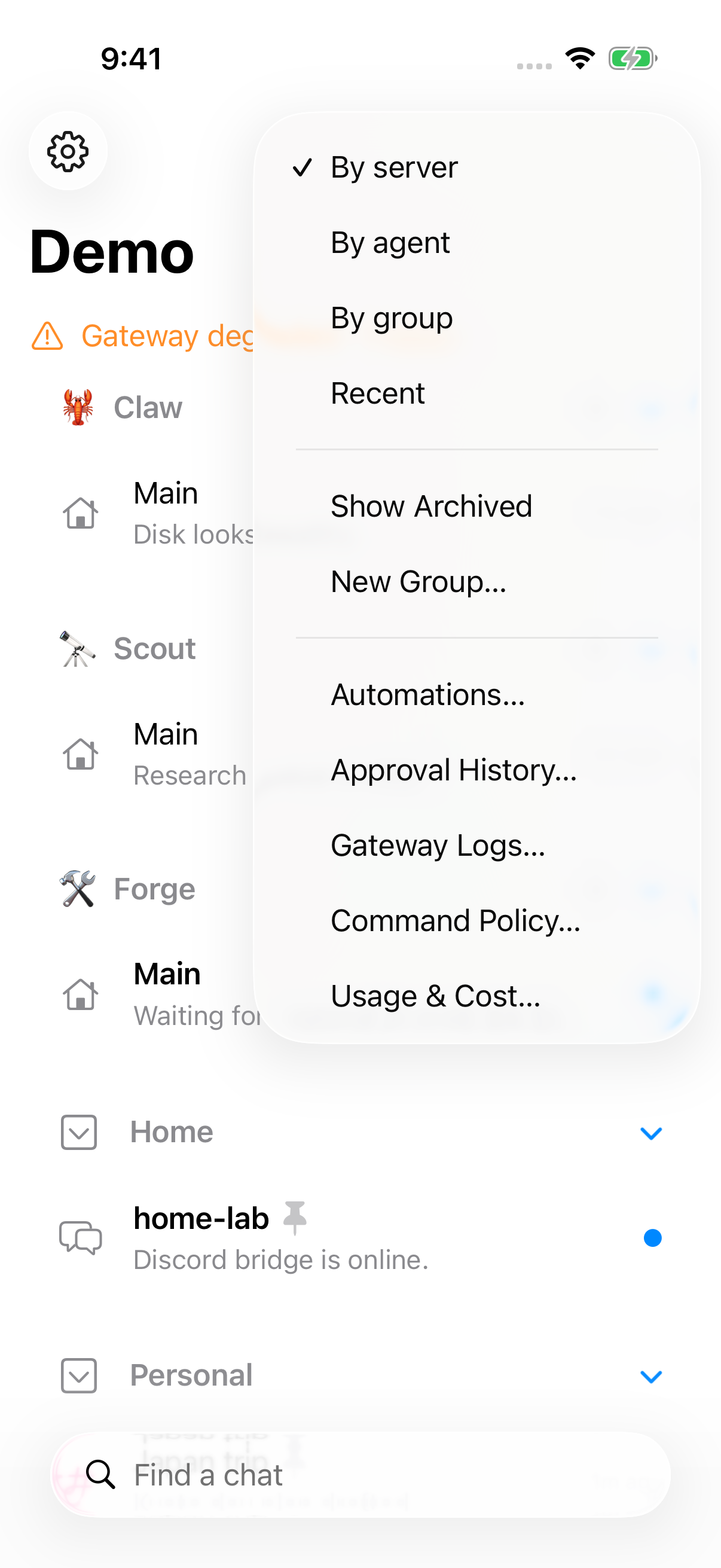
Section titled “Layouts”Pick a layout from the menu at the top of the sidebar:
| Layout | How chats are grouped |
|---|---|
| By server (default) | Each Discord server gets a section with its #channels. Automations get their own section when shown, and everything else is grouped under its agent. |
| By agent | One section per agent, with its groups nested inside (see Groups in By agent). Every agent’s home chat is listed first, even before its first message. |
| By group | One section per group you’ve made. |
| Recent | One list, most recently active first. |
macOS
iOS
The Organize menu
Section titled “The Organize menu”This menu, called Organize, holds view options only. Besides the grouping picker it has:
- Show Archived, to list archived chats;
- Show Automations and Show Slash Commands, to list automation (cron) chats and slash-command chats (see Automation and slash-command chats);
- New Group…, in By group and By server.
Gateway tools aren’t in this menu. Use the gateway button at the top of the sidebar (Gateway Settings…, Automations…, Setup Assistant…, Reconnect), the Gateway menu on macOS, or the command palette (⌘ K) for those, plus Approval History. To switch gateways, see Switch gateways.
Discord server names
Section titled “Discord server names”Server names come from your gateway’s Discord config (channels.discord.guilds.<id>.slug) when it’s set. Otherwise the section is just called Discord.
To name a server yourself, right-click its header and choose Rename Server…. The name syncs to your other devices through the gateway.
Groups
Section titled “Groups”Groups are your own folders for chats. They sync through the gateway, so they’re the same on every device.
- Create a group: choose New Group… from the Organize menu or a group header’s menu, or right-click a chat and choose Move to Group → New Group….
- Move chats: drag a chat onto a group (or onto Ungrouped). Drop it between two chats to put it at that spot. In By server, dropping a grouped chat on its own server or agent takes it back out of the group.
- Reorder groups: drag a group header, or use Move Up and Move Down in its menu.
- Icon: Change Icon… on a group’s header picks an SF Symbol.
- Delete: Delete Group… removes the group and leaves its chats ungrouped.
Empty groups stay until you delete them, so you can set them up ahead of time.
In By agent, an agent’s home chat stays first even after you move it into a group. Its Move to Group (shown in By Group) action changes its placement in By group; the home chat remains in the agent’s leading slot in By agent.
VoiceOver names a plain group header’s + button with its group, such as “New chat in Home” or “New chat in Personal”, so the action has context when navigating the sidebar.
Groups in By agent
Section titled “Groups in By agent”In By agent, each agent’s section keeps your groups as a second level:
- the agent’s home chat comes first, followed by its pinned chats that aren’t in a group;
- then each group that has at least one of that agent’s chats, in the same order as in By group;
- then the agent’s chats that aren’t in a group.
A group with chats from several agents shows up under each of them, with only that agent’s chats. Each group under each agent collapses on its own, and the sidebar remembers it.
When you open a chat from the command palette (⌘ K), with Next Unread Chat, from a notification or from a pincer:// link, and it’s inside a collapsed agent or group, the sidebar expands them so you can see where it lives. Renaming a group keeps it collapsed or expanded, in every view.
On iPhone and iPad the sidebar shows the same tree as on the Mac:
- Agents are bold section headers with the agent’s avatar. Tap the chevron to collapse an agent; a collapsed agent shows a red badge with its unread count.
- Groups are rows with a folder (or the group’s own icon) and the number of chats in them. Tap the chevron to collapse a group; a collapsed group with unread chats shows the unread count instead.
- Chats in a group are indented under it, so you can tell at a glance which chats belong to which group.
VoiceOver reads each agent and group with its level and whether it’s expanded or collapsed, for example “Preparations, group in Mochi, 2 chats, expanded”.
- New chat in a group: click + on a group under an agent, or right-click the agent and choose New Chat in Group. The chat goes to that agent and that group.
- Move chats: drag a chat onto another of the agent’s groups, or between two of its chats to put it at that spot. Drop it on the agent’s header to take it out of its group. Moving a chat between groups never changes its agent, so you can’t drop it into another agent’s group.
- A group’s header menu has the same actions as in By group: Change Icon…, Rename… and Delete Group… apply to the group everywhere. To reorder groups, switch to By group.
In the built-in demo, Claw has Home and Personal groups, Scout has Reading and Work, and Mochi, a New York moving planner, has Preparations and Day of move groups plus a chat outside them.
Per-chat actions
Section titled “Per-chat actions”Right-click a chat (or long-press on iOS) for:
- Pin, to keep it at the top;
- Rename;
- Move to Group;
- Color, from OpenClaw’s named colors, or Custom… for any color;
- Change Icon…, to pick an SF Symbol tinted with the chat’s color, or Reset Icon;
- Reasoning level;
- Archive.
Custom colors and icons sync to your other devices. See Synced preferences.
New chats, forks and branches
Section titled “New chats, forks and branches”Chats you start with New Chat (⌘ N) are listed on their own, like in the Control UI. Forks, branches and chats an agent spawns (sub-sessions) nest under their parent, marked with ↳.
Moving a sub-session into a group
Section titled “Moving a sub-session into a group”A sub-session can go into a group like any other chat: drag it onto a group, or right-click it (long-press on iOS) and choose Move to Group. Once it’s in a group it’s listed there as its own chat instead of under its parent. It then counts as unread and notifies you like any other chat, and it stays listed even when helper runs are hidden.
The gateway still remembers which chat it came from. To put it back, choose Move to Group → Move Back Under “parent”, or drag it onto Ungrouped (or, in By server and By agent, onto its agent’s section). The parent opens up so you can see it back in place. If it was a helper run and List subagent runs under their chat is off in Settings → Appearance → Sidebar, it goes back inside the parent chat (open it from the parent’s Open run button or Runs panel).
Working chats
Section titled “Working chats”While a chat has a run going, its agent’s avatar dances at the right of the row, in place of the date: a small hop and wiggle that loops about once a second. It stops and disappears when the run ends.
The avatar follows Settings → Appearance → Animated avatars: with it on you see the agent’s pet, and with it off you see the agent’s emoji or initial on a colored disc. With Reduce Motion on, the avatar stays still and a small accent-colored dot at its corner shows the chat is working.
Hover the avatar (macOS) for who’s working, for example “Moki is working”. VoiceOver reads the same after the chat’s name.
When a chat isn’t running, its row shows how recently it was active. A timestamp slightly ahead of your device’s clock appears as now.
Unread chats
Section titled “Unread chats”A chat with new messages shows its agent’s pet at the right of the row with a small accent-colored badge in the corner. While the agent is idle the pet does a gentle hop every couple of seconds, then rests; while a run is going it dances nonstop, so you can still tell working chats from ones that are just waiting to be read. Pets only move while the Pincer window is active, and with Reduce Motion on they stay still. If helpers are working, the badge shows their count instead.
With Animated avatars off, idle unread chats show a plain dot. VoiceOver reads “Unread” after the chat’s name either way. Helper runs never show as unread, unless you’ve moved one into a group.
A reply that arrives in the chat you’re looking at is marked read straight away. If Pincer is in the background or its window isn’t focused, the chat stays unread (and notifies you) until you come back to it. On iPhone, the chat counts as open only while it’s actually on screen, not just selected in the list.
Helper (subagent) runs
Section titled “Helper (subagent) runs”Subagent runs stay out of the sidebar by default. When helpers are working, the parent chat’s agent avatar dances with a small count badge (for example “Moki: 2 helper runs working”), and you open one from the Open run button on the tool call that started it.
If you’d rather see them, Settings → Appearance → Sidebar can list them under their parent, behind a ✨ count chip. Helper runs never add to unread counts or send notifications. A helper you move into a group becomes a regular chat in that group: it’s listed even when helper runs are hidden, and it counts as unread and notifies you.
To see every helper a chat started, with its status and a timeline of what it did, open the chat’s Runs panel.
Automation and slash-command chats
Section titled “Automation and slash-command chats”Chats created by automations (cron jobs) and by slash commands are hidden from the sidebar by default. Turn on Show Automations or Show Slash Commands in the Organize menu to list them in every layout. Each gateway remembers its own choice.
While hidden, they don’t add to unread counts or section badges. They’re still easy to reach:
- the chat you have open stays in the sidebar until you leave it;
- typing in the sidebar’s Search field lists matching hidden chats too;
- Search messages, the command palette (⌘ K), links and Automations… (gateway button or Gateway menu) open them as usual.
Compaction
Section titled “Compaction”When a chat’s context is compacted, it stays the same chat. You’ll see a “Compacting context…” line while it runs, then a divider in the same thread.
To see how full the context is, or to compact it yourself, use the context meter next to Send.
Finding your way
Section titled “Finding your way”- Search at the top of the sidebar filters chats by name. While you type, a Search messages for “…” row above the chat list searches the text of every cached chat instead. See Search messages.
- Unread badges (the agent’s pet with a badge, or a dot) and the Dock badge show what’s new. See Unread chats.
- Next Unread Chat (⌥ ⇧ ↓) jumps to the next chat with unread messages.
- The command palette (⌘ K) finds any chat on any gateway by typing a few letters.
- Back (⌘ [) and Forward (⌘ ]) retrace the chats you’ve visited.
- ⌘ 1 to ⌘ 9 open your first nine pinned chats.
See Command palette & navigation.
Quick switching
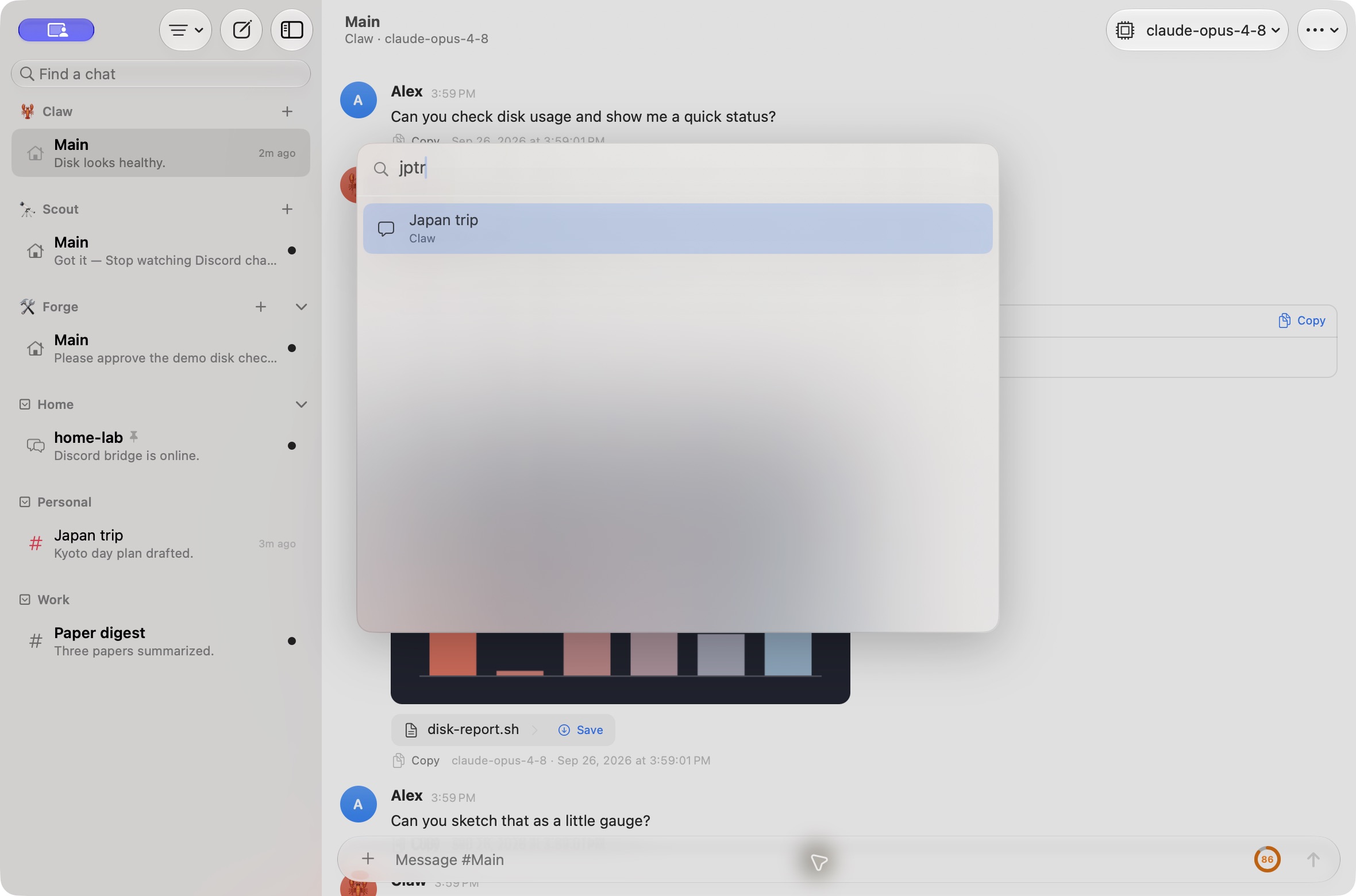
Section titled “Quick switching”Press ⌘K and type part of a chat name. Matching is fuzzy: in the demo, jptr finds Japan trip. Press Return to open the selected result, or Escape to close the palette.
macOS
Automations
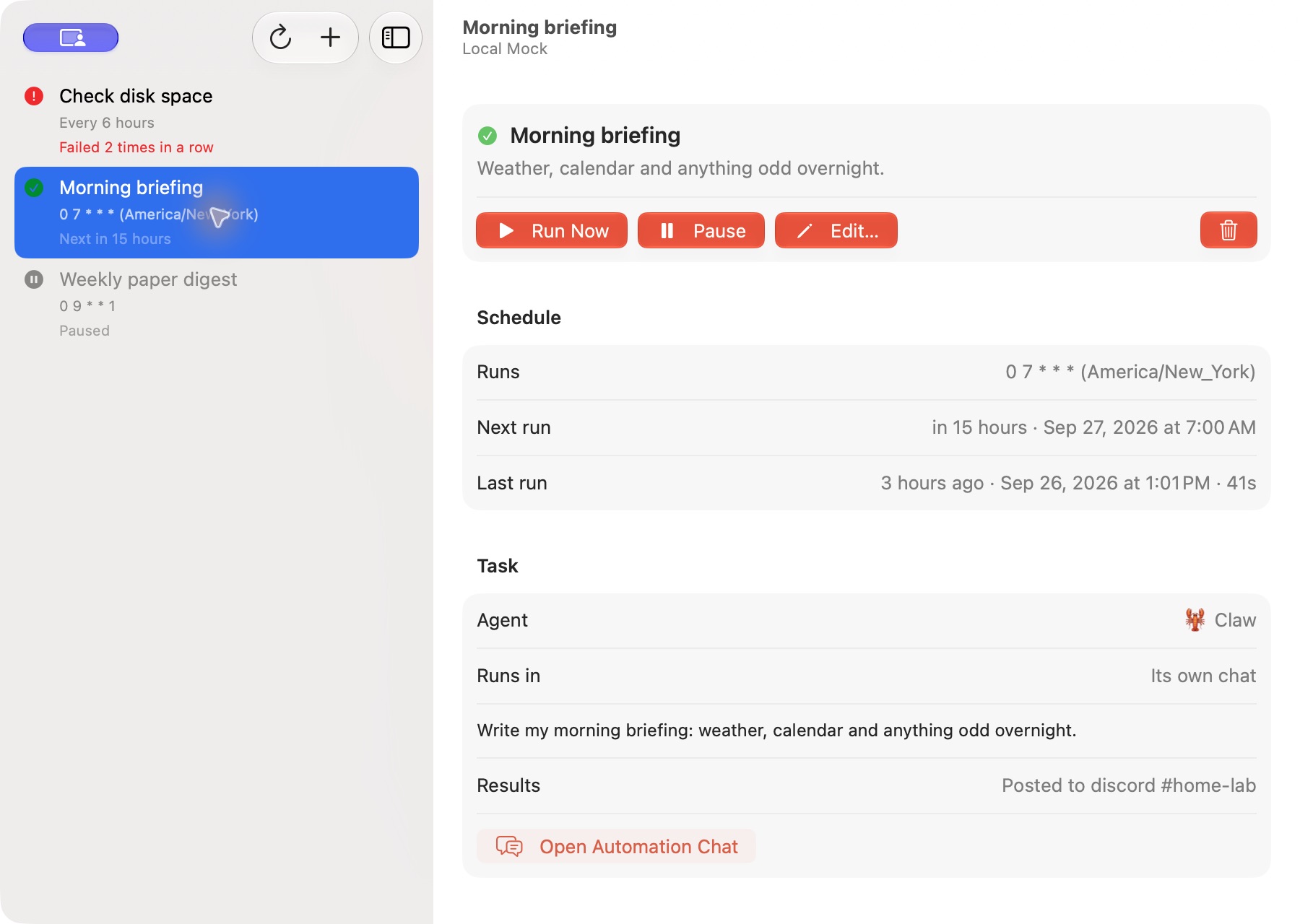
Section titled “Automations”Choose Automations… from the gateway button at the top of the sidebar or the macOS Gateway menu (or Manage Automations… on the Automations section’s header) to open the gateway’s cron jobs: a window on macOS and a sheet on iOS. Each job shows its schedule, last and next run, and status; a failing job shows its error. Select one to see its task, delivery destination, and run history (cron.runs), where every run links to its chat.
Automation run history preserves the Gateway’s explicit run IDs. When one is absent, Pincer derives a stable identity from the job and timestamp, including timestamps too large for a native integer.
Run Now, Pause/Resume, Edit, New and Delete (cron.run, cron.update, cron.add, cron.remove) require Access → Full Management. If a job was edited elsewhere in the meantime, Pincer refuses your change instead of overwriting it. The list updates live from the gateway’s cron events. On gateways without cron.*, Pincer says automations aren’t available.
macOS
 Pincer · MIT License
Pincer is an independent client and isn’t affiliated with the OpenClaw project.