Offline sending & retry
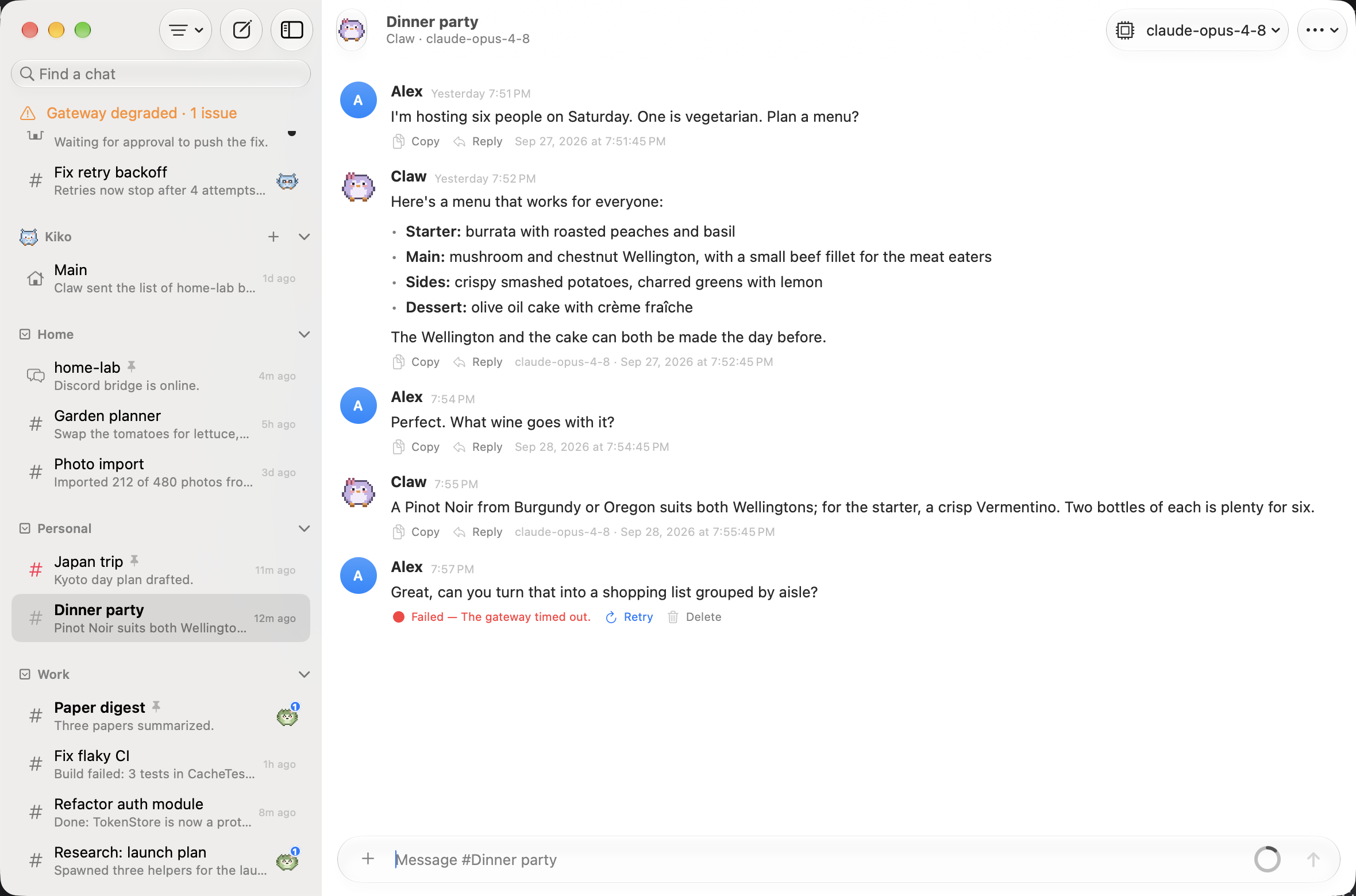
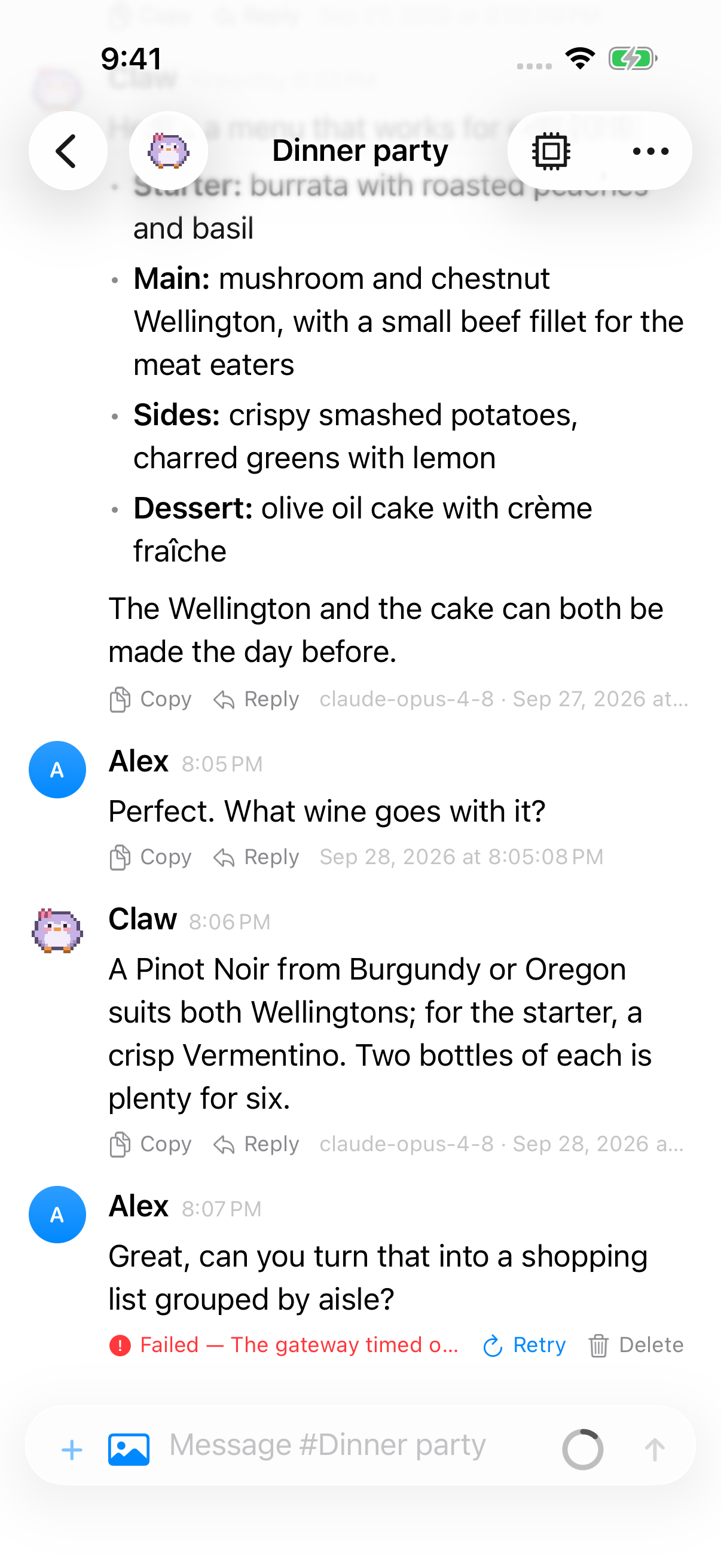
You can keep writing when your connection drops. Messages you send while offline wait in an outbox and go out, in order, as soon as Pincer reconnects to that gateway. If a message can’t be sent, it stays in the chat marked Failed so you can retry or delete it. Nothing you typed disappears.
macOS
iOS
Sending while offline
Section titled “Sending while offline”When Pincer isn’t connected to the gateway, the composer still works for text messages, replies and attachments:
- A line above the composer says Offline — messages send when you reconnect, with how many of this chat’s messages are waiting, for example 2 messages queued · Offline — messages send when you reconnect.
- The Send button stays where it is, and Return still sends. Its tooltip and VoiceOver label read Queue Message.
- Your message appears in the chat straight away, marked Queued, and the composer clears as usual.
Attachments queue with their message. Pincer saves a copy of each file in the outbox, so a queued photo or document goes out with its message when you reconnect, even after quitting Pincer. See Attachments in the outbox.
Queued image rows show a small thumbnail once Pincer prepares it in the background. The original attachment stays in the outbox and is what Pincer sends.
While you’re offline, Pincer checks each attachment against the upload limits your gateway reported the last time you were connected, and saved for later. A file that’s too big is refused in the composer with the usual message, for example photo.heic is larger than the Gateway allows (5 MB, last known limit). You find out before you queue it. If Pincer has never connected to that gateway, it doesn’t know the limits and accepts the file.
Limits can change. If the gateway’s limits have dropped since you queued a message and an attachment is now over the limit, the message isn’t sent. It’s marked Failed with the reason, for example Failed — photo.jpg is larger than this Gateway accepts (5 MB). Retrying can’t help, so it offers Delete only.
Some things need a connection:
- Attachments that don’t fit in the outbox. If a message’s attachments would take the outbox over its size limit, the composer says Too large to queue offline — sends when you’re connected. If the outbox is kept in memory only, the + button is unavailable while you’re offline (Attachments need a connection). Either way the composer keeps the message in your draft until you’re back online.
- Slash commands. Typing
/while offline shows Connect to run commands, and Send stays unavailable. - Quick Capture and the setup wizard’s test message aren’t queued. If you’re offline they show an error and keep what you typed.
While you’re connected, a new message also waits, marked Queued, if an earlier message in the same chat hasn’t gone out yet. That includes messages with attachments. Only a message whose attachments don’t fit in the outbox can’t wait: the composer keeps it and says Couldn’t send: an earlier message in this chat hasn’t gone out yet.
Message states
Section titled “Message states”Messages that haven’t reached the gateway yet show their state under your message bubble, on macOS and iOS:
| State | What it means |
|---|---|
| Queued (clock) | Waiting for a connection, or for an earlier message in the same chat. You can delete it. |
| Sending… (spinner) | Pincer is sending it now. It can’t be deleted until the attempt ends. |
| Waiting for Wi‑Fi, Waiting — Personal Hotspot or Waiting — Low Data Mode | A large upload is being held. See Large uploads wait for Wi‑Fi. You can send it now or delete it. |
| Failed — reason (red) | It couldn’t be sent, for example Failed — Sign-in required. Hover over it on macOS for the full message. |
Once the gateway has the message, the marker goes away and the message stays where it is. It isn’t shown twice.
Queued and failed messages don’t count as unread, don’t post notifications and don’t move the chat up the sidebar. That happens when they’re actually sent.
Large uploads wait for Wi‑Fi
Section titled “Large uploads wait for Wi‑Fi”A message whose attachments add up to 2 MB or more is a large upload. So that a queued video doesn’t eat your data plan, Pincer holds it when it would go out automatically, for example after you reconnect, or once the message before it has gone out. It’s held while your device is on:
- a cellular connection, a personal hotspot or another network the system marks as expensive. iPhone and iPad show Waiting for Wi‑Fi; the Mac shows Waiting — Personal Hotspot.
- any network while Low Data Mode is on, which shows Waiting — Low Data Mode.
The hold only shows while Pincer is connected and the message is next in its chat. While you’re offline, or while an earlier message is ahead of it, it’s a plain Queued message. It goes out by itself once you’re on a regular network again. Hover over the status on macOS, or use VoiceOver, to hear the upload’s size, for example This is a large upload (4.2 MB), so it’s waiting for Wi‑Fi to save cellular data.
To upload it anyway, choose Send Now next to the status, or use it from the message’s context menu (right-click on macOS, long-press on iOS) or VoiceOver actions. Send Now releases that message only, and it goes straight to Sending…. Delete is offered next to it. Small messages are never held.
A held message keeps the order: later messages in the same chat wait behind it, marked Queued, while other chats keep sending. A message you send yourself while you’re connected goes out right away, even if it’s large.
Retrying and deleting
Section titled “Retrying and deleting”A failed message offers Retry and Delete, and a queued one Delete. Retry isn’t offered when retrying can’t help, such as a message the gateway rejected (see below).
- Click or tap Retry or Delete next to the status.
- Or use the message’s context menu (right-click on macOS, long-press on iOS).
- With VoiceOver, the status reads, for example, “Your message. Not sent yet, queued.” or “Your message. Failed to send: …”, and Retry and Delete are available as actions.
Retry sends the message again as soon as Pincer is connected, reconnecting first if it isn’t. Delete removes the message from Pincer only. It was never sent, so there’s nothing to remove on the gateway. To change a queued message, delete it and type it again.
Order and sending exactly once
Section titled “Order and sending exactly once”Messages in a chat are always sent in the order you wrote them. If one fails, the messages after it in that chat wait, marked Queued, until you retry or delete the failed one. That way the agent never gets your messages out of order. Other chats aren’t affected.
Each message is sent with the same idempotency key every time it’s tried, including retries and after relaunching, and with the same attachments, so the gateway ignores copies it has already received. If Pincer quits while a message is being sent, it checks the chat’s history on the next launch: if the message arrived, it’s removed from the outbox; otherwise it’s queued again.
Why a message fails
Section titled “Why a message fails”| What happened | What Pincer does |
|---|---|
| You went offline, or the connection dropped while sending | Keeps it Queued and sends it automatically when you reconnect. No error is shown. |
| The gateway timed out, or said it was busy and to try again, while you were still connected | Marks it Failed with Retry. It isn’t retried automatically. |
| The gateway rejected the message (for example, an invalid request) | Marks it Failed with the gateway’s own message, with Delete only. Sending it unchanged would fail again. |
| This device lost access (unpaired, or missing a permission) | Marks it Failed — Sign-in required. Reconnect or pair again, then choose Retry. It’s never sent automatically. |
| The chat no longer exists on the gateway | Marks it Failed — Session no longer exists, with Delete only. |
Messages with attachments are handled the same way: they’re sent automatically when you reconnect, and survive quitting Pincer. The exception is a message whose attachments didn’t fit in the outbox. It’s never sent automatically: if it fails, including when the connection drops, it’s marked Failed and can be retried until you quit Pincer, and after a relaunch it’s gone. Until then, its text is still in the chat, so you can copy it.
If a queued message’s saved attachments are missing when Pincer starts (for example, the files were deleted by hand), the message is marked Failed saying its attachments are no longer available, with Delete only. Its text stays in the chat so you can copy it.
Several gateways
Section titled “Several gateways”Each gateway has its own outbox. Messages queued for one gateway are sent only when Pincer is connected to that gateway, so switching gateways never sends a message to the wrong one.
When a chat is deleted on the gateway, its unsent messages and their attachments are deleted with it. If you delete a chat from the Sessions page while it has unsent messages, the confirmation says so, for example The 2 unsent messages in this chat will be discarded too. Removing a gateway deletes its outbox.
Where the outbox is stored
Section titled “Where the outbox is stored”The outbox is saved on your device, so queued and failed messages survive quitting Pincer, editing the gateway’s connection, and restarting your Mac, iPhone or iPad. Pincer writes it whenever it changes and makes sure the last write lands before it quits or moves to the background. Like drafts, it lives in Application Support, not in the local cache, so the system never clears it to free space and Clear Cache… doesn’t touch it:
| Platform | File |
|---|---|
| macOS | ~/Library/Application Support/Pincer/Outbox/<gateway>.json (inside the app’s sandbox container for the Xcode-built app) |
| iOS and iPadOS | Library/Application Support/Pincer/Outbox/<gateway>.json in Pincer’s app container |
The file holds each unsent message’s text and, if location context was on when you sent it, the exact location captured then. That location is removed from the file as soon as the message is sent or you delete it. On iPhone and iPad the outbox and its attachments are encrypted by data protection and can’t be read until you first unlock the device after it restarts; after that, Pincer can still update the file while the device is locked, so a message sent in the background doesn’t leave its location behind.
Each file records its format version. A file that’s damaged, or that was written by a newer Pincer (for example after going back to an earlier build), is set aside next to it (<gateway>.corrupt.json or <gateway>.v<version>.json) instead of being overwritten, and logged under subsystem chat.pincer, category Outbox, without any message content.
To keep the outbox in memory only, so it lasts until you quit Pincer, set PINCER_OUTBOX_DIR=off. Messages with attachments then need a connection again. To use another folder, set it to a path.
Attachments in the outbox
Section titled “Attachments in the outbox”Attachments of queued and failed messages are saved as ordinary files next to the outbox, in Outbox/Attachments/<gateway>/, one folder per message. The outbox file only lists them; it doesn’t contain the file data. On iPhone and iPad they can’t be read until you first unlock the device after it restarts.
- Size limit. Each gateway’s outbox keeps up to 200 MB of attachments. A message that would go over that isn’t saved: it needs a connection, as before.
- Cleanup. A message’s files are deleted as soon as it’s sent, or when you delete it, clear the outbox, delete its chat or remove its gateway. When Pincer starts, it also deletes any leftover attachment files that no message refers to.
To see or empty it, open Settings → General and find Storage:
- Outbox shows how many messages are unsent, across all gateways, and how much space their attachments take, for example 2 messages · 4.2 MB.
- Clear Outbox… asks Clear the outbox? and, when you confirm with Clear Outbox, deletes every queued and failed message and its attachments without sending it. A message being sent at that moment isn’t affected. Your chats and cached transcripts aren’t affected either.
Trying it out
Section titled “Trying it out”The built-in demo has a failed message at the end of the Dinner party chat, with a queued message carrying a seating-plan photo behind it. Retry the shopping list and the queued seating plan follows it. See Try the demo.
 Pincer · MIT License
Pincer is an independent client and isn’t affiliated with the OpenClaw project.