Command palette & navigation
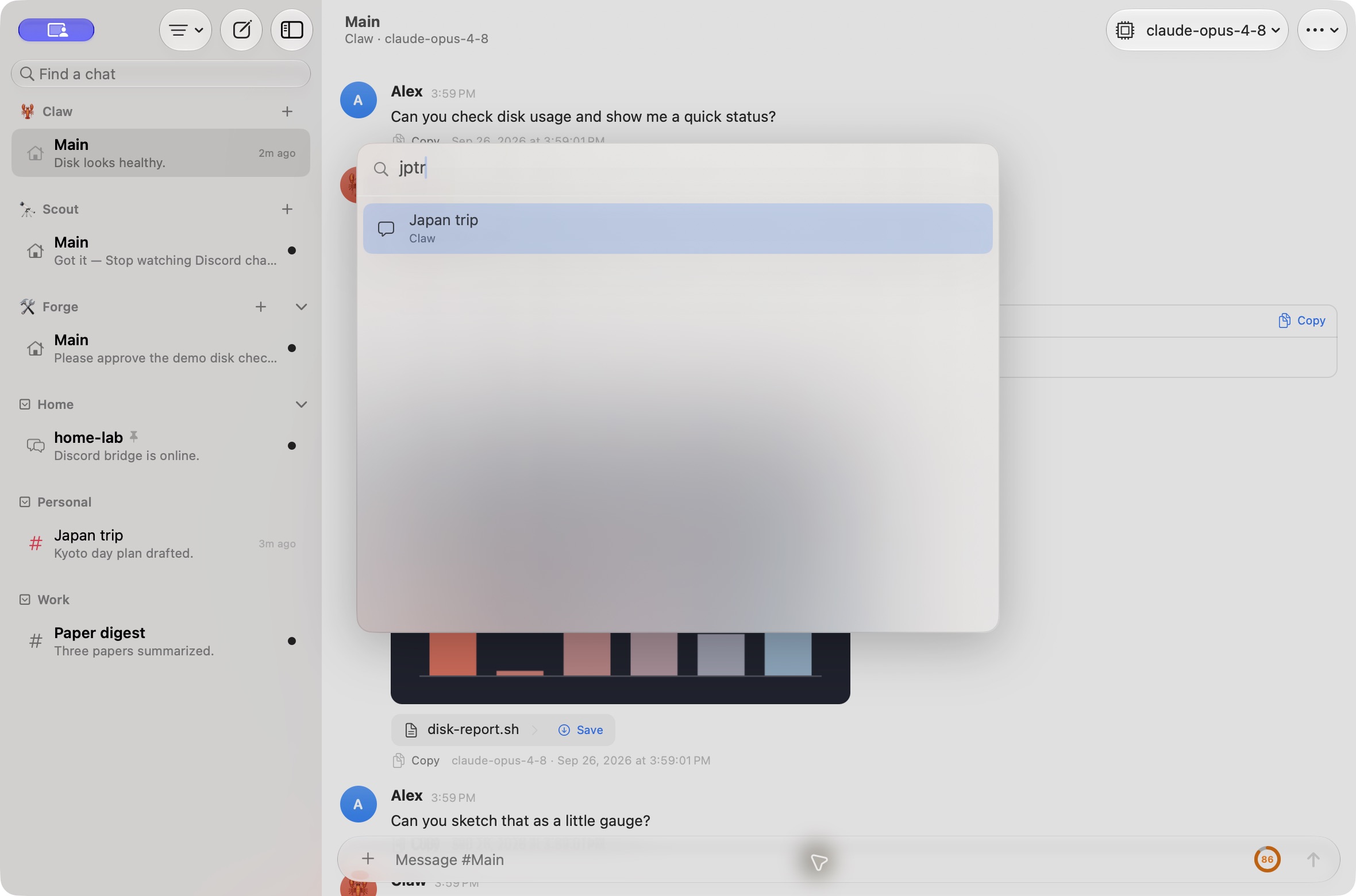
The command palette finds any chat on any gateway and runs common commands, without leaving the keyboard. Back and Forward retrace the chats you’ve visited, like a browser.
If you choose another chat or gateway while New Chat is creating a session, the new chat remains available without replacing your newer selection.
On iPhone and iPad, tapping the status bar above the chat does not jump the conversation to the top. Scroll through the transcript or open a message from search, a bookmark or a link to move to it.
macOS
On iOS, the command palette requires a hardware keyboard.
Open the palette
Section titled “Open the palette”Press ⌘ K, or choose Go → Command Palette…. Press it again to close it.
- macOS: the Go menu is in the menu bar. The palette opens in the window you’re using.
- iOS: there’s no on-screen button. The palette opens with ⌘ K on a hardware keyboard, such as on an iPad.
Type to search. The field says “Jump to a chat or run a command…”.
What you can do
Section titled “What you can do”Before you type, results are grouped into sections:
| Section | What’s there |
|---|---|
| Chats | Chats on every gateway. Recently visited chats come first, then the selected gateway’s chats in sidebar order, then other gateways’. Each shows its agent and origin, plus the gateway name if you have more than one. Pinned chats show their ⌘ number. |
| New Chat | “New Chat with Agent” for each agent on the selected gateway, while it’s connected. The default agent is marked Default agent. |
| Commands | The commands below, plus “Switch to Gateway” for each other saved gateway. |
Helper (subagent) runs and archived chats aren’t listed.
Commands
Section titled “Commands”| Command | What it does |
|---|---|
| Change Model… | Opens a list of the agent’s models. It shows the current model, and it’s disabled if the chat’s model can’t be changed. |
| Pin Chat / Unpin Chat | Pins or unpins the current chat. |
| Show Thinking Steps / Hide Thinking Steps | Switches Thinking Steps between None and the default, Live Only. |
| Dictate Message / Stop Dictation | Starts or stops dictation in the current chat’s text box. Shown only when a chat is open and dictation is available. |
| Go Back / Go Forward | Same as ⌘ [ and ⌘ ]. |
| Show Sidebar / Hide Sidebar | Same as ⌃ ⌘ S. Shown as Toggle Sidebar on macOS. Not shown on iPhone, where the chat list is one step back. |
| Next Unread Chat | Jumps to the next chat with unread messages. Enabled only when something is unread. |
| Open Settings… | Opens Settings: a window with tabs on macOS, a list of pages on iOS. |
| Gateway Settings… | Opens Gateway Settings for the selected gateway. |
| Automations… | Opens the selected gateway’s automations. |
| Approval History… | Opens Approval History for the selected gateway. |
| Usage & Cost… | Opens the Usage dashboard for the selected gateway. |
| Session Usage… | Opens the current chat’s usage drill-down. Shown only when a chat is open. |
Searching messages
Section titled “Searching messages”Once you’ve typed at least 2 characters, the palette also offers Search Messages for “query”, after the matching chats, and after any command whose title starts with what you type. It’s first when no chat or command title starts with your query. Choose it, or press ⇧ ⌘ F (Go → Search Messages…), to search the text of every cached chat on the selected gateway. See Search messages.
Choosing a model
Section titled “Choosing a model”Change Model… opens a second page with “Choose a model…” in the field:
- Default (model) goes back to the agent’s default;
- each model the agent can use follows, with its provider. The current one is marked Current;
- models that aren’t available, or can’t be picked by hand, are greyed out.
Matching
Section titled “Matching”Search is forgiving:
- Every word you type has to match, but it can match the title, the subtitle or hidden keywords.
- Letters can match in order, not only as a whole word.
jptrfinds “Japan trip”, andnwcrfinds “New Chat with Research”. - Case and accents don’t matter.
- Keywords include agent, gateway, channel and category names. Commands also match common synonyms: “audit” or “log” finds Approval History…, “cron” finds Automations…, “spend” or “tokens” finds Usage & Cost…, and “preferences” finds Open Settings….
If nothing matches, the palette shows “No matches”.
| Action | Keys |
|---|---|
| Move through results | ↑ ↓ |
| Run the selected result | Return |
| Back to commands from the models or messages page | Esc, or Delete in an empty field |
| Close the palette | Esc |
The selection wraps from the last result to the first. Clicking outside the palette also closes it.
Back and Forward
Section titled “Back and Forward”Go → Back (⌘ [) and Go → Forward (⌘ ]) work like a browser’s history, across all your gateways:
- Opening a new chat clears Forward.
- Chats that no longer exist are skipped.
- Removing a gateway drops its chats from the history.
- Back goes up to 50 chats.
- The history isn’t saved, so it starts fresh each time you open Pincer.
Back and Forward are greyed out when there’s nowhere to go. On iOS there are no toolbar buttons for them. Use the keys on a hardware keyboard, or Go Back and Go Forward in the palette.
Pinned chats ⌘1–9
Section titled “Pinned chats ⌘1–9”⌘ 1 to ⌘ 9 open the selected gateway’s first nine pinned chats, in the order the sidebar shows them. Archived chats are skipped.
On macOS they’re also listed under Go → Pinned Chats, which appears when the selected gateway has pinned chats. To pin a chat, see Per-chat actions.
See Keyboard shortcuts for the full list.
Links to chats
Section titled “Links to chats”Every chat has a pincer:// link. Choose Copy Link to Chat from a chat’s ⋯ menu, then open the link from anywhere to jump back to that chat. Handoff moves the chat you’re reading between your Mac and iPhone. Links, notifications, the menu bar, message search, the Open Chat Shortcuts action and Handoff all open chats the same way, and chats you open from them are added to Back and Forward. See Deep links & Handoff.
Deleting an automation keeps it removed even if an earlier refresh finishes afterward. A subsequent refresh loads the current jobs from the Gateway.
Palette matches are prepared in the background as you type. While a newer query is being prepared, the last finished rows can remain visible, but Return and row actions wait for the current query and inventory. Closing the palette prevents pending matches from replacing its results.
 Pincer · MIT License
Pincer is an independent client and isn’t affiliated with the OpenClaw project.