Approvals, questions & notifications
Exec approvals
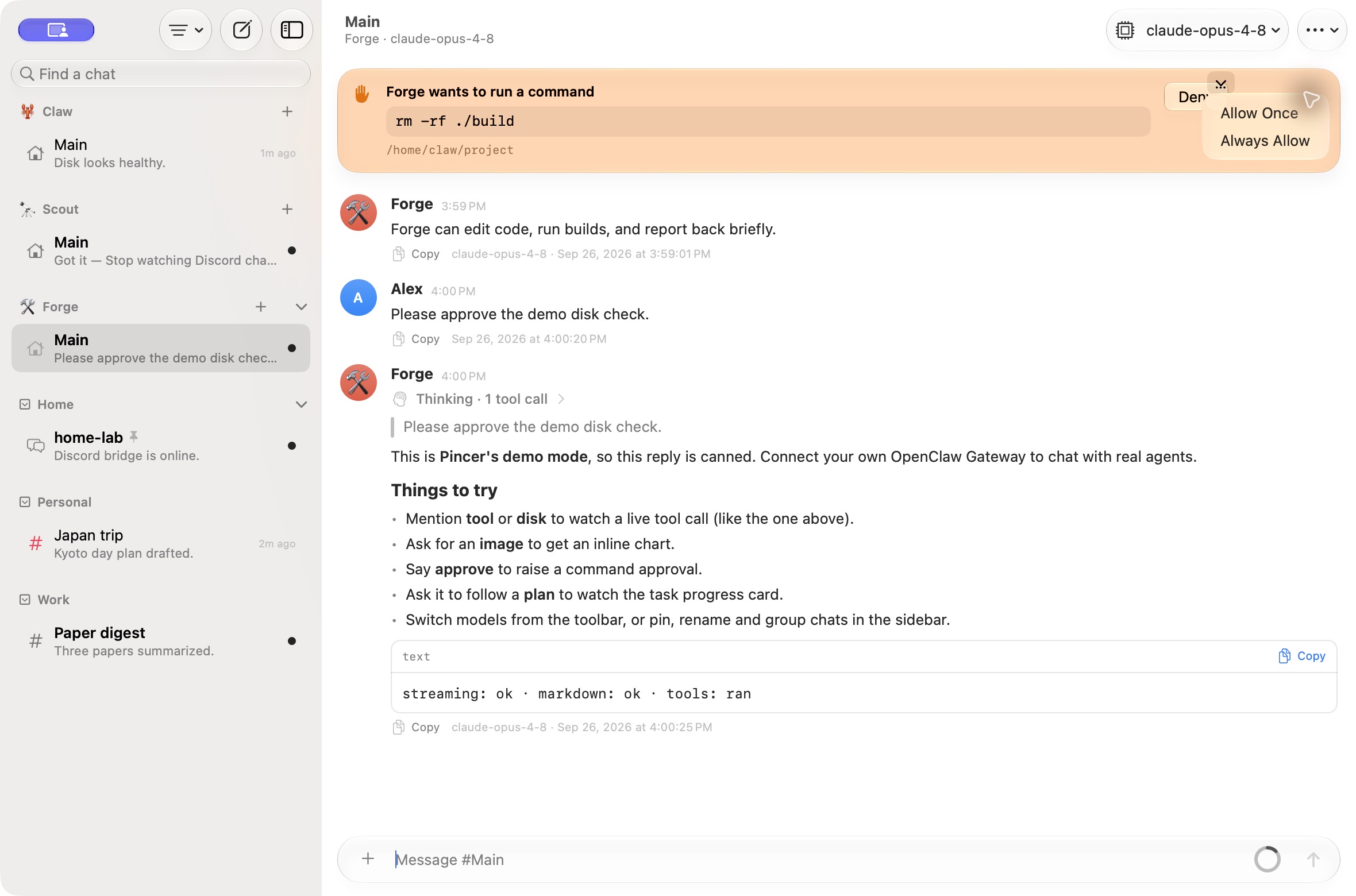
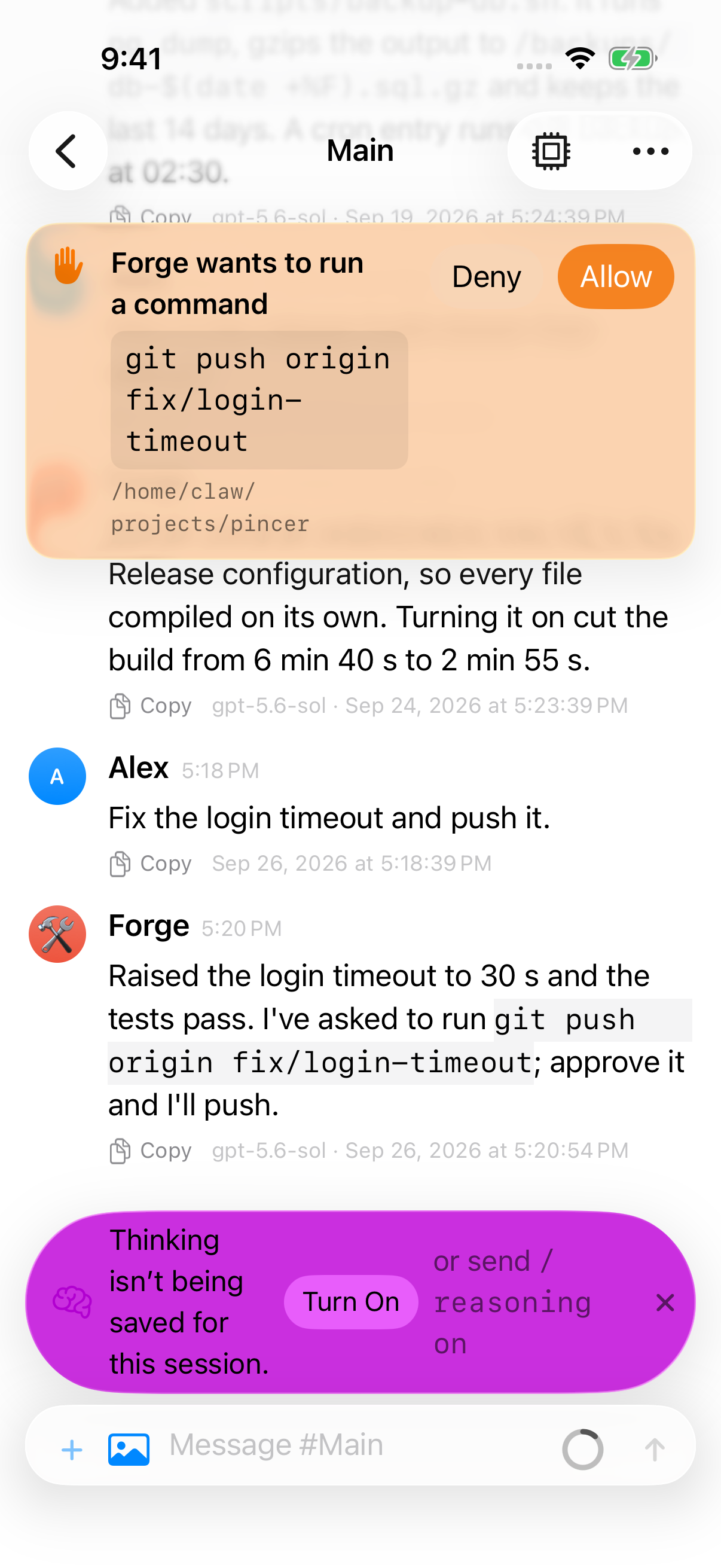
Section titled “Exec approvals”When an agent wants to run something that needs your OK, Pincer shows the request as a banner in the app and as an actionable notification. Choose:
- Allow once: run it this time only.
- Always allow: run it now, and let the gateway allow it from now on.
- Deny: don’t run it.
In the banner, Deny is a button, and Allow Once and Always Allow are in the Allow menu.
Always allow only appears when the gateway permits it for that command. Some commands can only be allowed once.
An approval you answer somewhere else, such as on another device or in the Control UI, disappears from Pincer on its own, including its banner and notifications.
To check how many approvals are waiting, you can also ask Siri “Pending approvals in Pincer”. Siri can’t answer them, though. See Shortcuts & Siri.
Everything you’ve chosen Always allow for is listed per agent in Gateway Settings → Command Policy, where you can review it and remove anything you no longer want to allow.
macOS
iOS
Answering from a notification
Section titled “Answering from a notification”The notification is titled “Approval needed · Gateway name” and shows the command. You can answer it without opening Pincer:
- On iOS, Allow once and Always allow need you to unlock first, with Face ID, Touch ID or your passcode, even from the lock screen.
- Deny works straight from the lock screen, without unlocking, since it can only stop a command.
Pincer connects to the gateway the approval came from in the background, even if it wasn’t running, and sends your answer. When the gateway confirms it, the notification goes away.
Your answer is only sent if Pincer can reach the gateway within about 15 seconds of your tap. It’s never saved and sent later. Tapping again after you’ve answered sends nothing.
Follow-up notifications
Section titled “Follow-up notifications”If something goes wrong, the notification is replaced with a follow-up titled “Approval · Gateway · chat”. Follow-ups never show the command.
| Follow-up | What it means |
|---|---|
| “That approval expired. Nothing was run.” | You answered too late. |
| “Already allowed elsewhere.” / “Already denied elsewhere.” / “Already answered elsewhere.” | Someone answered it first, on another device or channel. |
| “Always allow isn’t available for this command.” | The gateway won’t allow it for good. Allow once and Deny are still there. |
| “Couldn’t reach gateway — the command is still waiting.” | Nothing was sent. The actions are still there, so you can try again, or open Pincer. |
| “This device can’t approve commands on gateway. Open Pincer for details.” | This device doesn’t have the operator.approvals scope, or its sign-in failed. |
| “This gateway is no longer in Pincer.” | You removed the gateway. |
Anything else is the gateway’s own error message.
Approval History
Section titled “Approval History”To see what was allowed or denied in the last 30 days, open Approval History… from the command palette, or Gateway Settings. See Approval History.
Agent questions
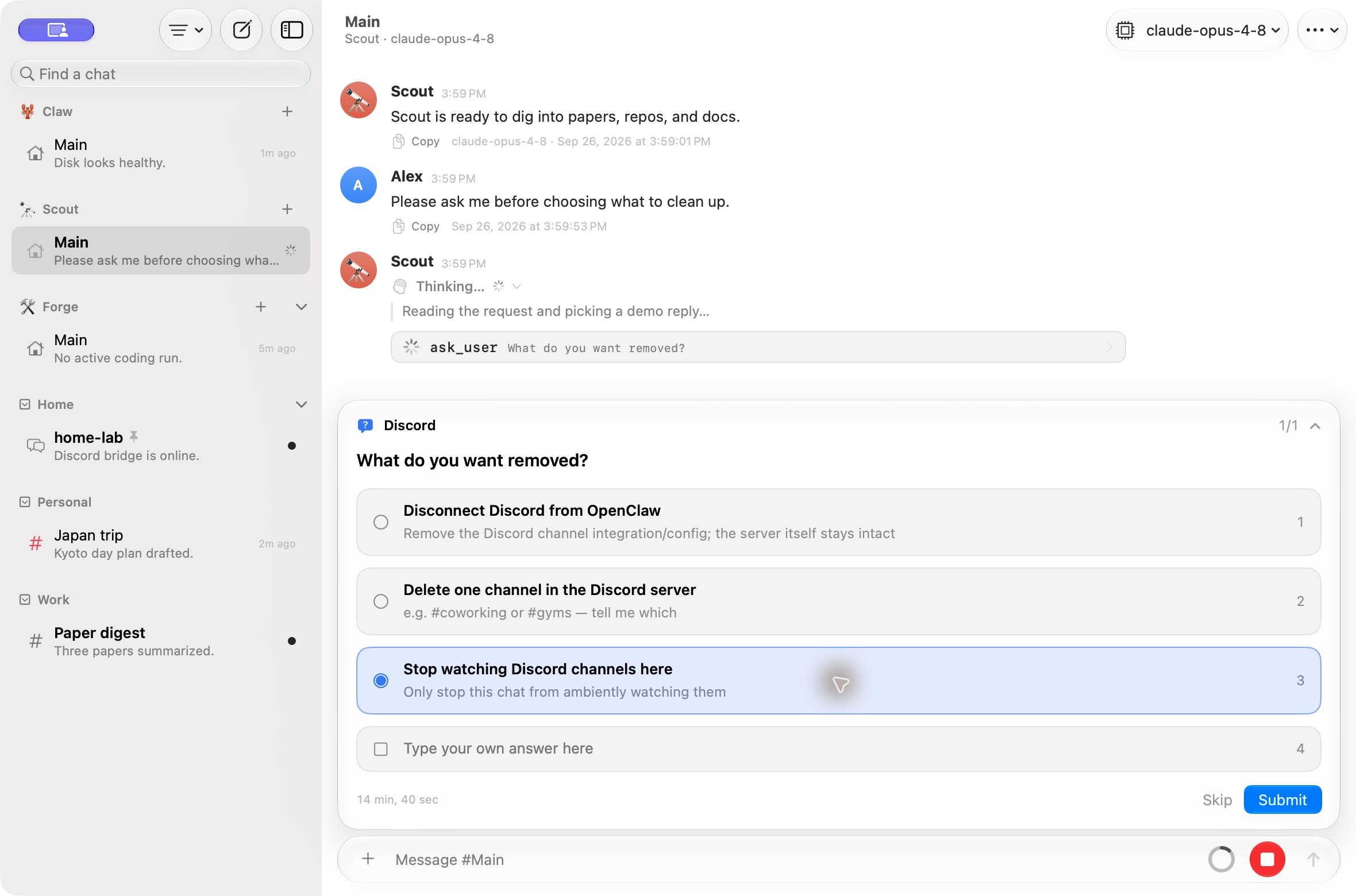
Section titled “Agent questions”When an agent asks you something with ask_user, a question card appears above the composer. Its header is the question’s topic, or Question. When there are several questions it shows which one you’re on, such as “1/3”, and “+2 more” means more prompts are waiting. You can collapse the card and come back to it.
To answer:
- click an option, or press its number (1, 2, …) while the card is selected. Some questions let you pick more than one;
- or type in the field (“Type your own answer here”, or “Type your answer” when there are no options). Answers to secret questions, such as an API key the agent requests with the
secretstool, are hidden as you type, and the card shows where the gateway stores them. The value goes straight to the gateway’s secret store: the chat, its cache, Read Aloud and the gateway log only ever see that it was stored; - then choose Submit, or press Return. With several questions, Next and Back move between them, and all the answers are sent together.
Skip tells the agent you’d rather not answer. When a question has a time limit, the card counts down the time left.
A question answered somewhere else, such as with Discord buttons or in the Control UI, disappears on its own.
If an agent asks a question in a chat you aren’t looking at, you get a notification titled “Agent has a question · chat”, showing the first question. Tapping it opens the chat. It has no actions, so you answer in the card.
Try it in the demo
Section titled “Try it in the demo”To try this safely, open Scout → Main in the demo and send Please ask me before choosing what to clean up. Select Stop watching Discord channels here to see the selected state below. The reply explicitly confirms that nothing was actually removed.
macOS
Notifications
Section titled “Notifications”Activity notifications handle unusually large Gateway activity timestamps safely. Ordinary notification identities and reply deduplication remain unchanged.
- One thread per chat: notifications from the same chat are grouped together.
- Tap to open: tapping a reply notification opens its chat.
- No double alerts: you won’t get a notification for the chat you’re already looking at.
- Helpers stay quiet: subagent (helper) runs never send notifications or add to unread counts.
To turn Pincer’s notifications off on this device, turn off Notify about replies and approvals in Settings → Notifications.
Allow notifications when Pincer asks the first time. If you missed it, turn them on in System Settings → Notifications → Pincer on macOS, or Settings → Notifications → Pincer on iOS.
While Pincer is closed
Section titled “While Pincer is closed”- macOS: notifications arrive while Pincer is running and connected.
- iOS: notifications arrive while Pincer is running. To get them while it’s closed, use background refresh or a push relay.
Current limits
Section titled “Current limits”- Approving from the lock screen with Face ID, and answering a notification after Pincer was force-quit on iOS or quit on macOS, haven’t been tried on a real device yet.
Canceling an Approval History refresh preserves an already pending history load and does not replace its records with a cancellation error.
 Pincer · MIT License
Pincer is an independent client and isn’t affiliated with the OpenClaw project.