Gateway Settings
Pincer can show and edit your gateway’s configuration, so you don’t have to hand-edit its config file.
Opening Gateway Settings
Section titled “Opening Gateway Settings”- macOS: choose Gateway → Gateway Settings… (⇧ ⌘ ,) in the menu bar, or Gateway Settings… from the gateway button at the top of the sidebar. It opens in its own window.
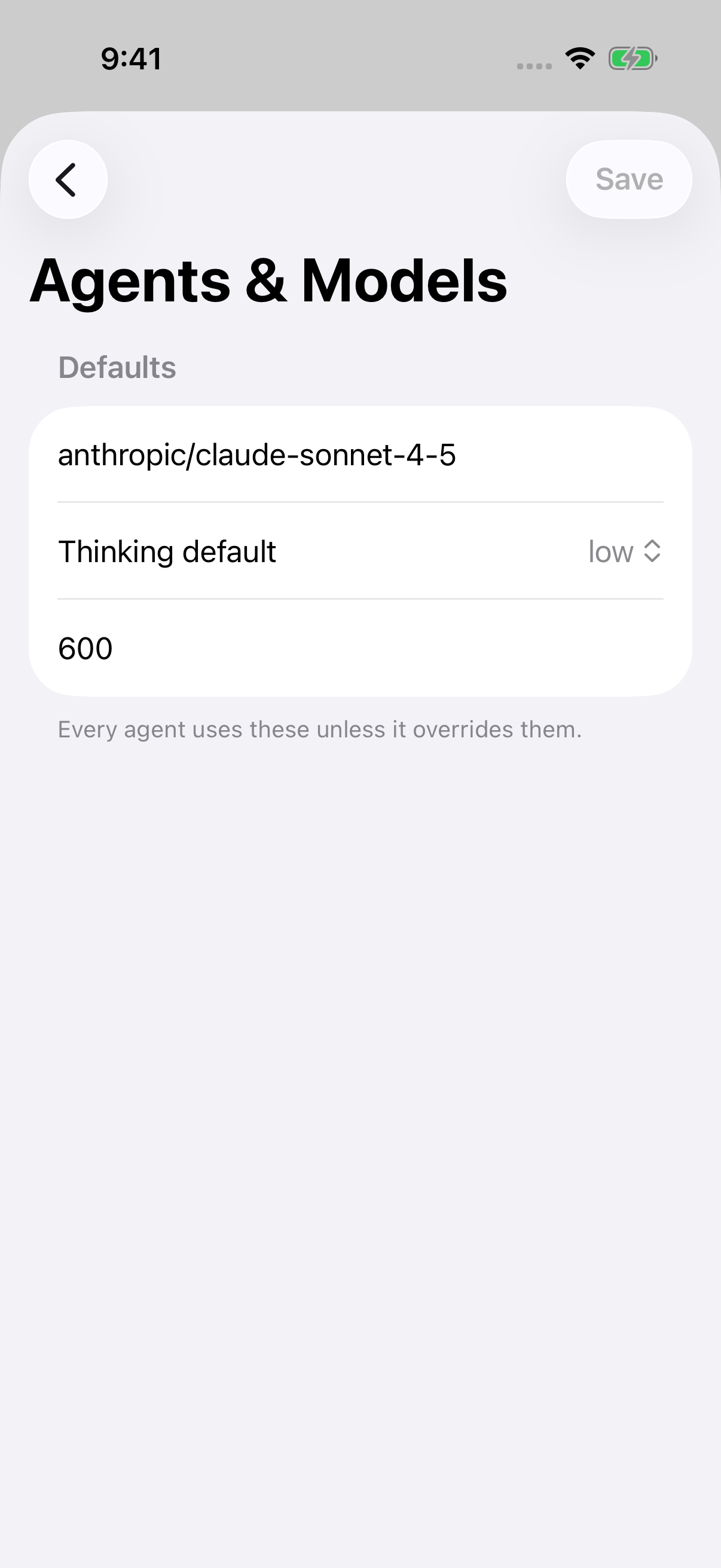
- iOS: choose Gateway Settings… from the gateway button at the top of the sidebar. It opens as a sheet.
You can also open it from the command palette.
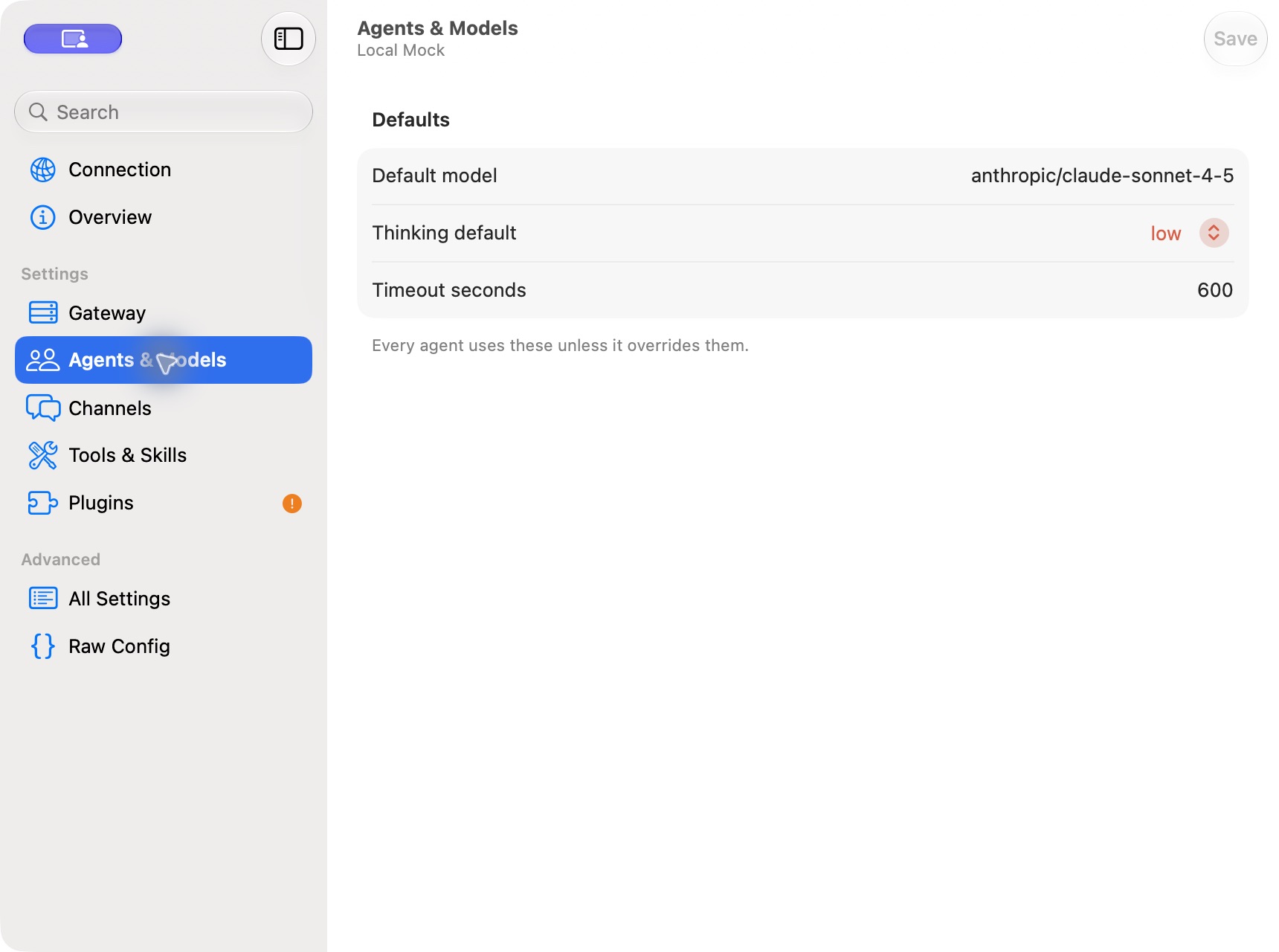
The sidebar is arranged in labeled groups, and each row has a one-line subtitle. Connection sits at the top, above the first group.
| Group | Page | What’s there |
|---|---|---|
| (top) | Connection | How this device connects: status, address and access, with Reconnect and Edit Connection…. Editing the connection is in Pincer Settings ▸ Gateways. See Manage gateways. |
| Status | Overview | The gateway’s version, config file and health. |
| Health | Health, channels, connected clients and Restart Gateway…. See Gateway health & restart. | |
| Channel Status | Each channel account’s connection, with Reconnect, Start, Stop…, Log Out… and QR login. See Channel Status. | |
| Gateway Logs | A live tail of the gateway’s log, with level filters, search, copy and export. See Gateway Logs. | |
| Activity | Sessions | Every session on the gateway: previews, details, run status, bulk archive and delete, branches, rewind and recovery. Only on gateways that offer session management. See Session manager. |
| Approval History | Past approval decisions from the last 30 days. See below. | |
| Usage | Tokens, estimated cost and rate limits. See Usage & cost. | |
| People & Devices | Message Requests | People waiting to message your agents on a channel that uses DM pairing (formerly Pairing Requests). See below. |
| Operator Devices | Apps signed in to this Gateway: approve, reject, rename and revoke devices (formerly Devices). See Operator Devices & Nodes. | |
| Security | Command Policy | Which commands agents can run and when they ask, and what you’ve always allowed. See Command Policy. |
| Nodes | The nodes paired with the gateway. Only on gateways that offer nodes. See Operator Devices & Nodes. | |
| Configure | Agents & Models | Model defaults, and your agents: create, edit, duplicate and delete them, and edit their workspace files. See Agents & workspace files. |
| Channels | Messaging channel settings, such as Discord. To see whether they’re connected, use Channel Status. | |
| Tools & Skills | Tool and skill settings from the gateway’s config. To browse skills or see a chat’s effective tools, see Skills & tools. | |
| Skills | Each agent’s skills and why some can’t be used yet, plus ClawHub search and install. Only on gateways that offer skills. See Skills & tools. | |
| Sessions & Messages | How sessions and messages behave, from the gateway’s config. To browse or manage sessions, see Session manager. | |
| Voice | The gateway’s text-to-speech provider and persona, and whether it speaks replies on channels. Only on gateways with text-to-speech. See Gateway voice. | |
| Automation | Scheduled and automated runs. | |
| Plugins | Installed plugins and their settings. | |
| MCP Servers | The MCP servers your Gateway connects to: add, edit, enable, reconnect and sign in. Only on gateways with config editing. See MCP Servers. | |
| Gateway | Core gateway settings. | |
| Advanced | All Settings | Every field, grouped by section. |
| Raw Config | The whole config as JSON5. |
Connection, Overview, Approval History, Gateway Logs and Usage are always there. The config-based pages in Configure appear once the config loads. Sessions, Nodes, Skills, Voice, Plugins and MCP Servers also depend on what the Gateway supports.
The curated pages are built from the gateway’s own schema, so they match what your gateway supports. Rarely used fields are under Advanced, and sections your gateway doesn’t have are hidden.
Search in the sidebar finds any setting and jumps to it. Message Requests also turns up when you search for “pairing requests”. Matching runs in the background as you type; only results for your current search and the latest loaded settings are shown. Labels, help text, and setting paths are all searchable.
macOS
iOS
Making changes
Section titled “Making changes”Edits from every page except Command Policy and agent pages go into a single draft. Command Policy has its own draft and Save button, because it’s a separate file on the gateway. Agents and their workspace files are saved from their own pages too. See Agents & workspace files.
For the config draft:
- Change whatever you need, across as many pages as you like. The toolbar shows how many changes aren’t saved yet.
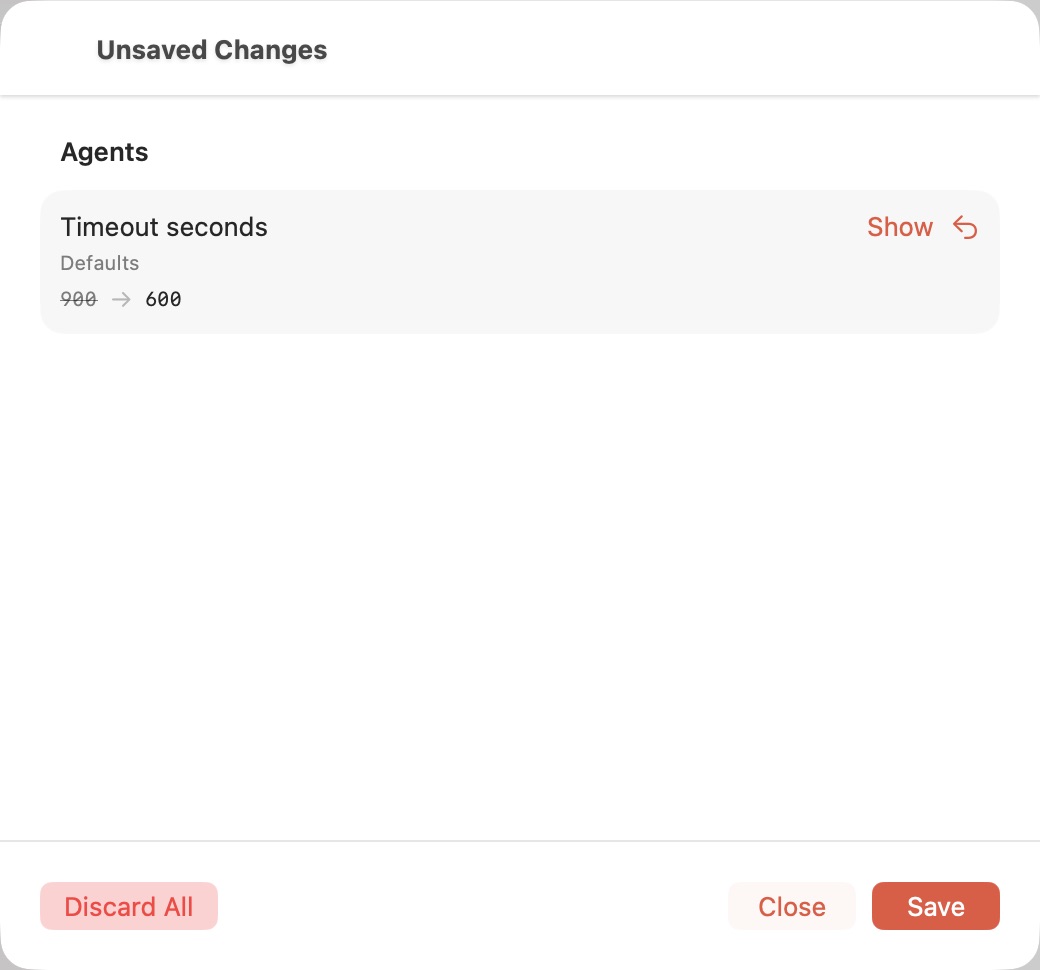
- Choose the Unsaved count in the toolbar to review the old and new values. Use Show to return to a field or Revert to undo that edit.
- Choose Save to send the draft. The gateway validates, saves and applies it. The toolbar’s Save button (⌘ S) also saves directly.
You can keep editing while Save runs. That save acknowledges the values it submitted; changes made afterward remain unsaved, including changes to the same field or a Revert. Raw Config replaces the earlier configuration, while later edits in the form remain in the draft.
If a value is invalid, the gateway sends back the field and the reason. Changes that need a gateway restart say so (“Saved. Restart the Gateway to finish applying it.”), and you can restart from the Health page.
If someone else changed the config on the gateway in the meantime, Pincer rebases your draft on top and asks about any setting that conflicts.
macOS
Secrets
Section titled “Secrets”Saved secrets are shown only as saved. Pincer never sends them back to the gateway unless you change them.
Plugins
Section titled “Plugins”Opening a plugin loads its credential field descriptions in the background. A newer inspection keeps ownership of those fields; older or canceled responses cannot replace it. If inspection fails, previously loaded field descriptions stay available.
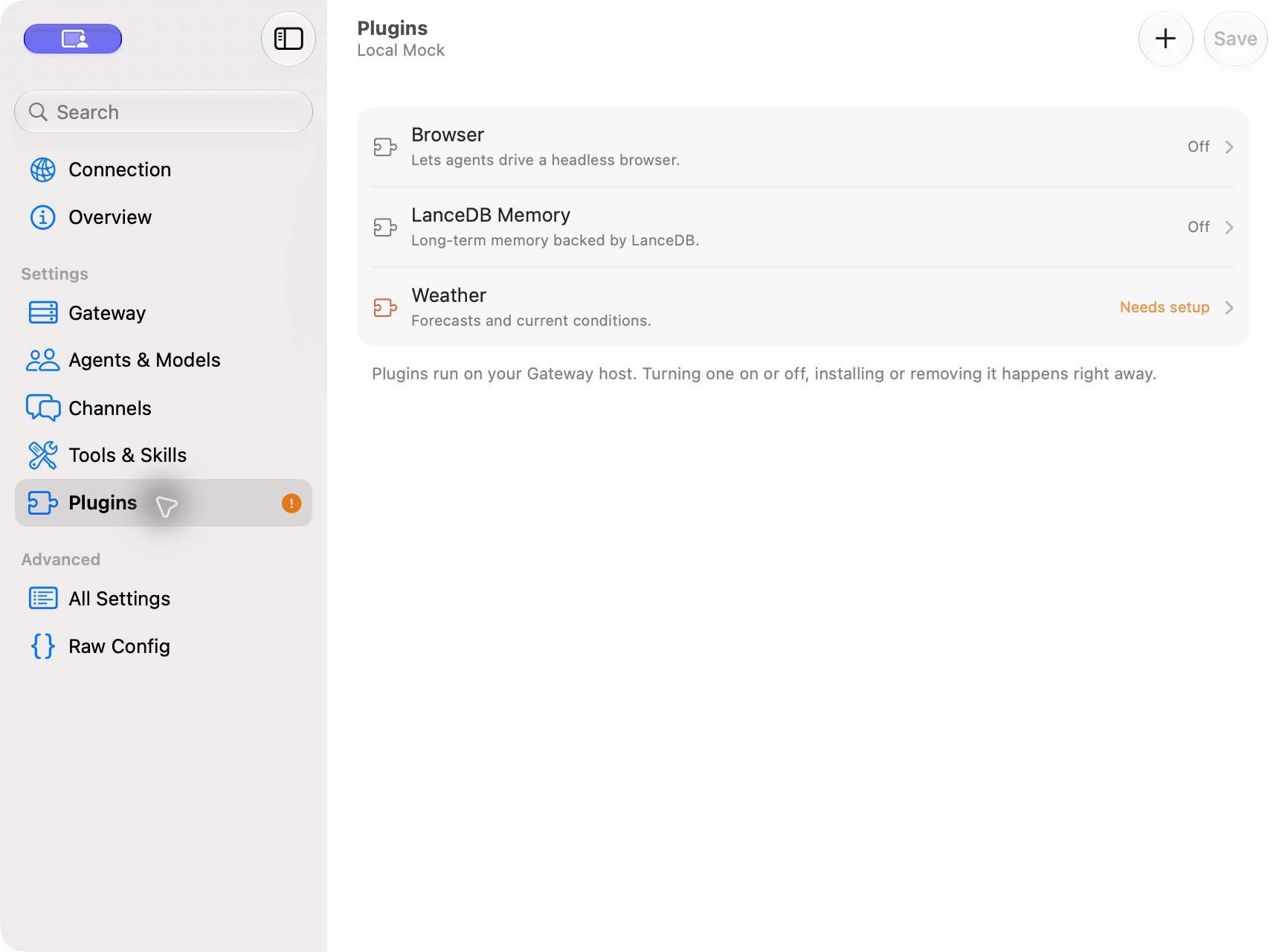
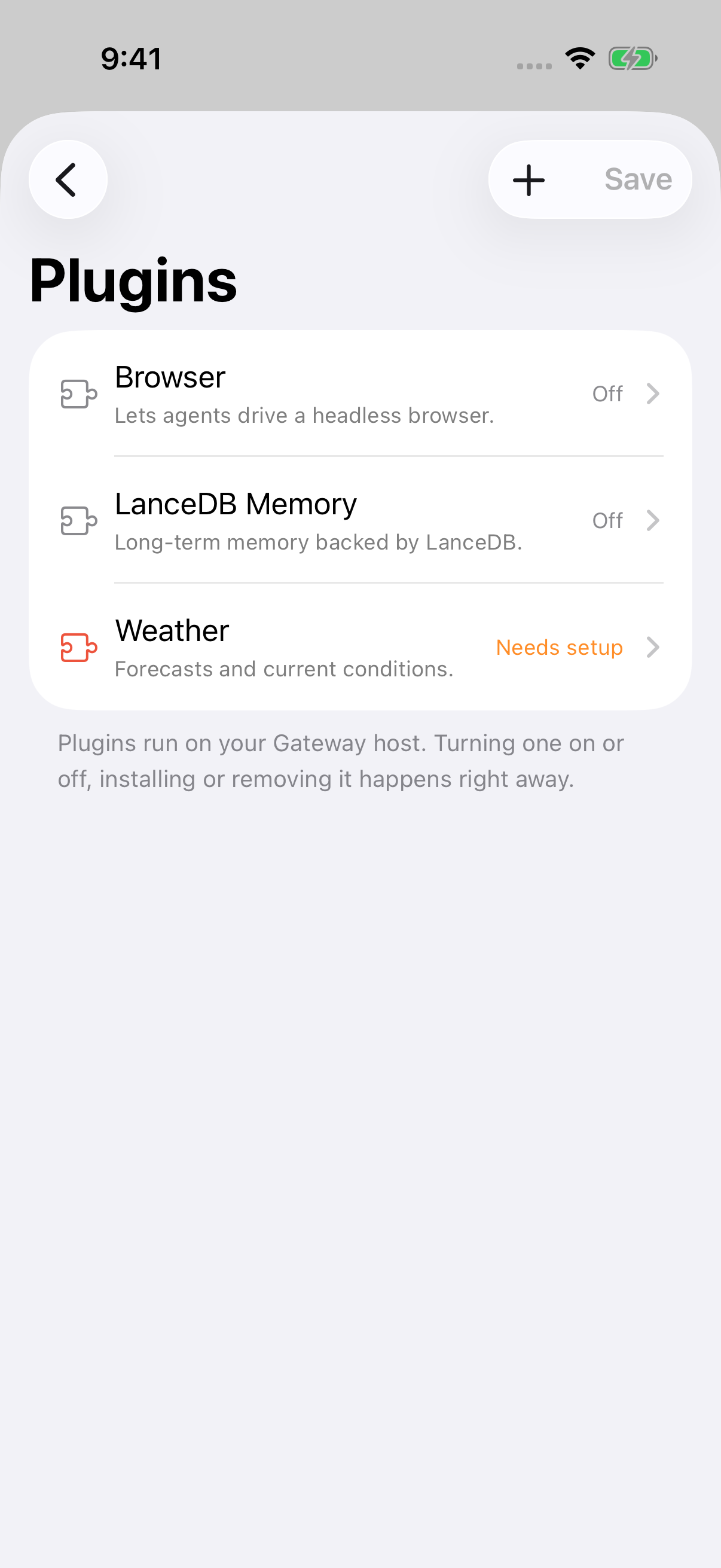
On the Plugins page you can:
- see installed plugins;
- add one from ClawHub, npm or git;
- remove, enable and disable plugins;
- fill in each plugin’s settings and credentials.
macOS
iOS
Raw Config
Section titled “Raw Config”For anything the forms don’t cover, Raw Config lets you edit the whole configuration as JSON5 and apply it in one go.
On iPhone and iPad, the editor keeps a bounded height and scrolls long files inside the text area.
Validation runs in the background while you type; Save becomes available when the latest text is valid. You can keep editing during a save. Its acknowledgement preserves later typing or an explicit Revert as unsaved editor changes, even when Revert finished validating before the save completed.
Approval History
Section titled “Approval History”macOS
iOS
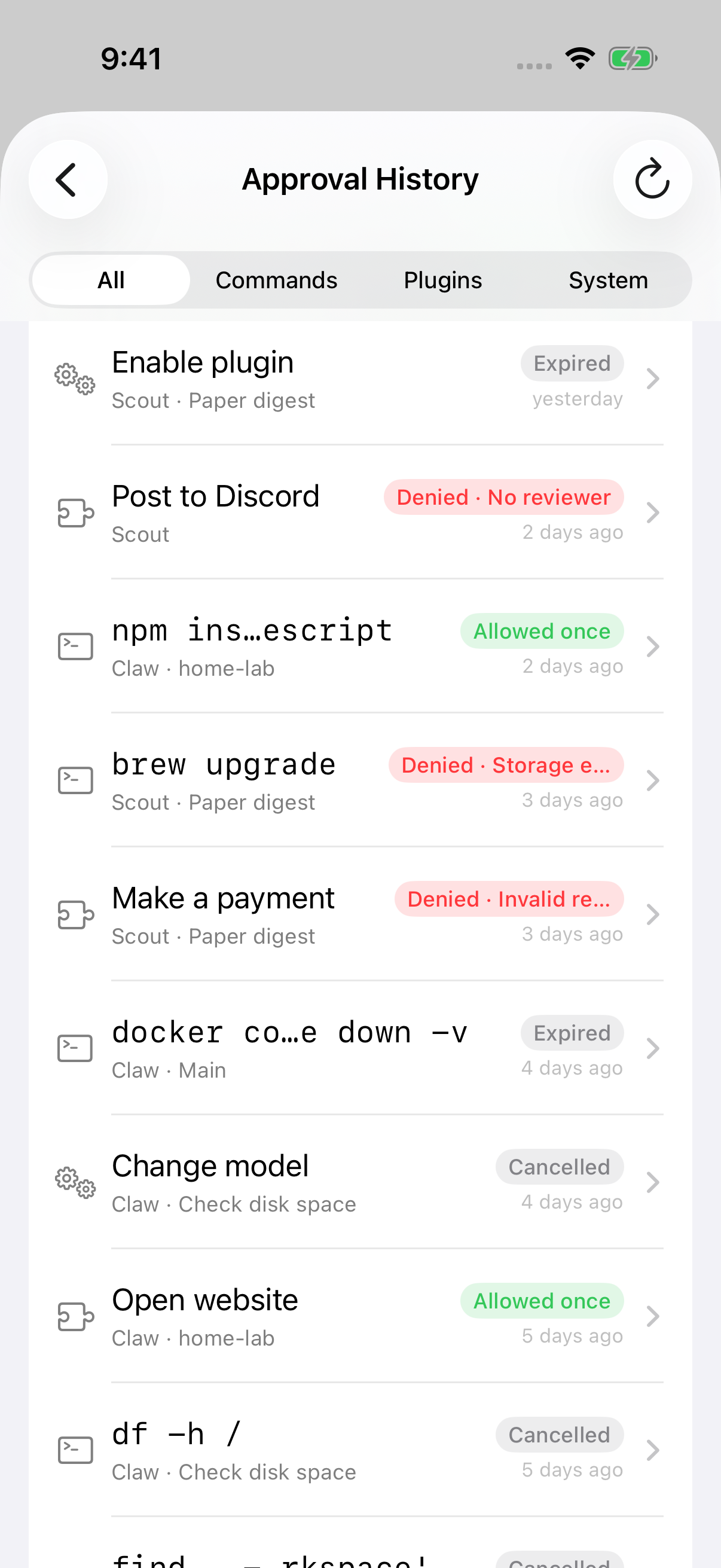
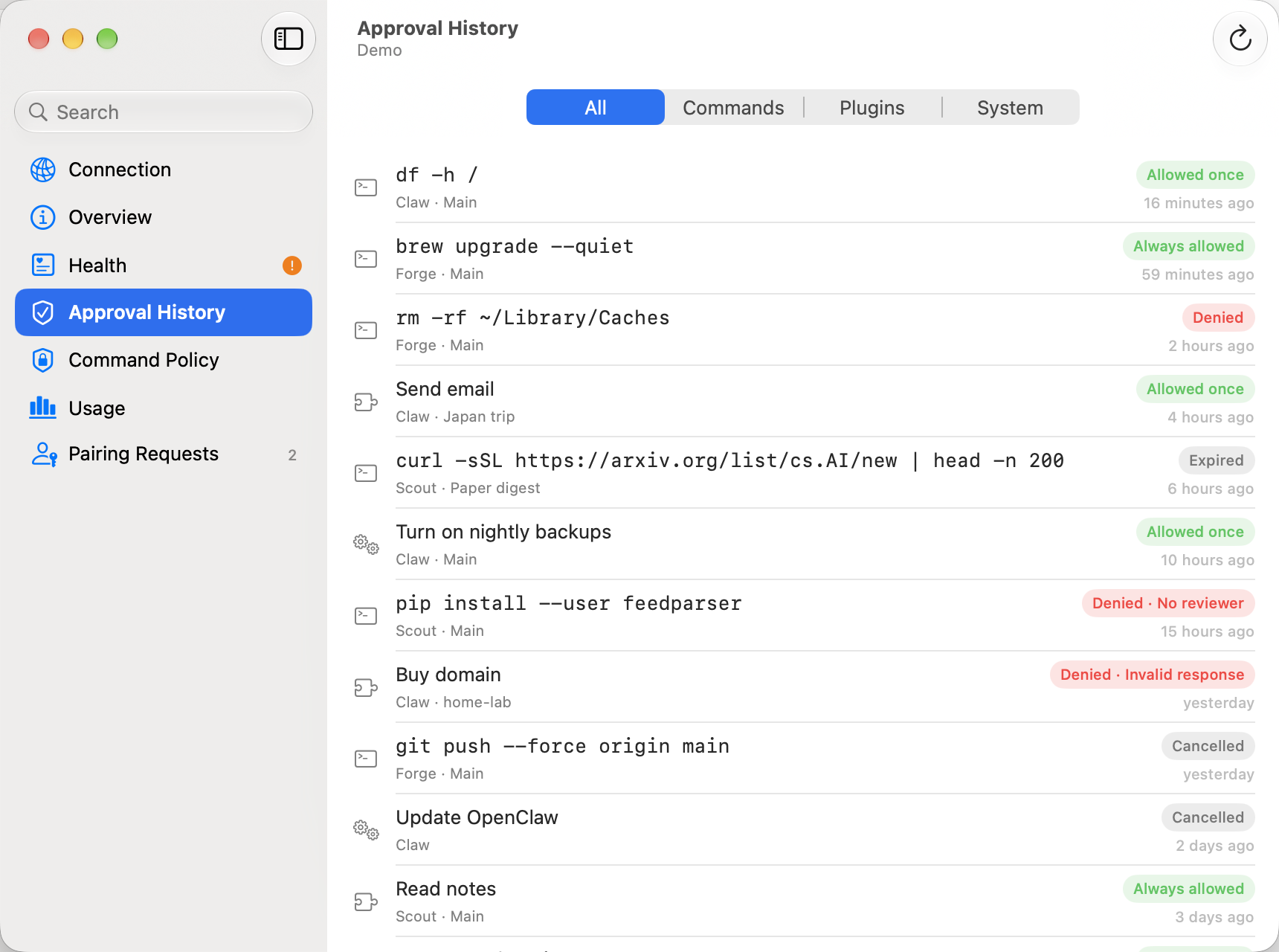
Approval History lists the gateway’s decisions on commands, plugins and system changes from the last 30 days, newest first. Besides the Gateway Settings sidebar, you can open it with Approval History… in the command palette.
It needs the operator.approvals scope, which both access levels include, so you don’t need Full Management. It’s read-only: answer pending approvals in the chat or from the notification. See Exec approvals.
- Filter by kind with All, Commands, Plugins or System.
- Load More at the bottom shows older decisions.
- Refresh in the toolbar reloads the list. On iOS you can also pull to refresh.
- New decisions appear at the top shortly after they’re made.
Each entry shows its outcome:
| Outcome | Meaning |
|---|---|
| Allowed once | Allowed this time only. |
| Always allowed | Allowed, and allowed from now on. |
| Denied | Denied. When it wasn’t a person, the reason follows, such as Denied · Timed out. |
| Expired | No one answered before it expired. |
| Cancelled | The request was cancelled. |
| Pending | Still waiting for an answer. |
Select an entry for the details:
- Decision: the outcome, the decision, the reason, and who decided it under Decided by, such as This device, another device, a channel, or OpenClaw (automatic);
- Times: when it was requested, decided and set to expire;
- ID, with Copy ID;
- Request: the kind, the command with Copy Command, and the host, node, plugin, tool and severity when they apply;
- Requested by: the agent and chat, with Open Chat to jump to it.
If the gateway doesn’t keep a history, the page says “Approval History Isn’t Available”. Update OpenClaw to see past decisions.
In Channels, Operator Devices, and Message Requests, errors and warnings stay visible until you use their Dismiss button (or press Escape). Success and informational notices disappear after four seconds. New notices are announced to VoiceOver without moving keyboard focus.
Message Requests
Section titled “Message Requests”Canceling a pending list refresh keeps the existing pairing requests and access status intact. A canceled refresh cannot replace a newer refresh.
macOS
iOS
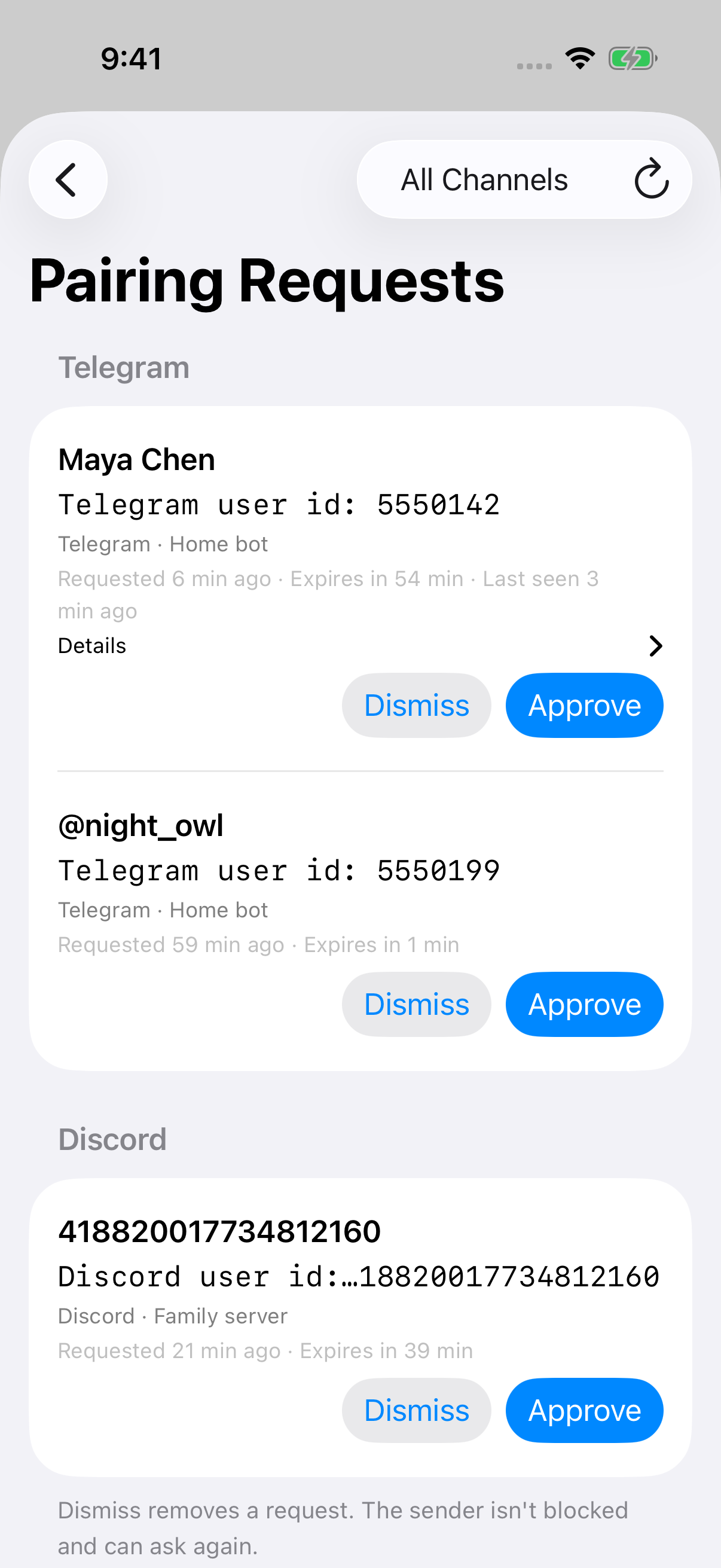
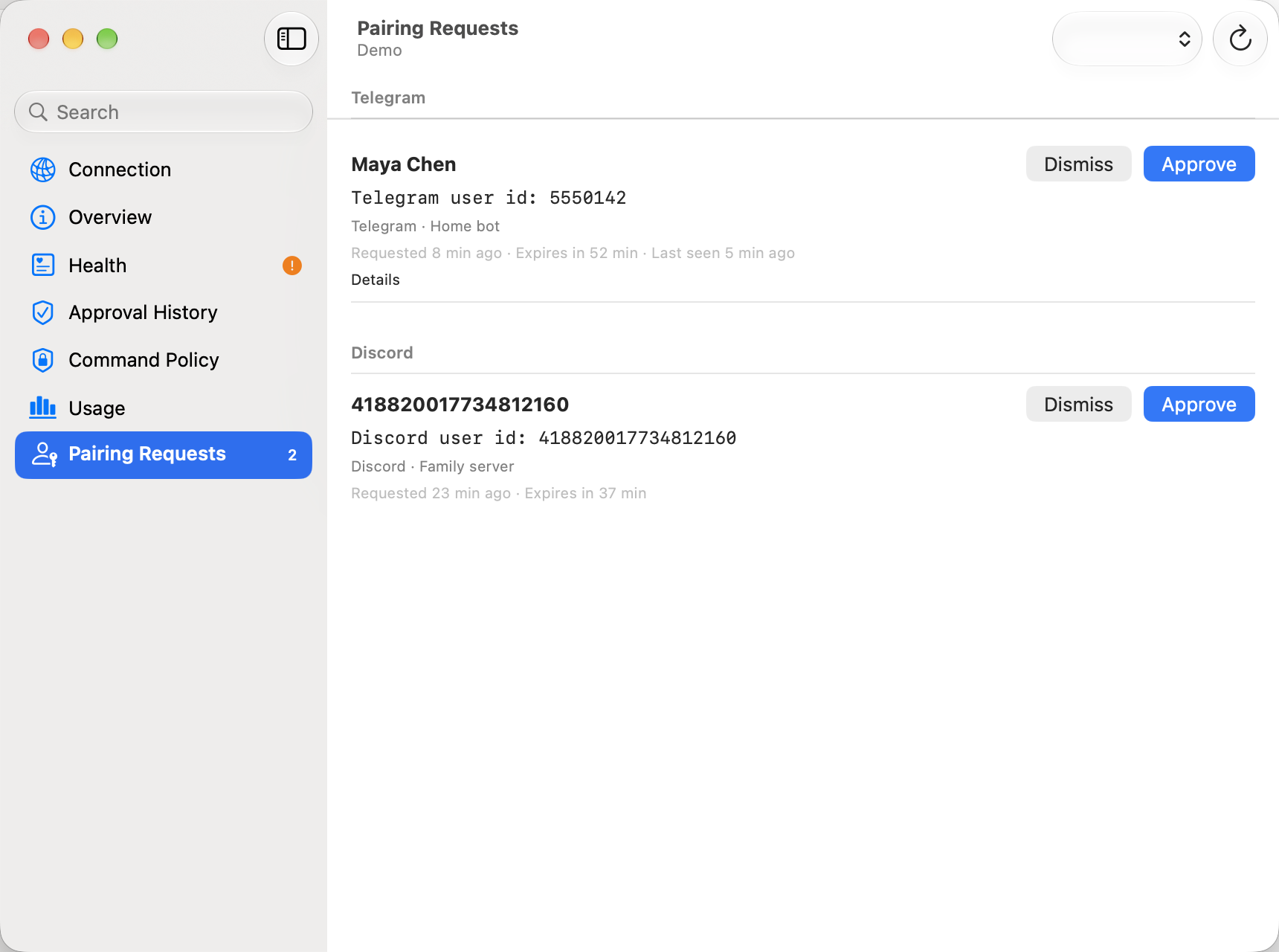
When a channel account uses dmPolicy: "pairing", someone new who messages it has to be let in before they can talk to your agents. Message Requests (formerly Pairing Requests) lists who’s waiting, newest first, and the sidebar badge shows how many.
Each request shows:
- the sender’s name or
@username, if they set one. These come from the sender and aren’t verified; - the channel’s sender id, such as “Telegram user id: 5550142”. This is the part you can trust, and it’s always shown;
- the channel and account the message came to;
- when they asked, when the request expires and, if they asked again, when they were last seen. On macOS, hover for the exact times.
What you can do:
- Approve asks you to confirm first. The sender can then DM the agent on that account. If the channel supports it, Tell them they were approved sends them a note. On a gateway that doesn’t have a command owner yet, Full Management can also Make them the command owner.
- Dismiss removes the request without blocking the sender. They can ask again.
- Right-click (or long-press) a request to copy the sender id or the request id.
Expired requests can’t be approved; dismiss them or wait for the next refresh.
There’s no notification for new requests: the list refreshes when you open the page, when Pincer reconnects, and every 30 seconds while it’s showing. On iOS you can also pull to refresh.
The pairing code the sender was given isn’t part of the gateway’s protocol, so Pincer doesn’t show one. Senders you already approved aren’t listed and can’t be removed here. To revoke access, edit the channel’s allowlist on the gateway.
Current limits
Section titled “Current limits”- Gateway Settings has so far been tested against the mock gateway only.
- It doesn’t browse the ClawHub catalog or show install progress yet.
- Lists of objects can’t be edited in forms yet. Use Raw Config for those.
- Message Requests has no list of approved senders, can’t remove them, and doesn’t notify you about new requests.
Gateway Logs prepares confirmed exports in the background, preserving the raw lines and their order. Leaving the page cancels document presentation; if another export is requested while preparation is running, only the latest request is presented.
Numeric validation messages preserve ordinary integer and fractional limits, and safely display finite schema bounds outside the signed 64-bit integer range.
 Pincer · MIT License
Pincer is an independent client and isn’t affiliated with the OpenClaw project.