Usage & cost
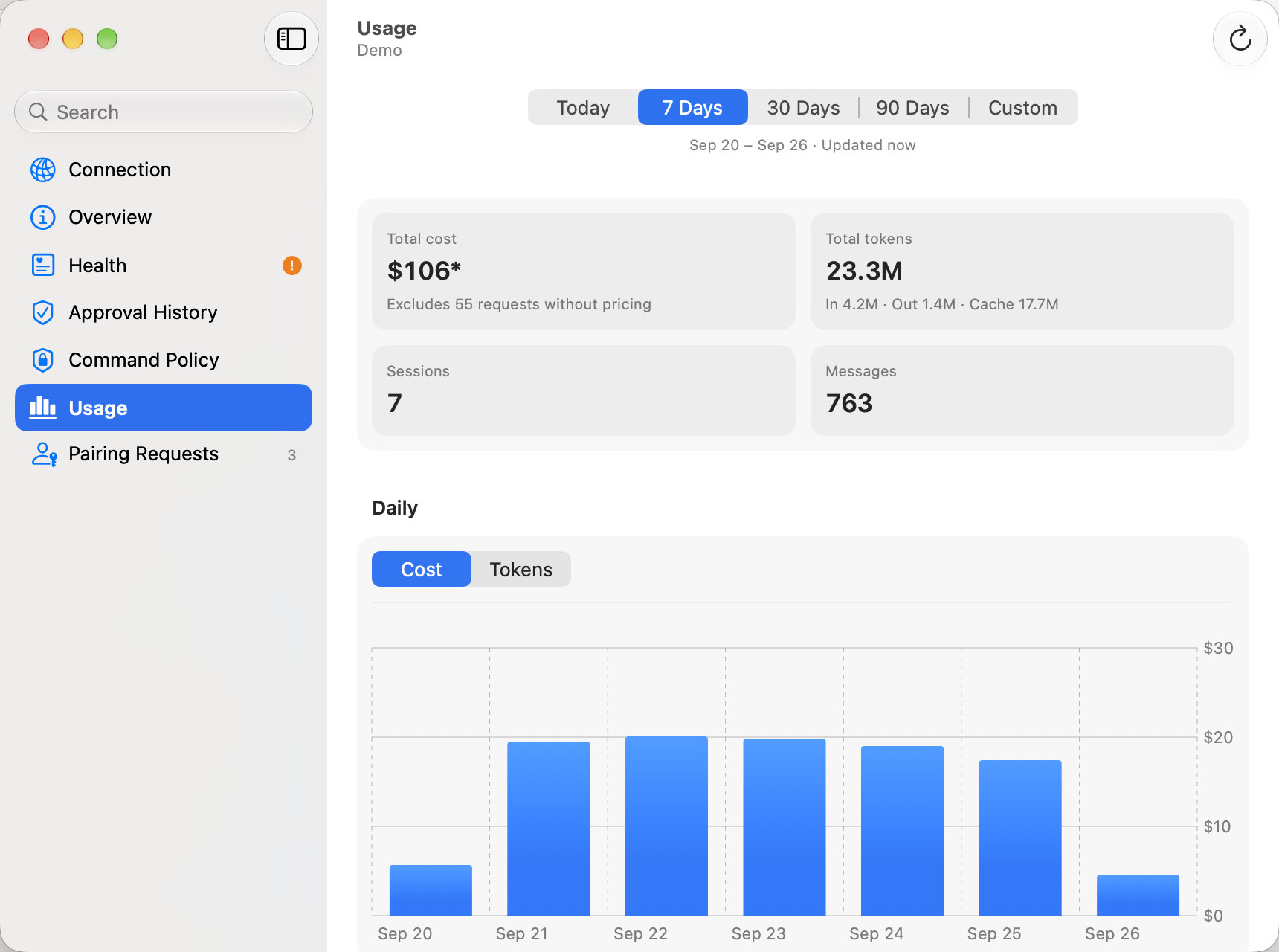
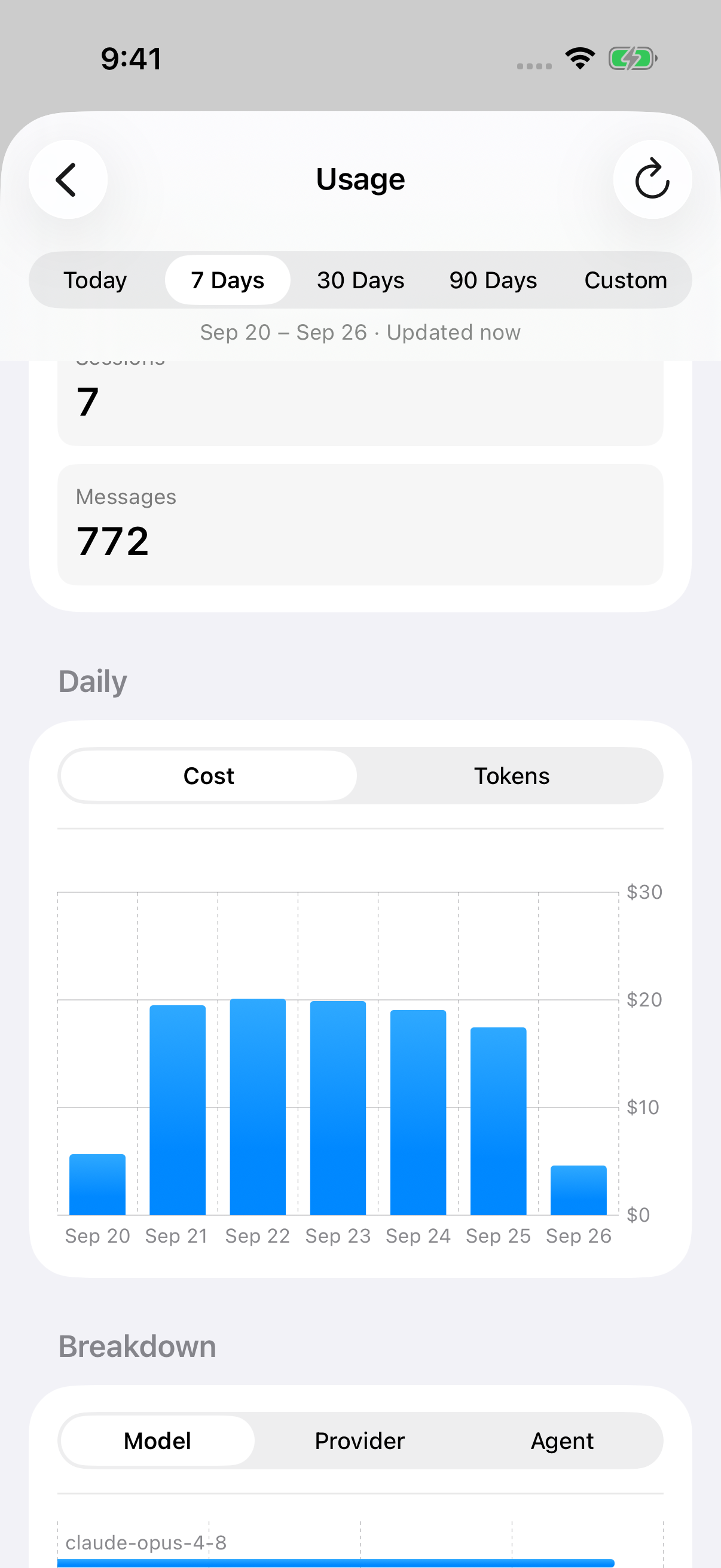
The Usage page shows what your gateway has spent on tokens: totals, a daily chart, a breakdown by model, provider or agent, the top sessions, and each provider’s rate limits. You can drill into any session for its own totals, usage over time and log.
macOS
iOS
Opening Usage
Section titled “Opening Usage”- Gateway Settings → Usage, in the sidebar right after Approval History. On macOS Gateway Settings opens in its own window; on iOS it opens as a sheet. See Gateway Settings.
- The command palette (⌘ K): Usage & Cost…. Try typing cost, tokens, spend or quota.
To go straight to one chat’s usage:
- the chat’s ⋯ menu: Session Usage…;
- the command palette, with a chat open: Session Usage….
Both open Gateway Settings at Usage with that session shown. Back returns to the dashboard.
Usage doesn’t need Full Management. It works with either access level.
Choosing a range
Section titled “Choosing a range”The bar pinned at the top picks the range: Today, 7 Days (the default), 30 Days, 90 Days or Custom. Ranges count calendar days in your time zone and include today, so 7 Days is today and the six days before it.
Custom shows From and To dates. Neither can be later than today, and To can’t be earlier than From.
Under the picker, a caption shows the range the gateway reported and when it was updated, for example Sep 20 – Sep 26 · Updated 2 min. ago. If the gateway is still counting some sessions, a second line says Some sessions are still being counted — totals may change.
The range you pick stays for that gateway until you quit Pincer. Refresh in the toolbar reloads everything; on iOS you can also pull to refresh.
The dashboard
Section titled “The dashboard”Totals
Section titled “Totals”Four tiles sum up the range:
| Tile | What it shows |
|---|---|
| Total cost | Estimated spend. |
| Total tokens | All tokens, with In · Out · Cache underneath. Cache counts both cache reads and cache writes. |
| Sessions | How many sessions had usage in the range. |
| Messages | How many messages they sent and received. |
Tokens are shown compactly: 950, 12.3k, 1.2M, 3.4B.
A bar chart with one bar per day across the whole range, including days with no usage. Switch between Cost and Tokens. In Tokens, each bar is split into Input, Output, Cache read and Cache write, in the same four colors Pincer uses everywhere for token types. If nothing in the range was priced, the chart starts on Tokens.
Hover over a day on macOS, or touch and drag on iOS, to see that day’s cost and tokens.
Breakdown
Section titled “Breakdown”Pick Model, Provider or Agent. A bar chart shows the top eight, with the rest summed as Other, and the list below shows every entry with its cost, tokens and share of the total, largest first. Entries are ranked by cost, or by tokens when nothing was priced.
Models show their short name with the provider underneath, and agents show their name. An orange warning icon marks an entry with requests that had no pricing.
Sessions
Section titled “Sessions”The sessions with the most usage in the range:
- macOS: a table with Session, Agent, Model, Tokens, Cost and Last Active. Click Tokens, Cost or Last Active to sort; it starts sorted by cost. Double-click a row, or select it and press Return, to open its usage (the footer reminds you). Right-click for Show Usage and Copy Session Key.
- iOS: a list with the session’s name, its agent and model, and its cost and tokens. The Sort By menu in the section header sorts by Cost, Tokens or Recent. Tap a row to open its usage.
Sessions are named after their label, else their chat’s title, else their session key. Every agent has a chat called Main, so those also show the agent’s name, for example Main · Scout. A session the gateway is still counting shows Calculating… and sorts last.
Pincer asks for the top 200 sessions. When there are more, the footer says so, for example Showing top 200 of 412 sessions. The totals, chart and breakdown always cover every session.
Rate limits
Section titled “Rate limits”One group per provider, with its plan and account when the gateway reports them. Each limit window shows how much is used and when it resets:
- a bar and percentage, which turns orange from 75% and red from 90%;
- Resets in 2h 14m when the reset is within a day, otherwise the date and time, for example Resets Sep 27, 9:00 AM.
Providers can also report billing, such as a credit balance, spend or a monthly budget. A budget shows used / limit with a bar. If the gateway couldn’t check a provider, its error is shown in place of its limits.
Rate limits are live, not tied to the range, so changing the range doesn’t reload them. Refresh does.
Session usage
Section titled “Session usage”Opening a session shows its name, agent and model, and three parts:
- Totals for the range: cost, tokens, and a grid of Input, Output, Cache read and Cache write tokens, with the cost of each when the provider priced them separately. Below that are messages, tool calls, errors, duration, and first and last activity. A session that used more than one model lists each under Models. If the session had no usage in the range, the totals are zero and say No usage in this range.
- Usage Over Time: cumulative cost or tokens over the whole session, not just the range. Hover (macOS) or drag (iOS) for the running total at any point.
- Log: the session’s latest 200 entries, newest first, with an icon for user, assistant, tool call or tool result, the time, and the tokens and cost when known. Click or tap an entry to show all of it, as selectable plain text.
The range bar works here too. Opened from the dashboard, it starts on the dashboard’s range; opened from a chat or the command palette, it starts on 30 Days. Changing it only reloads the totals.
Pincer remembers each session’s usage until you quit, so reopening one shows it right away while it refreshes.
Unknown and partial costs
Section titled “Unknown and partial costs”Some providers, such as local models, don’t report pricing. Pincer never shows those requests as free:
| You see | Meaning |
|---|---|
| $12.34 | Every request was priced. Amounts under a cent show as <$0.01. |
| $12.34* | Partial: some requests had no pricing and aren’t included. The tile says how many, for example Excludes 3 requests without pricing. |
| — | Unknown: none of the requests had pricing. The tile says Pricing unavailable. |
The same applies in session usage: if nothing in a session was priced, its chart and log show Cost unknown or —, never $0.00. On macOS, hover over a cost for the explanation.
When usage isn’t available
Section titled “When usage isn’t available”Each part of the page loads on its own, so one problem never hides the rest:
- Not supported: gateways that don’t report part of the data say so in that part, for example This gateway doesn’t report rate limits. Update OpenClaw to see them. If the gateway reports none of it, the whole page says Usage Isn’t Available. After updating OpenClaw, choose Check Again or Refresh; reconnecting checks again too.
- Not allowed: a gateway can refuse to share gateway-wide cost with an operator whose role can’t see every session. That part shows the gateway’s message with a lock and isn’t retried until you choose Try Again or Refresh. Ask the gateway’s administrator for access.
- Errors show the gateway’s message with Try Again, which reloads only that part. Anything already loaded stays on screen.
- Not connected: with nothing loaded yet, the page says Not Connected. Otherwise it keeps showing what it has, with Not connected. at the bottom and the range and Refresh disabled. It reloads everything, rate limits included, when the gateway reconnects.
In the demo
Section titled “In the demo”The demo has 90 days of sample usage across several models and agents, including a partially priced model, an unpriced local model, a rate limit above 90% and a provider with an error. Choose Session Usage… from a demo chat to see its drill-down.
Canceling a Usage refresh keeps the last completed report. A canceled request cannot replace a newer refresh or turn its result into an error; each usage section refreshes independently.
 Pincer · MIT License
Pincer is an independent client and isn’t affiliated with the OpenClaw project.