Transcript, thinking & tools
The transcript is where you read what your agents are doing. It’s built with native views, not a web page, so it stays fast even in long chats.
On macOS, messages keep their layout while you drag the window to a new width, including when you pause with the resize handle held. Replies continue streaming, and the transcript fits the final width when you release the handle while keeping your reading position.
Streaming replies
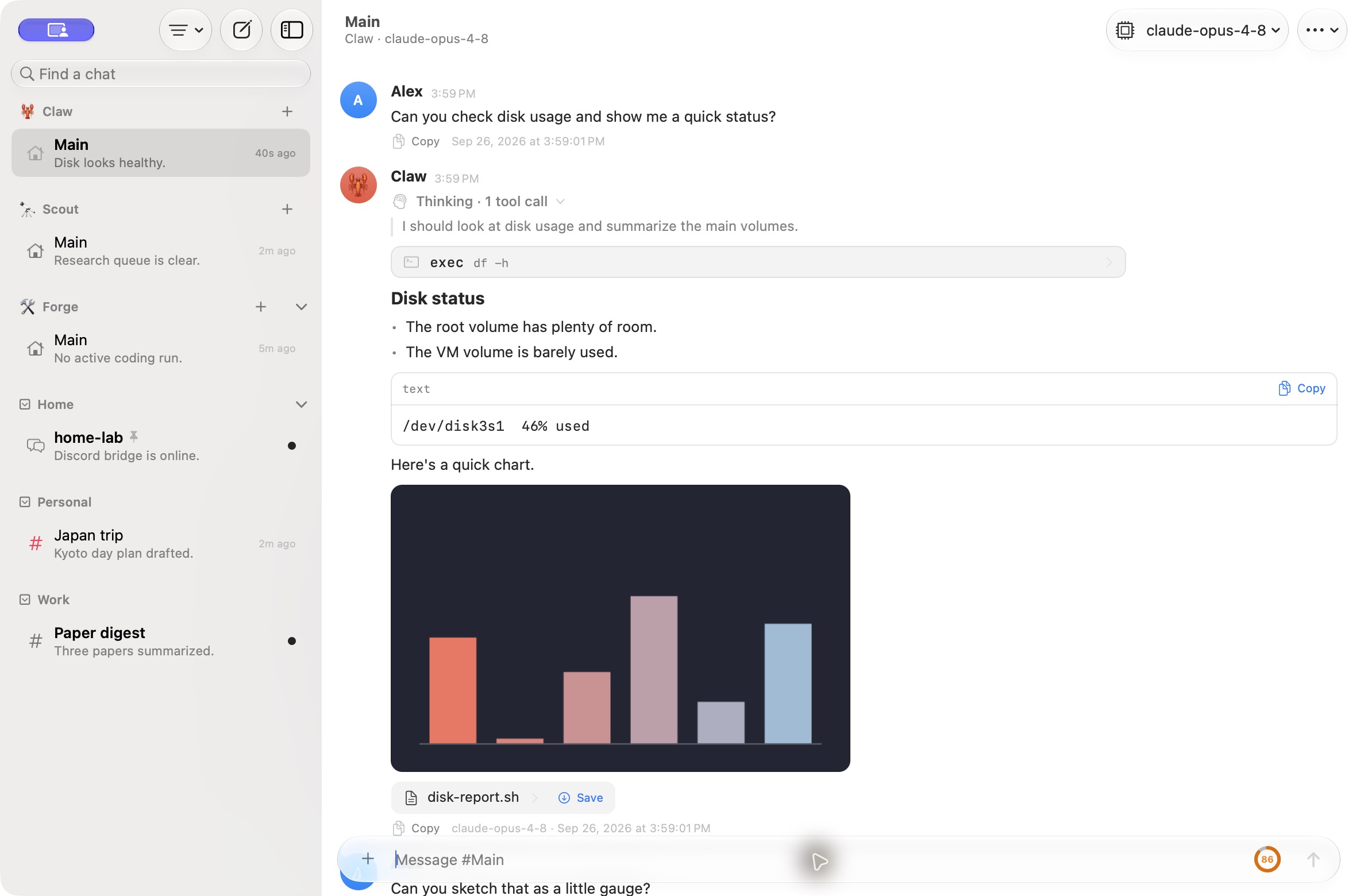
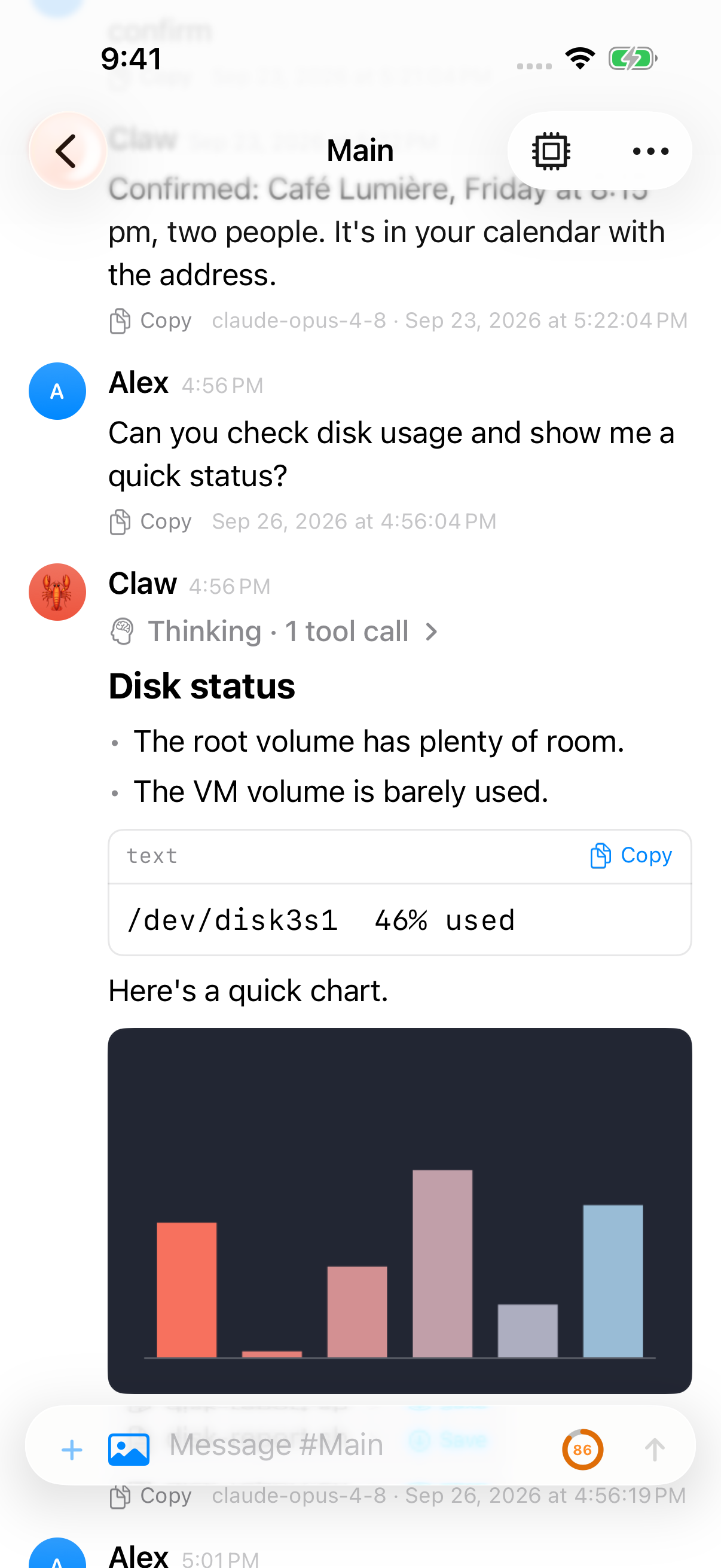
Section titled “Streaming replies”Replies stream in as the agent writes them. Markdown is fully supported, including tables and code blocks with a Copy button. Mermaid diagrams and display math are drawn in place, and HTML blocks can be previewed; see Diagrams, math and HTML.
Text in a table is selectable like the rest of a message: drag across it on macOS (double-click selects a word, triple-click a row), or touch and hold on iOS and drag the handles. A selection can span cells and rows, even in a wide table you scroll sideways, and copies as plain text with a tab between cells and a new line between rows, ready to paste into a spreadsheet. Copy Table in the context menu still copies the whole table as Markdown.
Reply transport markers are removed as streamed text arrives. The same marker syntax inside inline code or a fenced code block remains literal.
Every message ends with Copy, Reply and React buttons and its details: the model that wrote it and the full date and time it was sent.
On narrow screens, the message details move below the controls when they cannot fit beside them. The full model and date remain available alongside Listen and the other message actions.
macOS
iOS
Thinking
Section titled “Thinking”OpenClaw only stores the agent’s reasoning when the session’s reasoning level is on. You can set it from:
- the hint above the composer;
- the chat’s ⋯ menu: Gateway Reasoning → Save & Stream;
- the chat itself, by sending
/reasoning on.
| Gateway Reasoning | Effect |
|---|---|
| Save & Stream | Reasoning streams live and is saved in the history. |
| Stream Only | Reasoning streams live but isn’t saved. |
| Off | No reasoning. This also hides reasoning text in the transcript. |
Thinking steps
Section titled “Thinking steps”How much of the agent’s thinking steps (reasoning and tool calls) you see is a separate choice, set per device under Thinking Steps in the chat’s ⋯ menu or in Settings:
- None: only replies.
- Live Only (default): thinking and tool calls show while the agent works, then hide once the reply is done.
- All: every turn keeps its thinking and tool calls, folded into one collapsible Thinking item once the turn finishes.
Copy Thinking stays in a reply’s context menu whichever you pick.
Tool cards
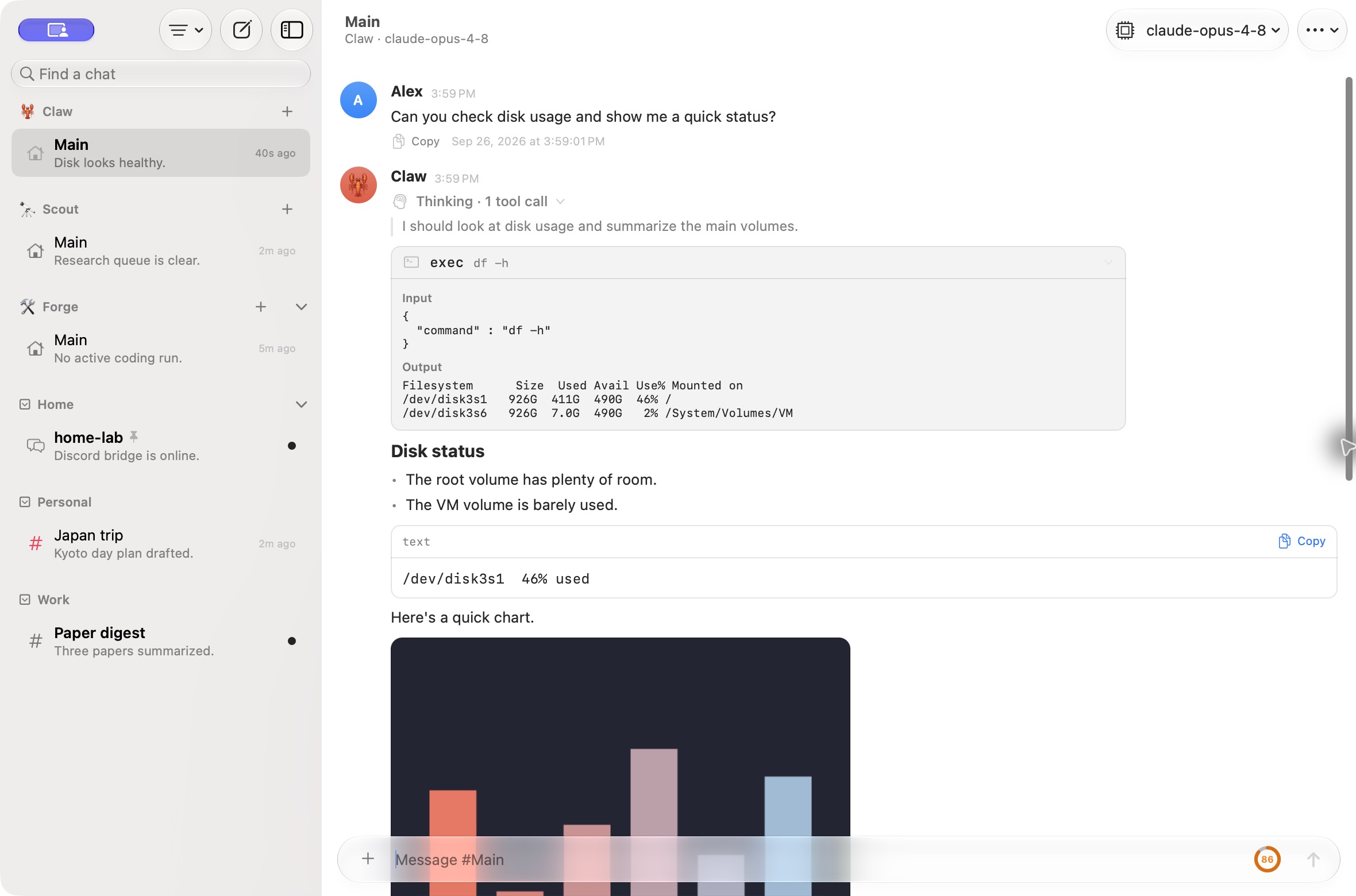
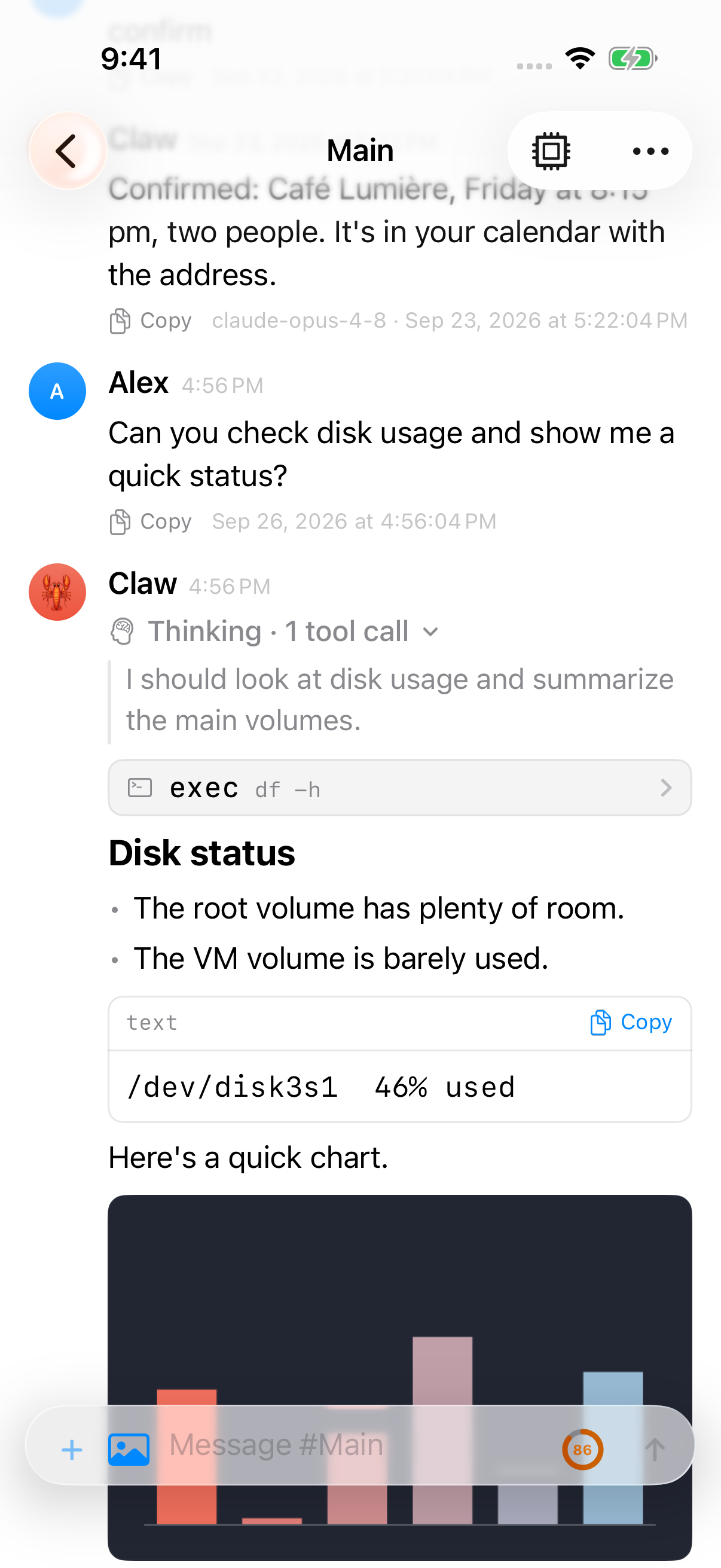
Section titled “Tool cards”Each tool call is shown as a card with its arguments and result. When a tool call starts a helper (subagent) run, the card has an Open run button that takes you to it. The Runs panel shows all of a chat’s helpers at once.
On iOS, VoiceOver’s actions for web-search links include the result title and site, or the site alone when there is no useful title.
When the agent writes, edits or patches a file, the card shows the change as a colour-coded diff with the file name and added and removed line counts. See File edit diffs.
Try it in the demo
Section titled “Try it in the demo”Open Claw → Main, set Thinking Steps → All in the chat’s ⋯ menu, then expand Thinking and exec df -h. The card separates the command’s input from its output; the disk figures are simulated.
macOS
iOS
Find in Chat
Section titled “Find in Chat”To search the chat you’re reading, press ⌘ F, or choose Find in Chat from the chat’s ⋯ menu. On macOS it’s also in the Edit menu as Find in Chat….
A find bar appears at the top of the chat. As you type, Pincer highlights every match, draws the current one in solid yellow, and scrolls to it. The bar shows where you are, such as “3 of 12”, or “No results”.
| Action | Keys |
|---|---|
| Find in Chat | ⌘ F |
| Next match | ⌘ G or Return |
| Previous match | ⇧ ⌘ G |
| Close | Esc or Done |
The Previous and Next buttons in the bar do the same. Moving past the last match wraps to the first. ⌘ G opens the bar if it’s closed. On iOS, the keys work with a hardware keyboard.
A few things to know:
- Case and accents don’t matter.
- Pincer searches the text as you see it, not the Markdown behind it. Link addresses aren’t searched, and a phrase that runs across bold or italic text still matches.
- New messages arriving don’t move you off the match you’re on.
Search options
Section titled “Search options”The options menu in the bar has two toggles:
- Include Thinking also searches the agent’s reasoning. It’s greyed out when the chat’s Gateway Reasoning is Off.
- Include Tool Output also searches tool cards’ arguments and results, up to the first 20,000 characters of each, the same as the card shows. For a file edit, it searches the diff lines instead of the raw arguments.
When a match is inside folded thinking or a tool card, it opens when you get to it. The options are remembered on this device.
Searching every chat
Section titled “Searching every chat”To search every chat at once, use Search messages (⇧ ⌘ F). Opening one of its results opens that chat with Find in Chat already showing your query and the message you picked selected. Every search result is also a match in Find, though Find matches inside words too.
Replies
Section titled “Replies”To reply to a particular message, click Reply in its footer, choose Reply from its context menu (right-click on macOS, touch and hold on iOS), or press ⇧ ⌘ R to reply to the last message. You can reply to your own messages and to any finished message from the agent. Writing the reply is covered in Replying to a message. The same menu has Copy Link, which copies a link to the message.
The agent can also reply to a particular message. When it answers an earlier message rather than your latest one, its reply shows the same quote card, and tapping it jumps to that message. In a one-to-one chat, a reply that simply answers your latest message shows no quote, to keep the chat quiet. In a group chat the quote always shows, since it tells people who the reply is for. If Pincer can’t find the original message, the card just says “Original message” and can’t be tapped.
Quote cards appear immediately; their short opening text fills in separately. Pincer inspects at most 4 KiB of the original text and 4 KiB of any recorded fallback, and shows at most 280 characters within a 2 KiB text budget. If the opening cannot be prepared or the background queue is full, the card keeps its sender and target without preview text. An unreadable or truncated blank opening is not treated as an empty message with a recorded fallback.
A reply shows the message it answers in a small card above its text, with who wrote it and the first two lines. The gateway keeps this with the message, so the quote is still there after a reload and on your other devices. The quote isn’t searched by Find in Chat and isn’t part of Copy.
Click or tap the quote to jump to the original. Pincer scrolls to it and highlights it briefly. If it’s further back than what’s loaded, Pincer loads older history until it finds it, with a small spinner in the quote meanwhile. If the original isn’t in the chat’s history anymore, for example after a reset, a note says “The original message isn’t in this chat’s history anymore.” If it’s more than 40 pages back, Pincer stops looking and says “The original message is too far back to show.”
Swiping a message to reply isn’t supported yet.
Reactions
Section titled “Reactions”Reactions appear as small chips under a message, above its footer. Each chip shows an emoji and, when two or more reacted with it, the count. Your own reactions are tinted with the accent color.
- React: click React in the message’s footer, choose Add Reaction… from its context menu, or click the smiley button after its chips. Pick from the six quick reactions at the top (the ones you used most recently, then 👍 ❤️ 😂 🎉 👀 ✅) or the grid below. The context menu also lists the quick reactions, for reacting in one step.
- Add or remove: click a chip to add the same reaction, or click one of yours to remove it.
- Who reacted: hover over a chip on macOS, or touch and hold it on iOS. On iOS, that menu also has Remove My Reaction.
On a gateway with shared reactions (it offers session.reactions.set and session.reactions.list), your reactions are saved on the gateway with the chat. Other people and clients on the chat see them, and you see theirs, under their names. Changes from others show up live. On an older gateway, your reactions sync between your devices through users.prefs instead (see Synced preferences) and are kept in Pincer only. That preference has a size limit, so when it fills Pincer may remove some previously saved reactions to make room for the reaction you just added. The emoji you used recently are kept on each device.
The agent’s reactions
Section titled “The agent’s reactions”When the agent reacts with its message tool (action: "react"), Pincer shows that reaction on the message it targeted, under the agent’s name. These come from the chat’s history, so they’re still there after a reload, and you can’t remove them. While the agent works on your latest message, it shows a faint 👀 (“Claw is working on this”), which goes away when the run ends.
How freely the agent reacts is the Reactions setting, “How freely the agent reacts”. It’s the gateway’s channels.<channel>.reactionLevel, and it applies to Telegram, WhatsApp and Signal (Discord has no such setting):
| Level | What the agent does |
|---|---|
| Off | The agent doesn’t react. On WhatsApp and Signal the 👀 is turned off too. |
| Acknowledge only | The agent doesn’t react on its own. The 👀 still shows if your gateway’s ackReaction is set up. |
| Minimal (default) | The agent reacts now and then. |
| Extensive | The agent reacts freely. |
Change it under Gateway Settings → Channels, on the channel’s page or on one of its accounts. The In effect row shows the level and where it comes from: Set for this account, Inherited from the channel, Set for the channel, or Default. An account’s setting wins over its channel’s, and the channel’s over the default, which is Minimal on all three channels. Choose Same as channel (for an account) or Default (for a channel) to remove the setting. Like other settings on those pages, it’s sent when you save. In a chat bridged from one of these channels, the chat’s ⋯ menu has a Reactions submenu that changes the same setting at once. It says what it changes: “Applies to all Telegram chats”, or “Applies to all chats on the account” when that account has its own setting. The same reset rows are there (for example Same as channel (Minimal)), and if a save fails the chat’s notice banner says so. If the stored value isn’t a valid level, the page says which level the agent uses instead. The control is hidden for other channels, and when the device can’t edit settings or the gateway doesn’t offer config.patch.
The temporary 👀 is hidden when the effective ACK emoji is explicitly empty, messages.ackReactionScope is off or none, or WhatsApp/Signal’s effective reaction level is Off. Pincer also honors a known direct versus group-all scope mismatch from the session row. It keeps the existing indicator when a group-mentions scope depends on mention details the session row does not provide.
Reactions in bridged chats
Section titled “Reactions in bridged chats”In a chat bridged from another channel, such as Discord, reacting to one of your messages also adds the reaction there. With shared reactions the gateway does this itself. On an older gateway, Pincer does it when the gateway offers message.action and the message came through that channel. Removing your reaction removes it there too. If the channel refuses, the reaction stays in Pincer and a note says “Couldn’t add the reaction in Discord. It’s saved in Pincer only.”
Reactions as feedback
Section titled “Reactions as feedback”With shared reactions, the agent sees each change to your reactions as a System line at the start of its next turn. It doesn’t start a new run, so a 👍 or 👎 works as quiet feedback without interrupting anything. On an older gateway your reactions stay in Pincer and the agent doesn’t see them.
Images
Section titled “Images”Pincer shows images inline, with a Quick Look-style preview and sharing. Embedded image data is prepared in the background, with one inline decoding worker per gateway at a time. This covers:
- attachments on messages;
- the agent’s
MEDIA:lines, the same as the web UI. Local files are fetched through the gateway’sassistant-mediaroute; - public
httpsimages the agent links to. These are downloaded directly, without any credentials or cookies.
To stop Pincer from loading images from the web, turn off Load images the agent links from the web in Settings → Privacy.
To keep image-heavy chats light, the transcript keeps a smaller copy of each image sized for the screen. Opening the preview loads the full-resolution image. Pincer holds a fixed amount of image memory per gateway (about 64 MB on iPhone and iPad, 160 MB on Mac), downloads up to four images at a time, and frees images you’ve scrolled away from when the system runs low on memory. Freed images load again when you scroll back. Images larger than 25 MB aren’t downloaded, and show Image too large to preview instead.
Other files the agent sends appear as a chip with the file name and a Save button:
- Markdown and other text/code files expand in place when you tap or click the chip. They show the first 50,000 characters.
- HTML and SVG files (
.html,.htm,.xhtml,.svg) open a sandboxed preview so you see rendered output instead of source code. Scripts and network access are blocked in that preview. - Other files open in Quick Look when you tap or click the chip. This includes PDFs, spreadsheets, documents, audio and video. Pincer downloads the file into a private temporary folder and deletes it when the preview closes. Quick Look shows the file on your device, and nothing is sent anywhere else. Very long filename extensions are shortened to keep a visible filename within the preview’s 120-character limit.
- Save downloads the whole file and asks where to keep it.
Try it in the built-in demo: Claw → Rate limiter design ends with a PDF.
Your messages
Section titled “Your messages”Messages from you appear under your own name, even when you sent them through Discord. A small via Discord tag shows where they came from. Set your name in Settings. It defaults to your macOS full name.
The display name saves shortly after you stop typing, or when you submit the field or close Settings.
When a bridged message includes its sender’s name, the row header shows that person’s name, matching reply quotes. For example, Maya’s Telegram messages in the demo are labeled Maya. Messages without a named sender keep your display name.
Messages from other agents
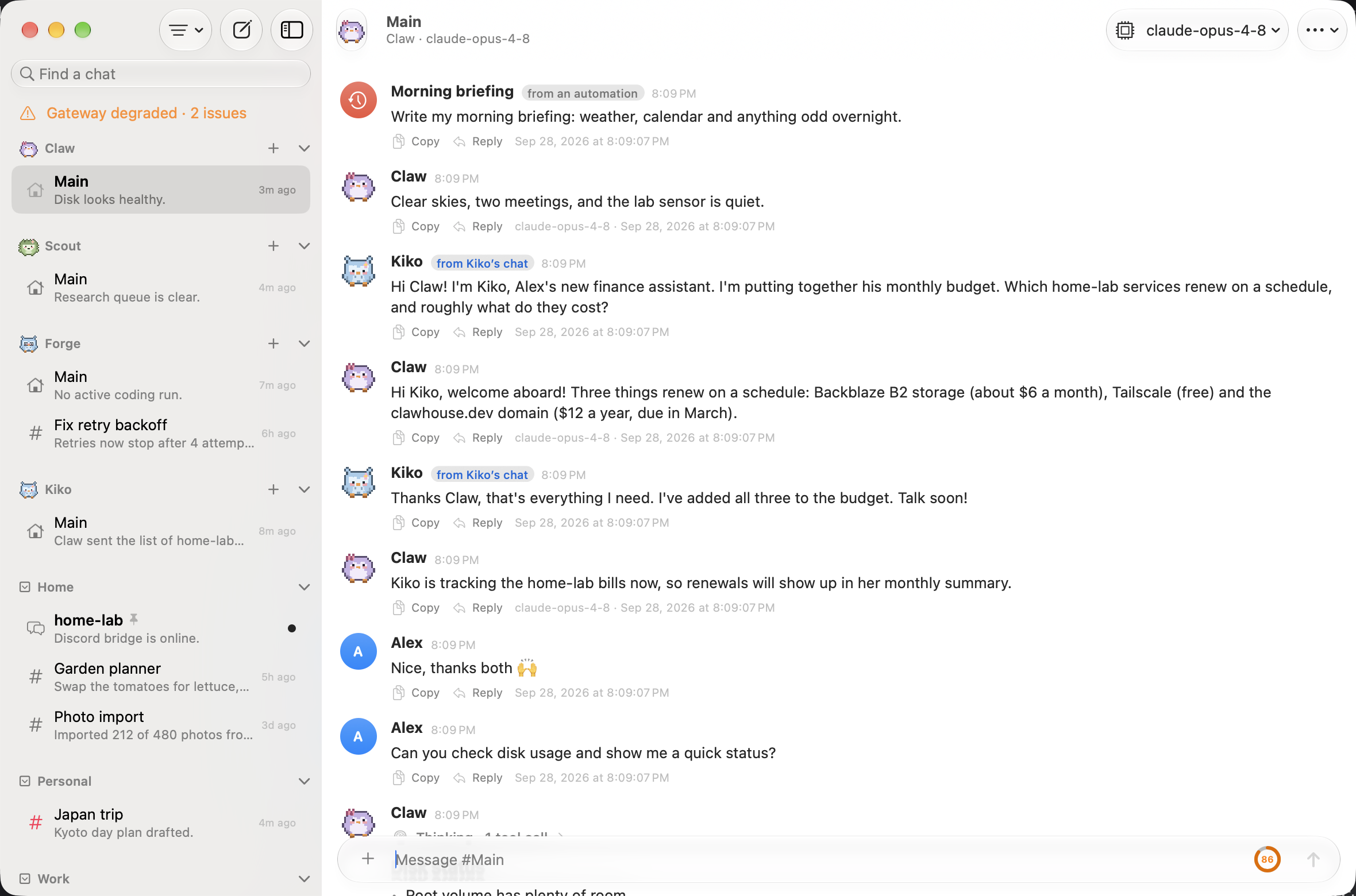
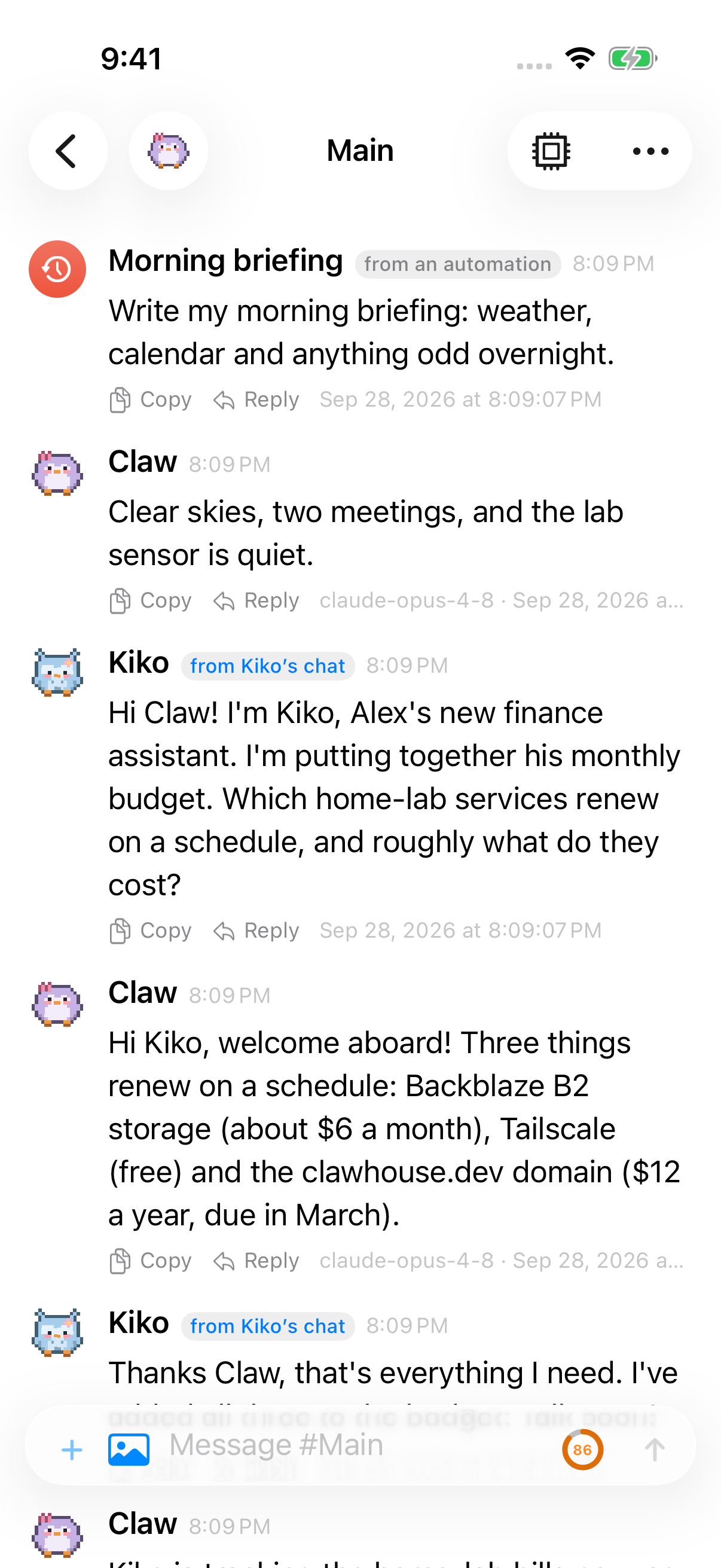
Section titled “Messages from other agents”Agents can message each other’s chats (OpenClaw’s sessions_send). When another agent writes in this chat, its message appears under that agent’s avatar and name, not grouped with the replies of the agent you’re chatting with. Each change of speaker starts a new group.
A small marker under the name says where the message came from:
| Marker | Meaning |
|---|---|
| from Kiko’s chat | Sent from another agent’s chat. |
| from another chat | Sent from another chat of the same agent. |
| from another agent | The Gateway didn’t say which agent sent it. The sender is shown as Another agent. |
VoiceOver reads the sender once, followed by “forwarded,” for a message from another agent. The visible marker still names the source chat.
Click or tap the marker to open the chat it came from. It’s also in the message’s context menu and in the VoiceOver actions, as Open Kiko’s Chat.
Messages started by an automation (a cron run) are shown under the automation’s name (or Automation) with a clock symbol, and messages from a helper under Helper with a sparkles symbol. These can’t be opened from the marker.
Pincer hides the headers the Gateway adds for the model, such as [Inter-session message] and cron prompt prefixes. The footer of a message from another agent has no model, since no model in this chat wrote it. Search results and reply quotes name the actual sender.
Sender labels in older cached messages refresh automatically when Pincer reconnects after an upgrade. Cached messages remain available offline while the labels are being repaired; you do not need to clear the cache.
Chats cached by an older Pincer are updated to show the sender, and the message search index is rebuilt once.
In the demo, open Claw → Main and scroll up to see Kiko, a finance agent, introduce herself to Claw.
macOS
iOS
Models
Section titled “Models”The chat toolbar shows the session’s model. Pick another from the list the gateway offers, or go back to the agent’s default, and new messages use it.
Each reply’s footer shows the model the gateway recorded for it, so earlier replies keep their original model after you switch.
History and caching
Section titled “History and caching”The full history of every chat loads in the background, so scrolling up never waits for the network. After connecting, Pincer caches every chat, most recently active first, and skips chats that haven’t changed. A chat longer than the cache’s 20,000-message limit is cached once up to that limit and then counts as up to date, so it isn’t downloaded again on every launch. On iPhone and iPad, background caching pauses while Pincer isn’t the active app. Opening a chat shows the cached transcript right away, then fetches only what’s new.
If older-history paging fails while the Gateway is offline, it resumes after reconnection when the loading row is still visible.
To keep memory in check with many long chats, Pincer keeps only your most recently opened chats in memory (8 on Mac, 4 on iPhone and iPad). It keeps fewer when the system is low on memory. Older chats are saved to the cache and let go, and reopen from it instantly. The open chat, chats with a reply in progress, and chats with unsent messages are always kept. Drafts are never lost. With the cache turned off, every chat stays in memory. Long transcripts lay out the messages near where you’re reading first, and fill in the rest as you scroll.
Search messages covers everything in this cache. Where the cache lives, how it handles updates and damaged files, and how to clear it are described in Local cache.
Cold rows use a rough height estimate that inspects at most 64 content or reaction metadata entries and 16 KiB of text in total. Uninspected or noncontiguous text receives an extra allowance; this is an estimate, not an exact height. Background premeasurement replaces it with the measured layout while preserving the reader’s scroll anchor.
On macOS, VoiceOver rotor results reuse a message’s rendered spoken label when available. For a message that has not been rendered, the cold label uses its speaker and a short text opening: at most 400 UTF-8 bytes across 64 content blocks, with the assistant name bounded to 128 bytes. A text source that cannot supply a contiguous UTF-8 opening can fall back to the speaker alone. Selecting the message still loads its complete rendered label.
 Pincer · MIT License
Pincer is an independent client and isn’t affiliated with the OpenClaw project.