Session manager
The Sessions page lists every session on your gateway, not just the chats in your sidebar. You can preview a session, see its details and run status, archive or delete several at once, switch between a session’s branches, rewind it to an earlier message, or recover a session a gateway restart interrupted.
Opening Sessions
Section titled “Opening Sessions”- Gateway Settings → Sessions, in the sidebar after Command Policy (and Skills). On macOS Gateway Settings opens in its own window; on iOS it opens as a sheet. See Gateway Settings.
- The command palette (⌘ K): Manage Sessions… opens the list; Manage Session… opens the current chat’s details.
- A chat’s ⋯ menu → Manage Session… opens that chat’s details.
If the gateway doesn’t offer sessions.list, Sessions isn’t in Gateway Settings and the menu items are hidden. Update OpenClaw to manage sessions here.
macOS
iOS
Browsing sessions
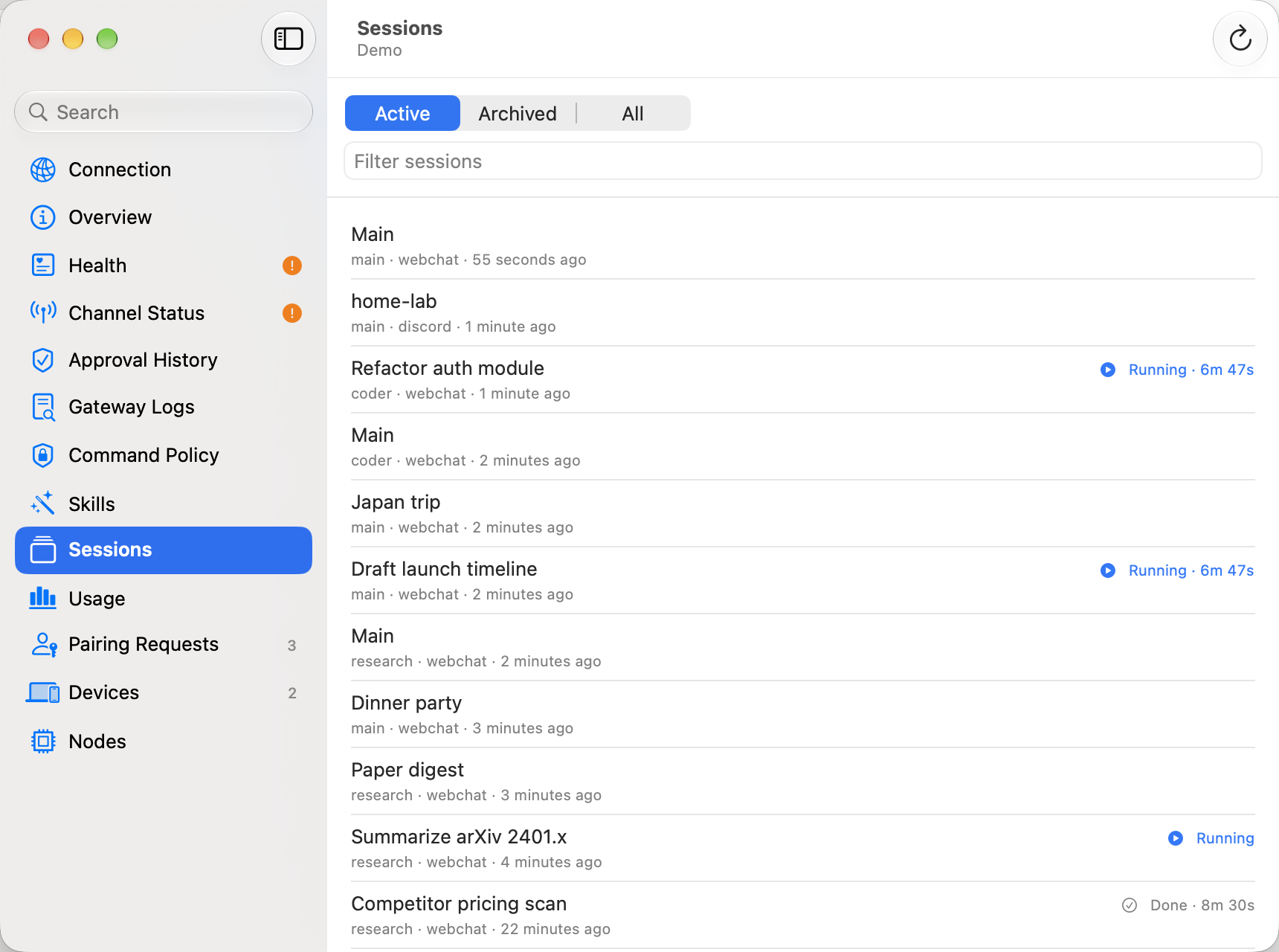
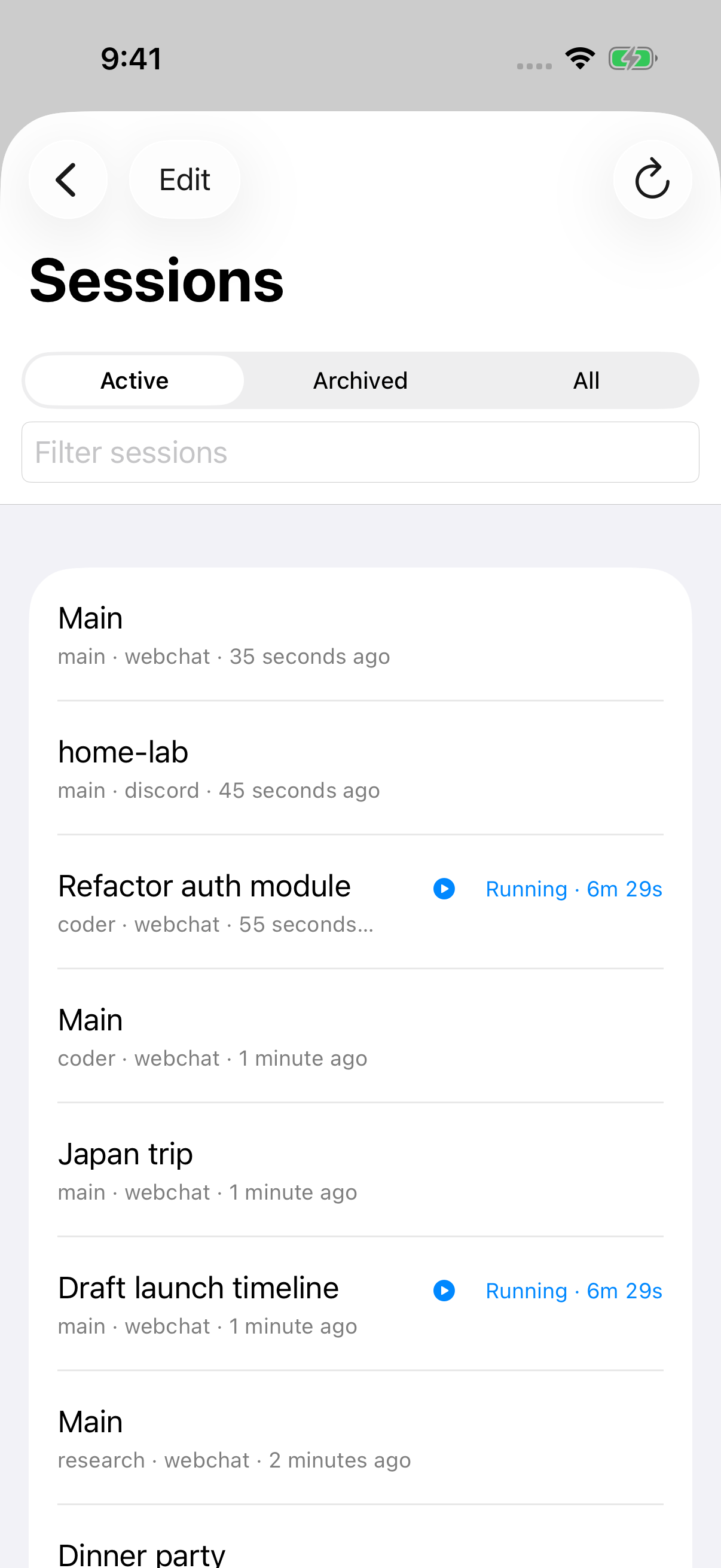
Section titled “Browsing sessions”Each row shows the session’s title, its agent and channel, and when it was last active. If it has run, the row also shows the latest run’s status (Queued, Running, Done, Error, Stopped or Timed Out) and how long it took; a running session’s time counts up. Invalid numeric durations display as zero, and extremely large finite durations saturate safely instead of preventing the Sessions page from opening. Archived sessions have an Archived tag, and sessions interrupted by a gateway restart have an orange icon.
- Show: Active (the default), Archived or All.
- Filter sessions: match the title, key, label, agent or channel.
The newest activity is at the top. On macOS, select a session to see a preview of its last few messages under the list. Double-click it or choose Details… (on iOS, tap it) to open its details:
| Section | What’s there |
|---|---|
| Details | Run status, agent, channel, model, context and last-run tokens, branch count, when it was created and last active, archive date and reason, key and session ID. |
| Preview | The last few messages. |
| Actions | Recover Session (when it can be recovered), Archive or Unarchive, and Delete…. |
| Branches | Every branch of the conversation. See Branches. |
| Rewind | Your recent messages to rewind to. See Rewinding. |
Previews, details and branches load only when you look at a session, so the list stays quick on gateways with hundreds of sessions. Refresh reloads them.
Archiving and deleting
Section titled “Archiving and deleting”To act on several sessions at once, select them: on macOS with ⌘-click, ⇧-click or ⌘ A; on iOS with Edit. A bar at the bottom shows how many are selected, with Archive, Unarchive and Delete…. The same actions are in the right-click (or long-press) menu, and on macOS ⌫ deletes.
- Archive and Unarchive happen straight away, and Pincer says how many sessions changed, for example Archived 3 sessions. If the gateway refuses some, they’re listed with its reason and stay selected. Archived sessions leave the sidebar but keep their transcripts.
- When an archive or delete action fails, Pincer shows the session title when it’s known, or its session key otherwise, alongside the gateway’s reason.
- Delete… always asks first, for example Delete 3 sessions? or, for one, Delete “Garden planner”?: This permanently deletes the transcript on the gateway and can’t be undone. If any of them have unsent messages, it adds how many, for example The 1 unsent message in this chat will be discarded too. or 3 unsent messages in these chats will be discarded too., and deleting discards them along with their attachments. Pincer also drops those sessions’ locally cached transcripts and removes them from message search, and if one was open, Pincer switches to another chat.
After deletion succeeds, an older detail request cannot bring the deleted session’s metadata back.
Changing the filter clears the selection.
Branches
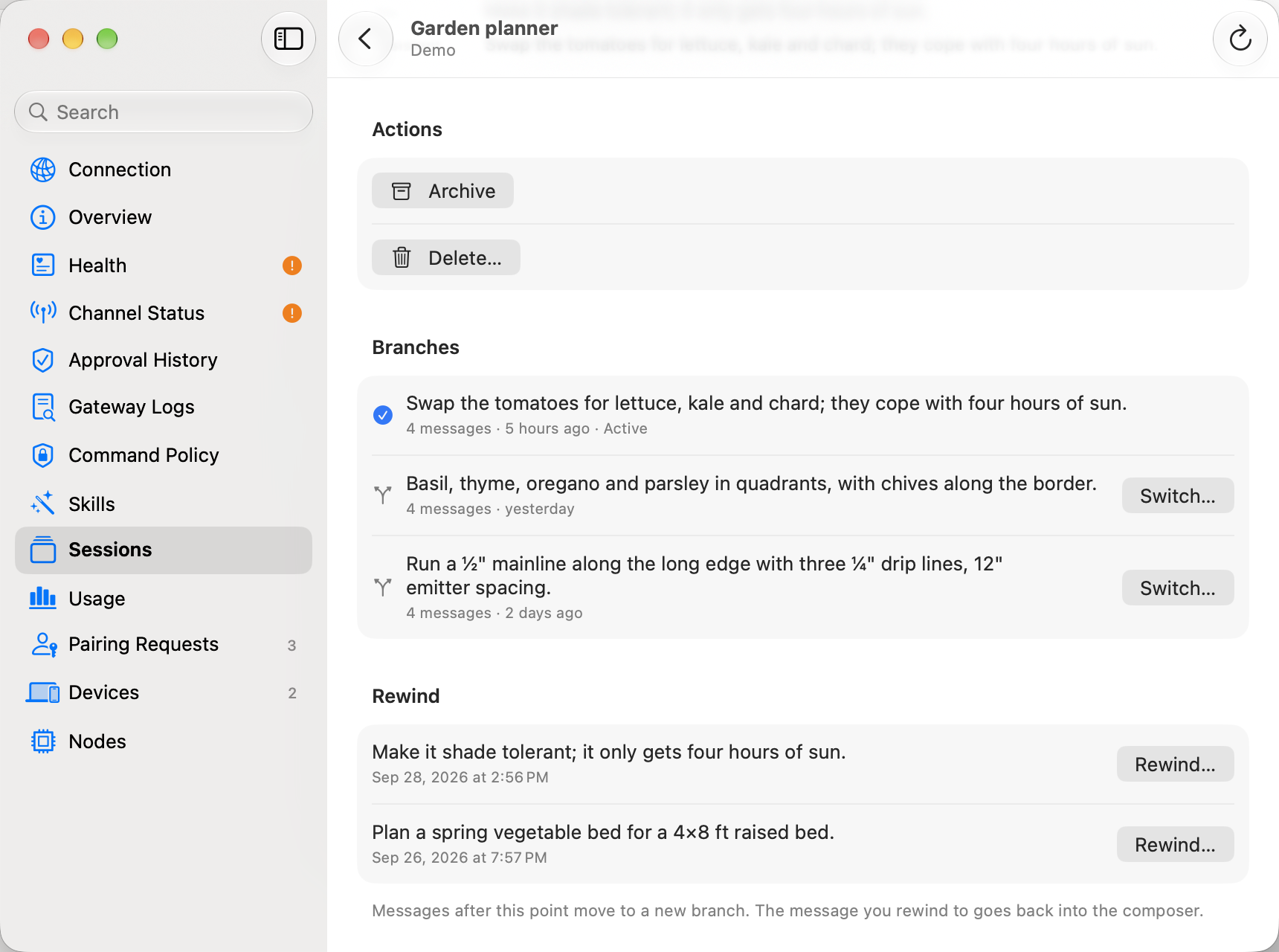
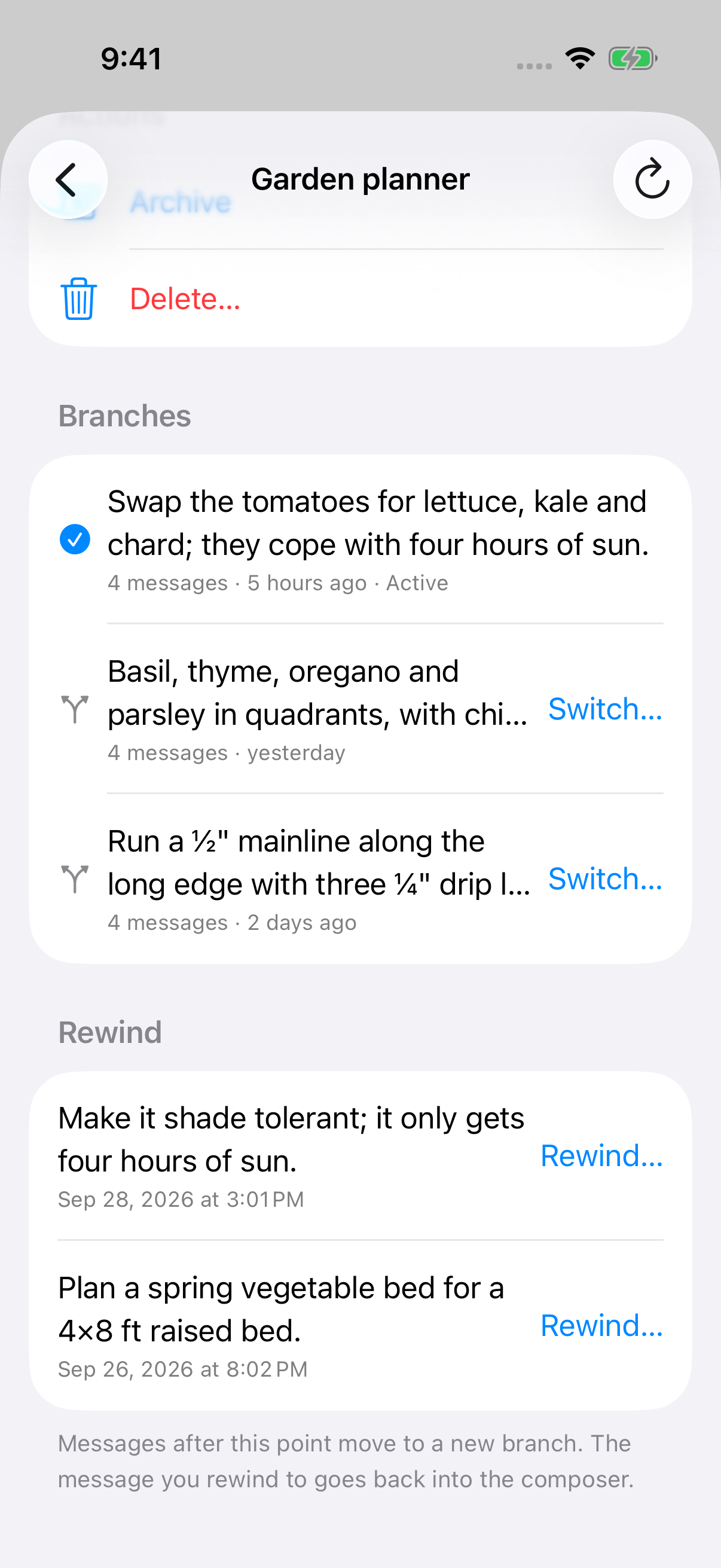
Section titled “Branches”When earlier messages are edited, retried or rewound, the gateway keeps each version of the conversation as a branch. The Branches section lists them with a headline, message count and when each was last updated. The current branch has a checkmark.
Choose Switch… on another branch, then Switch Branch to confirm. The chat continues from that branch, and the one you left is kept, so you can switch back.
macOS
iOS
Rewinding
Section titled “Rewinding”The Rewind section lists your recent messages in the session. Choose Rewind… on one, then Rewind to confirm. The session goes back to just before that message, the message goes back into the chat’s composer so you can edit and resend it, and everything after it stays on its own branch.
You can’t rewind an archived session (unarchive it first) or a session with a reply in progress.
After a branch switch or a rewind, from Pincer or anywhere else, Pincer drops the session’s cached transcript and reloads the open chat from the gateway. The Rewind list also refreshes after a successful session change. Earlier history responses cannot restore entries or errors from the previous active path.
Recovering a session
Section titled “Recovering a session”If the gateway restarted in the middle of a run, it marks that session as interrupted. Recover Session (OpenClaw 2026.8 or later) asks the gateway to start a new session that continues from it. Pincer opens the new session’s details, and the interrupted one is archived.
Older gateways
Section titled “Older gateways”Pincer only shows what your gateway offers. Without previews, the preview says Previews need a newer gateway; without branches, Branches need a newer gateway. Without rewind or recovery, those controls are hidden, and the rest of the page still works. On gateways without bulk archive (sessions.patchMany), Pincer archives sessions one at a time.
In the demo
Section titled “In the demo”The demo has sample sessions for every action: 2025 taxes and GPU benchmarks are archived, Refactor auth module is running for about 90 seconds after you open the demo (so it also shows under Running in the menu bar), then shows Done with its run time, Fix flaky CI failed, Photo import was interrupted by a restart and can be recovered, and Garden planner has three branches. Archiving, deleting, switching branches, rewinding and recovering all work, with no gateway and no Full Management needed, and nothing is kept once you quit.
Run states and elapsed-time units follow the app’s language. English durations use hr, min, and sec to distinguish minutes from metres; durations keep the same rounding and omit seconds once an hour has elapsed.
Session duration labels, including VoiceOver labels, safely handle oversized elapsed times; ordinary elapsed times keep their existing units.
 Pincer · MIT License
Pincer is an independent client and isn’t affiliated with the OpenClaw project.