Appearance
Open Settings → Appearance to choose how Pincer looks.
Pincer Settings
Section titled “Pincer Settings”Pincer’s own Settings hold preferences for this device. They’re separate from Gateway Settings, which change the gateway’s config.
- macOS: choose Pincer → Settings… (⌘ ,). Settings is a window with tabs.
- iPhone and iPad: tap the gear at the top of the chat list, or open the command palette (⌘ K) and choose Open Settings…. Settings opens a list of pages; tap one to open it.
Both have the same pages, in this order:
| Page | What’s on it |
|---|---|
| General | Your name; Launch, Quick Capture and Menu Bar (macOS only); Storage (cached chats and the outbox); Search (Spotlight); Tips; About (help and the privacy policy). |
| Gateways | The gateways saved on this device, their connection settings, the demo and This device. See Manage gateways. |
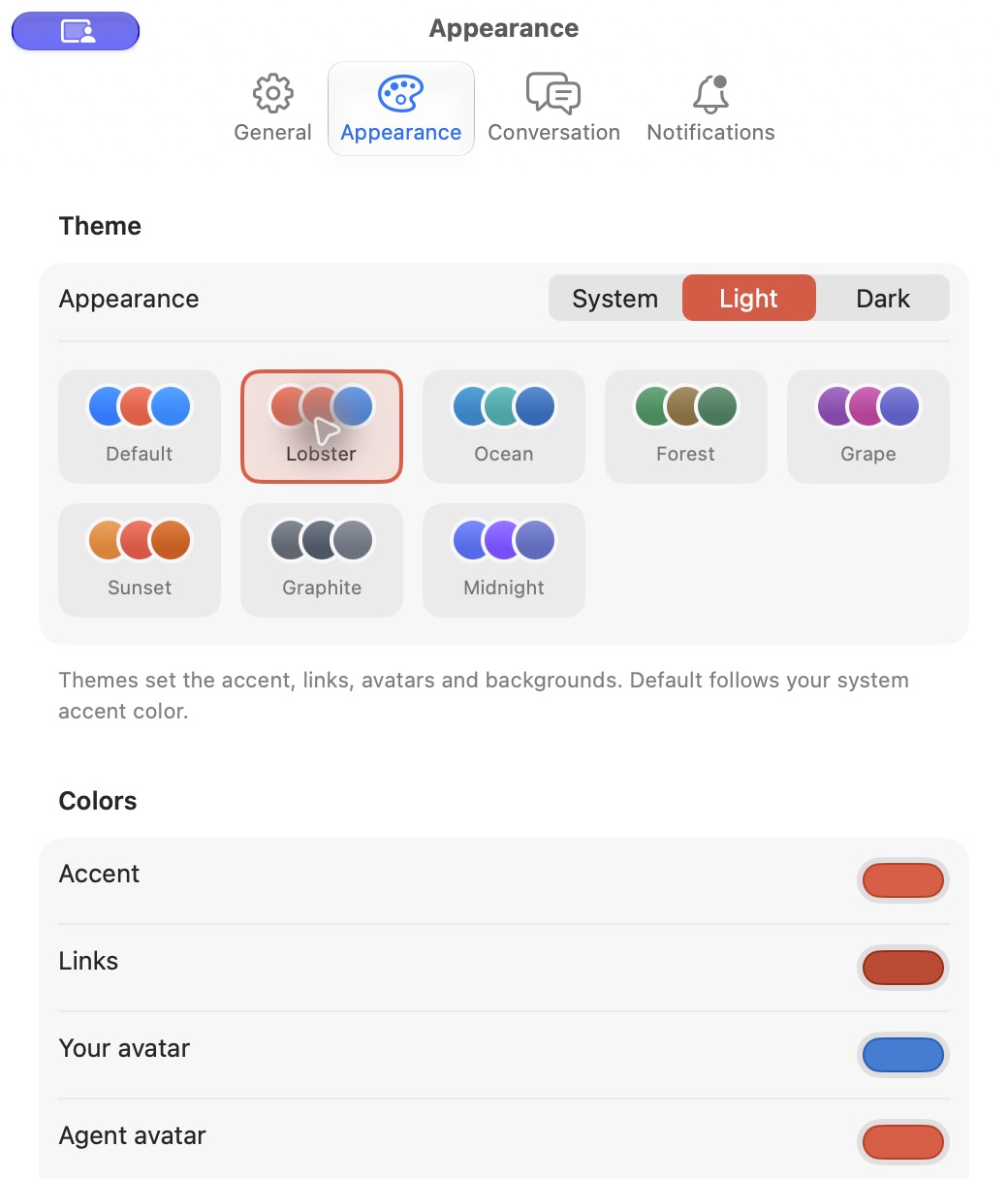
| Appearance | Theme, avatars, colors and Sidebar. |
| Chats | Thinking steps and reactions; Read Aloud; Dictation. |
| Notifications | Notifications on this device and, on iOS, while Pincer is closed. |
| Privacy | Location: Share location context with the agent (see Composer). Web Content: Load images the agent links from the web. |
| Keyboard Shortcuts | iPad and Mac only (the Mac tab is labeled Shortcuts). See Change a shortcut. |
On macOS, the Settings window fits the available height of its display. Moving it to a shorter display, or changing the space available around the Dock, updates the height limit; long tabs scroll and shorter tabs stay compact.
macOS
iOS
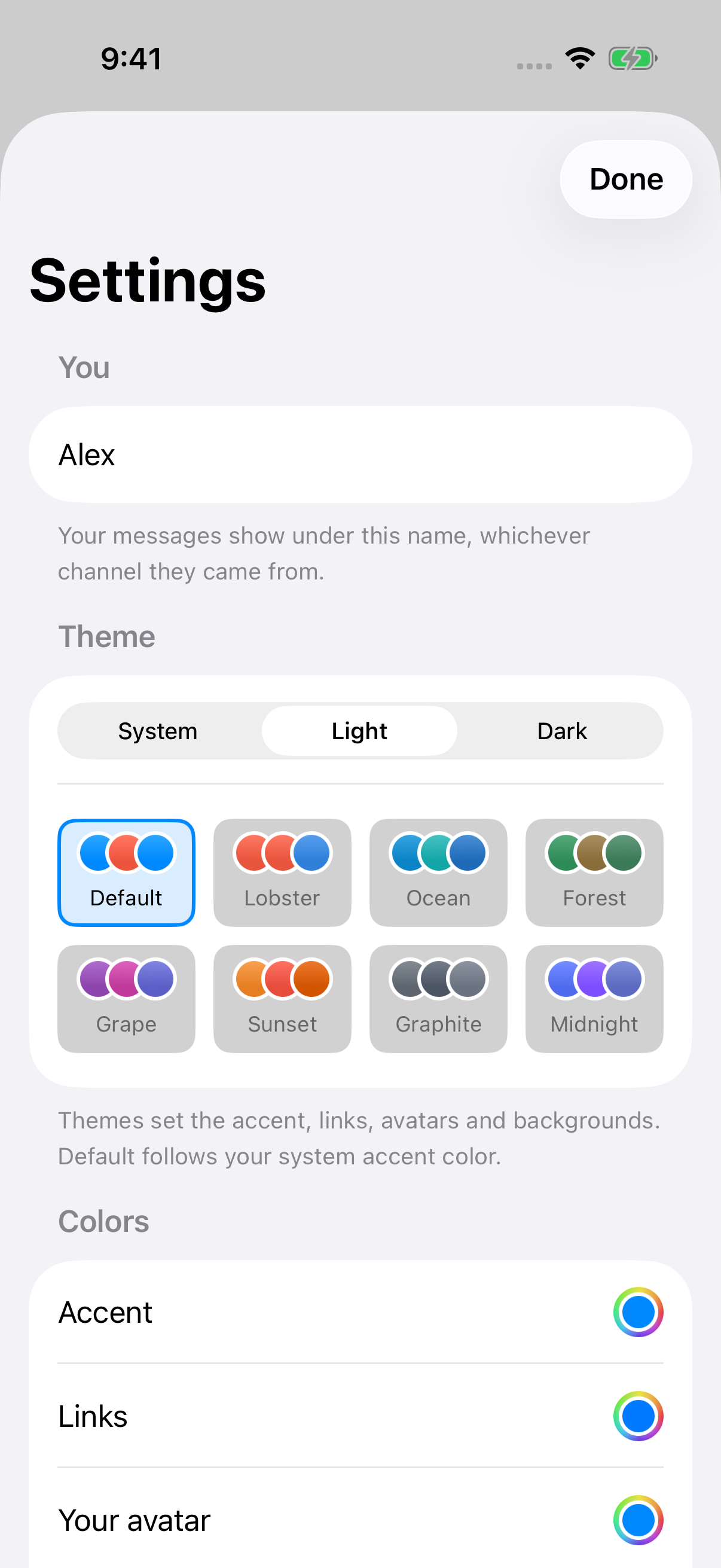
Light, Dark or System
Section titled “Light, Dark or System”Pick Light, Dark, or System to follow your device.
Themes
Section titled “Themes”Themes color the accent, links, both avatars, and the chat, sidebar and code backgrounds, with separate shades for light and dark mode. Code-block Copy and Preview buttons update their accent immediately when the theme changes.
Default keeps Pincer’s original look: your system accent color and the standard backgrounds.
Custom colors
Section titled “Custom colors”Any of a theme’s colors can be overridden with your own pick, and reset back to the theme’s.
Sidebar
Section titled “Sidebar”The Sidebar section sets what the chat list shows:
- Show last message under each chat: a one-line preview of the latest message. On by default.
- List subagent runs under their chat: off by default, so each chat is one thread and you open a run from its tool call. See Organizing chats.
Chat and group icons and colors
Section titled “Chat and group icons and colors”You can also style individual chats and groups from the sidebar:
- Color → Custom… on a chat picks any color.
- Change Icon… on a chat or group header picks an SF Symbol.
These sync to your other devices through the gateway. See Organizing chats.
 Pincer · MIT License
Pincer is an independent client and isn’t affiliated with the OpenClaw project.